⚡ Quick Summary: The Crashing Cure
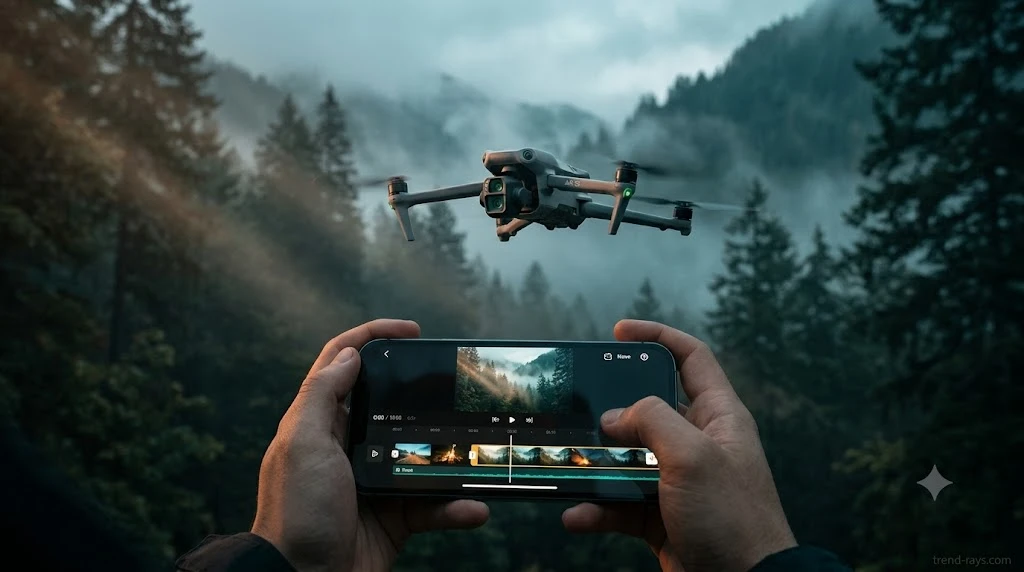
If your smartphone freezes or shuts down when editing DJI Air 3S footage on CapCut mobile, your hardware is hitting the H.265 (HEVC) bottleneck. It is not a software bug; it is a hardware limitation. To fix it instantly without degrading quality, you must force CapCut to use Proxy Mode or use the DJI Fly app direct-download workflow.
The Root Cause: Why 4K 10-Bit H.265 Air 3S Footage Kills Mobile RAM
If you are constantly battling mobile crashes while editing 4K 10-bit drone footage, your hardware might be the bottleneck. Before changing your DJI export settings, ensure you are actually using the most optimized software by checking our master guide to the Best Mobile Video Editing Apps for Creators. If you are already using CapCut, here is exactly why it is failing.
The H.265 (HEVC) Codec Trap
The DJI Air 3S defaults to H.265 (High-Efficiency Video Coding). This codec is an engineering marvel for drones because it compresses massive amounts of visual data into tiny file sizes, saving precious MicroSD card space. However, that compression comes at a severe cost. Decoding H.265 files in real-time requires immense processor power. When you scrub through your CapCut timeline, your phone’s CPU is forced to unpack heavily compressed algorithms frame-by-frame, which rapidly drains resources.
The 10-Bit Color Bottleneck (D-Log M)
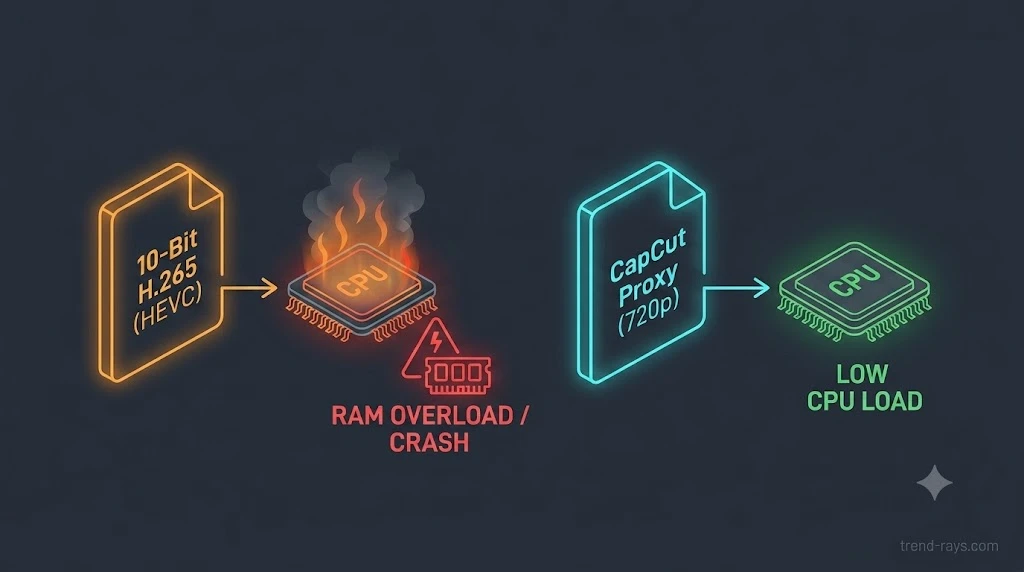
If you shoot in DJI’s cinematic 10-bit D-Log M color profile, your files hold over a billion shades of color. While this is incredible for color grading, mobile devices are primarily optimized for standard 8-bit video. The moment you apply a CapCut LUT, transition, or color adjustment to a 10-bit H.265 file, your smartphone’s RAM and thermal limits are maxed out. The OS interprets this as a critical resource drain and forcefully closes CapCut to protect the device.
Interactive Tool: Mobile Processor Compatibility Check
Drone Edit Compatibility Checker
🚁 Drone Codec & Processor Compatibility Check
Select your DJI Air 3S recording format and smartphone processor tier to simulate the hardware load during a CapCut mobile editing session.
The Primary Workflow: Forcing CapCut Mobile to Use Proxies
What is CapCut Proxy Mode and Why It Saves Your Project
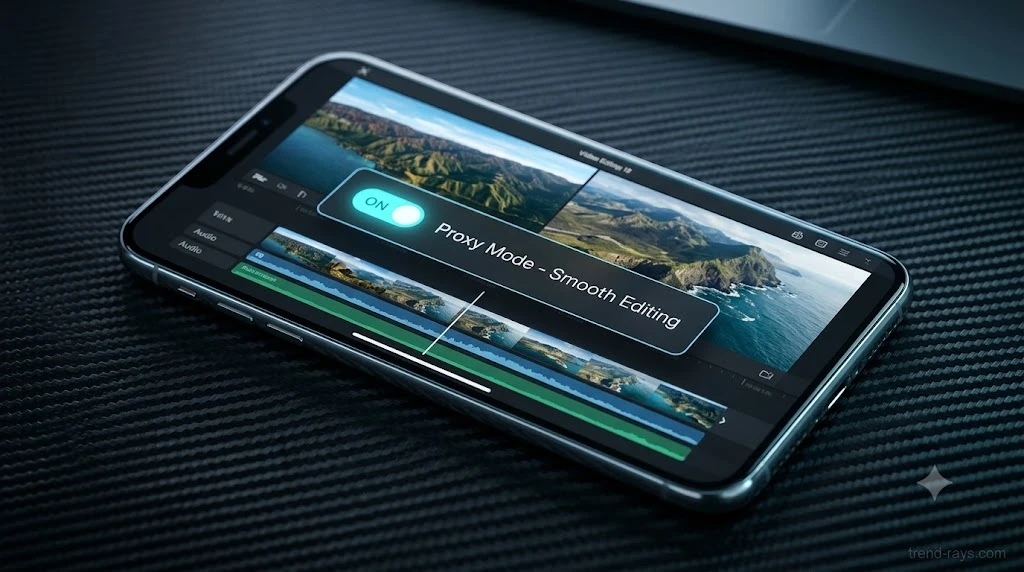
A “proxy” is a temporary, low-resolution copy (often 720p) of your heavy 4K file. When Proxy Mode is enabled, CapCut lets you edit, slice, and color-grade using these lightweight copies, dropping your CPU load by over 80%. When you finally hit the “Export” button, CapCut swaps the proxies out and renders the final video using your original, pristine 4K 10-bit raw files.
Step-by-Step Guide: Enabling Proxies for Existing Projects
- Open your crashing CapCut project.
- Tap the gear icon (Settings) in the top right corner of the timeline.
- Locate the Proxy Mode toggle and turn it ON.
- Allow the app a few minutes to generate the low-res proxies (do not lock your screen during this process).
- Resume editing. Your timeline scrub will instantly feel smooth, and crashes will cease.
⚠️ The Proxy Storage Trap (Why Proxies Can Cause Crashes)
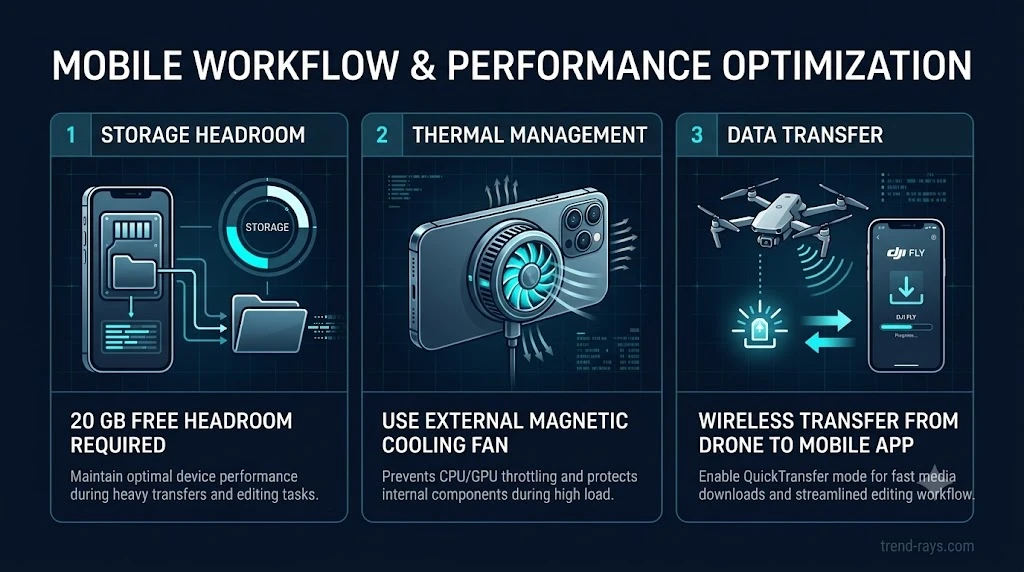
Crucial Warning: Before you enable Proxy Mode, check your smartphone’s free storage. Generating proxies for 4K 10-bit drone footage consumes massive amounts of background storage. If your phone has less than 15 GB to 20 GB of free space, the moment CapCut attempts to generate the proxy file, iOS or Android will forcefully terminate the app to protect core system functions. Always delete old proxy cache files (Settings > Clear Cache) before starting a new Air 3S project.
Solution 2: Pre-Edit Optimization with the DJI Fly App
Direct Download vs. Raw Export: Choosing the Safe Route
Many creators make the mistake of plugging the Air 3S’s MicroSD card directly into their phone via a USB-C dongle to transfer raw files. Instead, use the QuickTransfer feature inside the DJI Fly app. When you download files wirelessly via QuickTransfer, you can opt to download optimized, mobile-ready versions that are pre-compressed, drastically lowering the editing burden on CapCut.
The LightCut Integration (DJI’s Official Mobile Editor Alternative)
If CapCut completely fails, pivot to DJI’s officially supported mobile editor, LightCut. This app features a native integration with the Air 3S that allows you to preview and edit footage without downloading the raw files to your phone’s local storage. It streams the data directly from the drone, completely bypassing your smartphone’s RAM limitations.
Solution 3: Hardware Management Techniques (Dubai/SE Asia Specifics)
Managing Mobile Throttling and Heat Management
If you are flying and editing in hot climates—like the UAE (Dubai), Malaysia, or the Philippines—your smartphone is already fighting thermal throttling before you even open CapCut. When a phone overheats, the processor intentionally slows down, guaranteeing an editing crash. Always edit indoors with AC, or remove your phone case and use a magnetic cooling fan when processing 4K renders in high ambient temperatures.
RAM Flushing and Background App Management
Before loading heavy D-Log M files into CapCut, you must flush your device’s memory. Close all background apps, specifically RAM-heavy applications like Instagram, Chrome, and background VPNs. A fresh reboot before starting a heavy 4K 60fps editing session ensures CapCut has access to the maximum possible active memory.
The Final Resort: Sacrificing Cinematic Quality for Compatibility
Pre-Flight Checklist: Dropping to H.264 or 8-Bit Color
If you are using an older smartphone (e.g., an iPhone 11 or an older mid-range Android) and proxies still fail, you must change your hardware approach before you even launch the drone. Open the DJI Fly App camera settings and switch the video format from H.265 to H.264. While the files will be slightly larger, H.264 is universally supported and effortless for older processors to decode. Additionally, switch off D-Log M and record in the standard 8-bit Normal color profile to remove the heavy data burden.
FAQs: Troubleshooting DJI Air 3S and CapCut Mobile
What is the best video codec for CapCut mobile?
For ultimate editing stability, H.264 (MP4) is the best codec because almost all mobile processors feature built-in hardware decoding for it. However, if you want the highest quality and lowest file size, H.265 (HEVC) is superior, but it mandates the use of CapCut’s Proxy Mode on older devices to prevent freezing.
Why does my iPhone 13 Pro crash when editing D-Log M?
Your iPhone is crashing due to a 10-bit decoding bottleneck. D-Log M files contain over a billion colors. When you try to natively scrub or color-grade these massive files on a mobile CPU without utilizing proxies, the device runs out of active RAM and thermal headroom, forcing CapCut to close.
Can I edit 4K 120fps drone footage on CapCut?
Yes, but with severe hardware limitations. 4K 120fps generates massive amounts of data per second. Even flagship devices will struggle to render this natively. You must enable CapCut Proxy Mode before dragging 120fps slow-motion files onto the timeline, and ensure your phone has at least 15GB of free storage space for temporary cache files.
Conclusion: High-Performance Drones Meet Mobile Post-Production
💡 A Real-World Experience: The Proxy That Saved the Reel
Last month, while filming sunset hyper-lapses in the mountains, I tried cutting a 30-second reel in the car using raw 4K 10-bit Air 3S footage. CapCut crashed three times before I even applied the first transition. The moment I toggled “Proxy Mode,” the timeline playback instantly smoothed out. I finished the color grade in 10 minutes, exported it flawlessly using the raw files in the background, and uploaded it before I even lost cell service.
You should absolutely adopt the DJI Air 3S for its incredible imaging capacity, but you must respect the physical hardware limits of your mobile editing device. Work smarter, not harder, by letting proxy files shoulder the heavy lifting.
4-Point Air 3S Mobile Workflow Checklist
- [ ] Enable Proxy Mode: Always toggle proxies on inside CapCut before importing H.265 files.
- [ ] Flush Device RAM: Force-close all background apps prior to starting a 4K edit.
- [ ] Control device Thermals: Remove your phone case if editing in high ambient temperatures to prevent processor throttling.
- [ ] Use H.264 as a Fallback: If your device is older, switch your drone settings to H.264 / 8-bit color before takeoff.