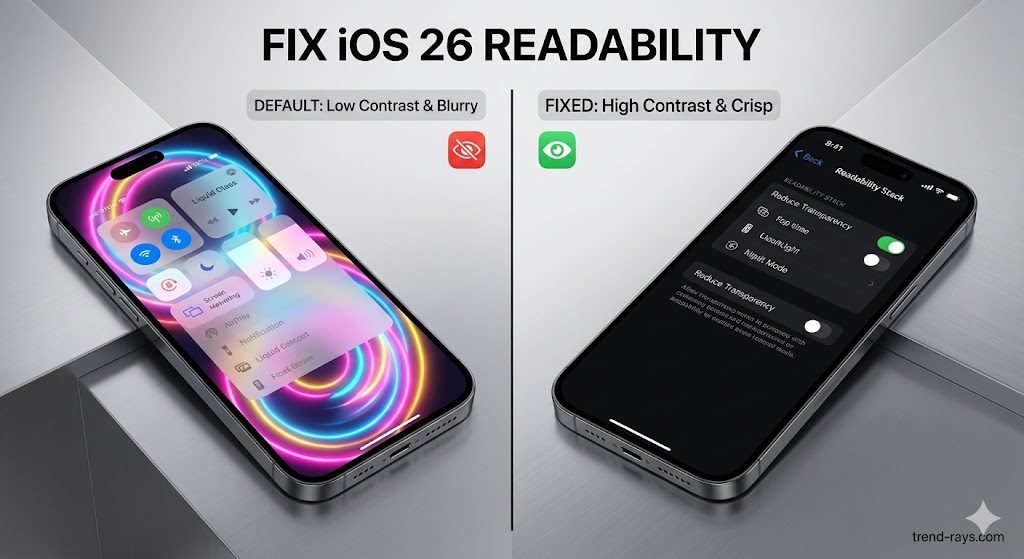
Apple’s iOS 26 update brought one of the most drastic visual overhauls to the iPhone in years. Dubbed “Liquid Glass,” this new design language relies heavily on deeply translucent menus, frosted glass overlays, and dynamic background blurring.
While it certainly looks futuristic and fluid in Apple’s marketing materials, the reality for many daily users is much different. The low contrast and constantly shifting background colors behind text have led to widespread complaints of eye strain, poor readability in sunlight, and general navigational confusion.
Whether you are searching for how to turn off liquid glass on iPhone completely, or just looking for the right iOS 26 liquid glass settings to make your screen readable again, you are in the right place. We will walk you through exactly how to tone down transparency on iPhone and regain control over your display’s contrast.
While Apple does not offer a simple “Revert to iOS 25” button, there are powerful built-in accessibility settings that allow you to essentially disable the Liquid Glass effect. Here is your comprehensive guide to fixing your iPhone’s display and restoring crisp, clear readability.
Why is the iOS 26 Liquid Glass UI Causing Eye Strain?
To understand how to fix the problem, it helps to understand what the software is actually doing. Liquid Glass is a rendering technique that pulls the colors of your current wallpaper or the app behind an open menu, heavily blurs them, and uses that as the background for your text.
- The Contrast Problem: When a bright, multi-colored wallpaper is blurred behind thin, white iOS text, the contrast ratio drops significantly. Your eyes have to work twice as hard to separate the foreground text from the noisy background.
- The Motion Problem: Liquid Glass is dynamic. If a video is playing behind a translucent menu, the menu’s background shifts and flickers in real-time, causing subconscious visual fatigue.
Fortunately, we can strip away these rendering effects using three distinct methods, depending on how far you want to go.
Beyond the Settings: How to Combat Screen-Related Eye Strain
While disabling the Liquid Glass UI is the best first step, modern smartphone screens can still cause massive visual fatigue. If your eyes are feeling heavy, dry, or strained after using your iPhone, try implementing these built-in Apple features alongside the settings above:
- Schedule Night Shift: Blue light suppresses melatonin and strains your eyes after dark. Go to Settings > Display & Brightness > Night Shift and schedule it from sunset to sunrise to warm up your screen’s color temperature automatically.
- Enable True Tone: Located in your Display settings, True Tone uses advanced sensors to adjust your screen’s color and intensity to match the ambient light in your room, making reading feel more like looking at physical paper.
- Use the Screen Distance Feature: Staring at a screen too closely forces your eye muscles to work overtime. Introduced in recent iOS updates, go to Settings > Screen Time > Screen Distance. Your iPhone will now use the Face ID camera to alert you if you are holding the device dangerously close to your face for extended periods.
- The 20-20-20 Rule: Every 20 minutes, look at something 20 feet away for 20 seconds. This is the golden rule recommended by optometrists to reset your eye focus and prevent digital eye strain.
Why is there No Liquid Glass in iOS 26 on My Device?
If you recently updated your phone but are thinking, “There is no Liquid Glass in iOS 26 on my screen,” you are not losing your mind. The absence of this feature on older devices comes down to a mix of hardware limitations and Apple’s classic business strategy.
The Hardware Reality: Apple’s new Liquid Glass rendering engine requires significant GPU power and neural engine processing to blur backgrounds dynamically in real-time. Older chips simply cannot handle this without heavily draining the battery and causing the phone to overheat.
The Business Perspective (Feature Gating): From a business standpoint, Apple relies on “feature gating” to drive new iPhone sales. By reserving visually stunning features like Liquid Glass exclusively for their newest Pro models equipped with the latest silicon, they create a clear visual distinction between old and new devices. It is a subtle form of upselling; when you see the sleek new UI on a friend’s newer iPhone, it acts as a psychological nudge to upgrade your perfectly fine, but older, device.
If you are using an iPhone 14 or an older SE model, the operating system defaults to a standard, slightly opaque design. You do not need to turn off Liquid Glass because Apple has already bypassed it for you.
iOS 26 Liquid Glass Not Working? How to Fix It
Sometimes the issue isn’t that the UI is too bright—it’s that the iOS 26 Liquid Glass is not working at all. If your Control Center or notification banners appear as solid black or glitchy gray boxes instead of the intended frosted glass, your rendering engine has likely stalled.
Here is how to force the UI to reset:
- Toggle Dark Mode: Rapidly switch between Light and Dark mode three times in Settings > Display & Brightness. This forces the UI to redraw the backgrounds.
- Check your Accessibility Settings: Ensure that Reduce Transparency is actually turned OFF. If you bought a used phone or transferred settings from an older device, this might be enabled by default.
- Hard Reboot: Press Volume Up, Volume Down, and hold the Power Button until the Apple logo appears. This clears the graphics cache and usually restores the frosted glass look immediately.
Method 1: Enable “Reduce Transparency” (The Immediate Fix)
This is the most effective way to eliminate the Liquid Glass effect across your entire device. The “Reduce Transparency” feature is an accessibility tool designed specifically for users who suffer from motion sickness or visual impairments. Turning this on will replace the frosted, translucent menus with solid, opaque colors (usually dark gray or solid white, depending on your Dark Mode settings).
Step-by-Step Instructions:
- Unlock your iPhone and open the Settings app.
- Scroll down and tap on Accessibility.
- Under the “Vision” category, select Display & Text Size.
- Locate the toggle for Reduce Transparency.
- Switch the toggle to the ON (green) position.
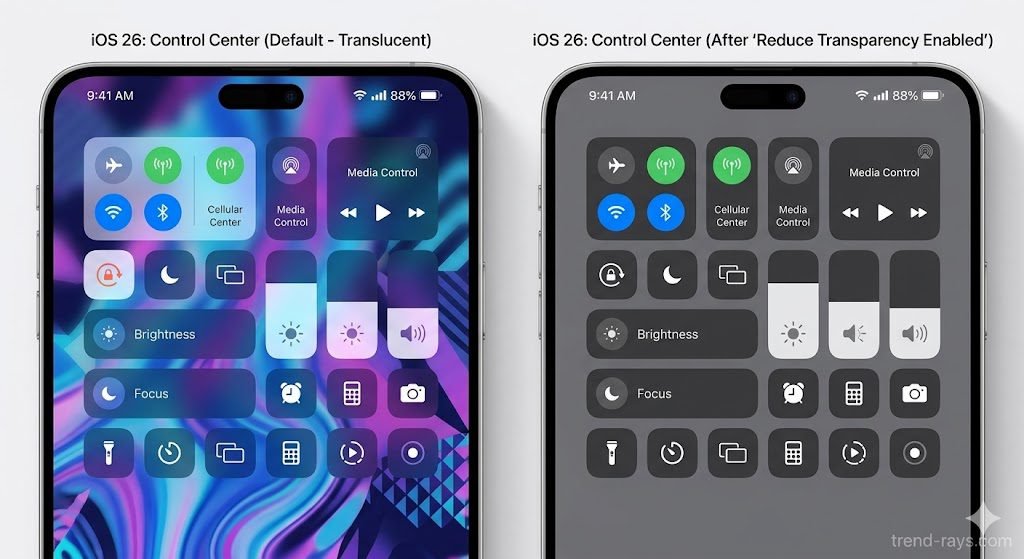
The Result: Your notification banners, folders, dock, and Control Center will immediately drop the blur effect. Text will now sit on top of a solid, unchanging background, drastically improving legibility.
Method 2: iOS 26.1: Turn Off Liquid Glass Glare Using the New “Tinted” Settings
Following the initial wave of user frustration at the launch of iOS 26, Apple quietly introduced a compromise feature in the iOS 26.1 update. If you updated your device and want to know how in iOS 26.1 to turn off Liquid Glass glare without making your phone look dull, the “Tinted” option is your best bet.
This feature allows you to keep the blur effect but forces it to render in a single, customized color, eliminating the chaotic multi-colored backgrounds that cause eye strain.
Step-by-Step Instructions:
- Ensure your iPhone is updated to at least iOS 26.1 (Check via Settings > General > Software Update).
- Go to Settings > Display & Brightness.
- Scroll down to the newly added Liquid Glass Rendering menu.
- Change the setting from Dynamic to Tinted.
- A color wheel slider will appear. We highly recommend selecting a darker shade like navy blue, deep gray, or soft black.
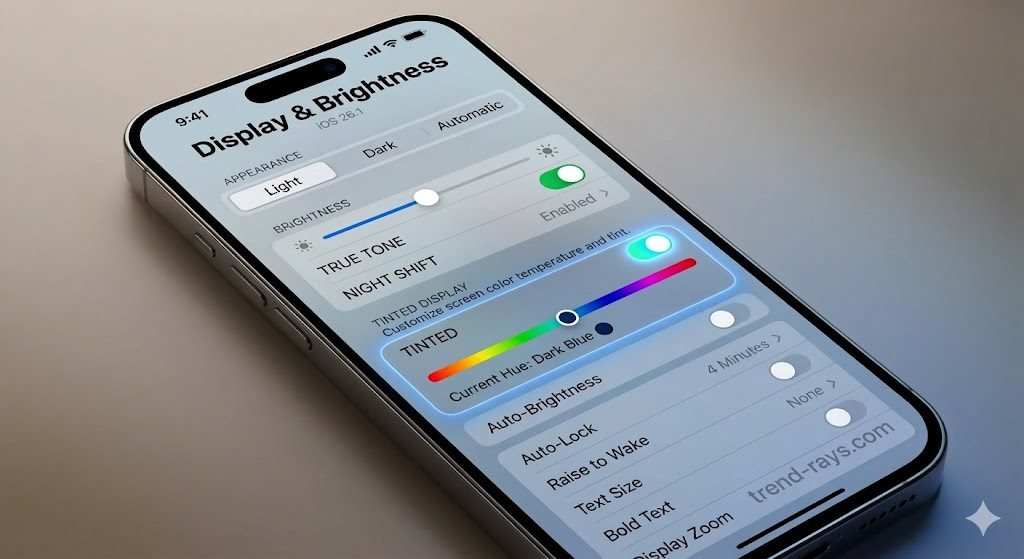
The Result: Your menus will still look modern and slightly glassy, but the background noise is replaced by a soothing, uniform color that makes reading much easier.
Method 3: The Ultimate Readability Stack (For Maximum Contrast)
If you use your phone heavily for reading emails, reading articles on trend-rays.com, or browsing text-heavy apps, you can stack several display settings together to create an incredibly sharp, high-contrast environment.
Try combining these three settings:
- Keep “Reduce Transparency” ON: (As outlined in Method 1).
- Turn ON “Increase Contrast”: Found right below Reduce Transparency in Settings > Accessibility > Display & Text Size. This setting forces Apple to use darker, more distinct borders around buttons and text fields.
- Keep “Dark Mode” Permanently ON: Go to Settings > Display & Brightness and select Dark. Turn off the “Automatic” toggle so your phone doesn’t switch back to Light Mode during the day.
When you stack these three features, you entirely bypass the Liquid Glass UI and create a highly utilitarian, professional interface where text pops off the screen perfectly.
Alternative Workaround: Change Your Wallpaper (And Where to Get Them)
If you absolutely want to keep the Liquid Glass aesthetic active but are still struggling to read your notifications, the problem might actually be your wallpaper.
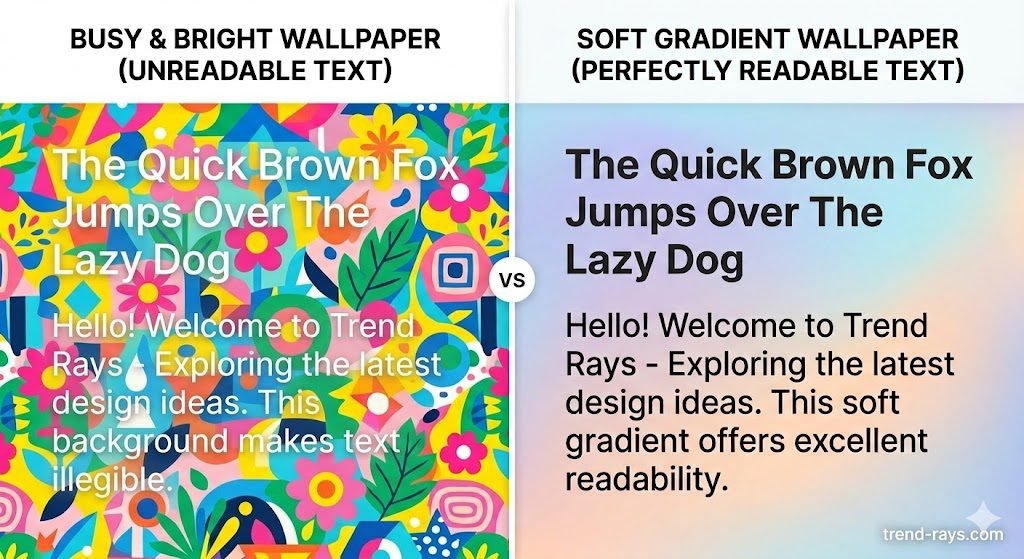
Because Liquid Glass dynamically pulls colors from the image behind it, highly detailed or overly bright wallpapers (like dense forests, bright cityscapes, or abstract neon art) create terrible backgrounds for text.
The Fix: Switch to a minimalist, dark, or gradient-based wallpaper. By providing the Liquid Glass rendering engine with a smooth, dark image to blur, your notifications will naturally appear much cleaner.
Where to Download the Best Minimalist Wallpapers:
You don’t need to settle for Apple’s default options. Here are the best places to find high-quality, Liquid Glass-friendly wallpapers:
Pixabay: An incredible resource for royalty-free images. Search for “dark gradient,” “minimalist abstract,” or “dark aesthetic” to find thousands of free, high-resolution backgrounds that won’t interfere with your text readability.
Pixlr (For Editing): Can’t find the perfect wallpaper? Use Pixlr, a free web-based photo editor. You can take any photo you love, upload it to Pixlr, and apply a heavy “Gaussian Blur” or lower the brightness. This custom-edits the image to play perfectly with iOS 26’s translucent menus.
Pexels: Similar to Pixabay, Pexels offers stunning, professional-grade stock photography. Their library of “dark texture” and “AMOLED black” photos is perfect for creating high-contrast home screens.
Vellum Wallpapers (App Store): Widely considered one of the best iOS wallpaper apps, featuring a dedicated “OLED Black” section and beautiful, muted gradients.
Unsplash: The go-to website for high-resolution, artistic photography. Search for terms like “soft blur” or “minimalist texture.”
Frequently Asked Questions (FAQ)
Can I completely downgrade my iPhone from iOS 26 back to an older version?
Generally, no. Apple stops “signing” older versions of iOS shortly after a new major release. Once that window closes, you cannot revert to the previous year’s operating system. Adjusting the accessibility settings is the only official way to change the UI.
Does turning off Liquid Glass save battery life?
Yes, but minimally. The Liquid Glass rendering engine does require GPU power to constantly blur moving backgrounds. By enabling “Reduce Transparency,” you are slightly lessening the workload on your iPhone’s processor, which can result in a marginal improvement in battery life over a full day.
Why does my screen still look blurry even after changing these settings?
If you have disabled transparency and your screen still looks out of focus, you may have accidentally enabled the “Zoom” accessibility feature, or your device may need a hard restart to clear visual bugs. Try pressing Volume Up, Volume Down, and then holding the Power Button until the Apple logo appears to force a reboot.
For more in-depth iPhone tutorials, troubleshooting guides, and the latest tech insights, keep exploring the guides here on trend-rays.com.