You are trying to chat, but your camera is facing the wrong way or the text on your shirt is backwards. While you might be searching for how to flip your camera on Omegle, the truth is that the internet landscape has shifted dramatically.
In late 2023, Omegle permanently shut down following a major lawsuit settlement. However, millions of users have migrated to modern browser-based alternatives like OmeTV, Monkey App, and Emerald Chat. Because these new platforms use the exact same WebRTC camera protocols that Omegle did, the technical methods to switch from your front to back camera—or mirror your webcam on a desktop—remain exactly the same.
Here is your complete 2026 guide to flipping your camera on any random video chat site, alongside an in-depth look at the best alternative platforms you should be using today.
What Happened to Omegle? (The 2023 Shutdown Explained)
After 14 years of operation, Omegle’s founder, Leif K-Brooks, abruptly pulled the plug on the platform in November 2023. The shutdown was the direct result of a landmark civil lawsuit (A.M. v. Omegle) which alleged the platform’s negligent design facilitated severe exploitation.
Faced with mounting legal fees, the inability to shield the site using Section 230 of the Communications Decency Act, and the pressure of the FOSTA trafficking laws, the platform settled the lawsuit, declared bankruptcy, and went offline forever.
The Best Omegle Alternatives to Use in 2026
With the original giant gone, the vacuum was quickly filled. If you are looking for that classic “Talk to Strangers” experience, these are the top three verified, highly populated platforms right now:
1. OmeTV (The Biggest Player)
OmeTV is currently the undisputed king of random video chat, boasting over 30 million monthly visits. It offers a near 1:1 replica of the classic Omegle interface but with significantly better safety features.
- How to use it: You can download the native app from the App Store/Google Play or visit the website. You must log in via Facebook or VK (which heavily reduces bots and anonymous spam). Simply select your country, your gender, and swipe right to instantly connect with a stranger.
How to Flip the Camera on OmeTV & Alternatives (Mobile)
If you are chatting from an iPhone or Android device, flipping the camera is relatively simple, but the method changes depending on whether you are using a native app or a web browser.
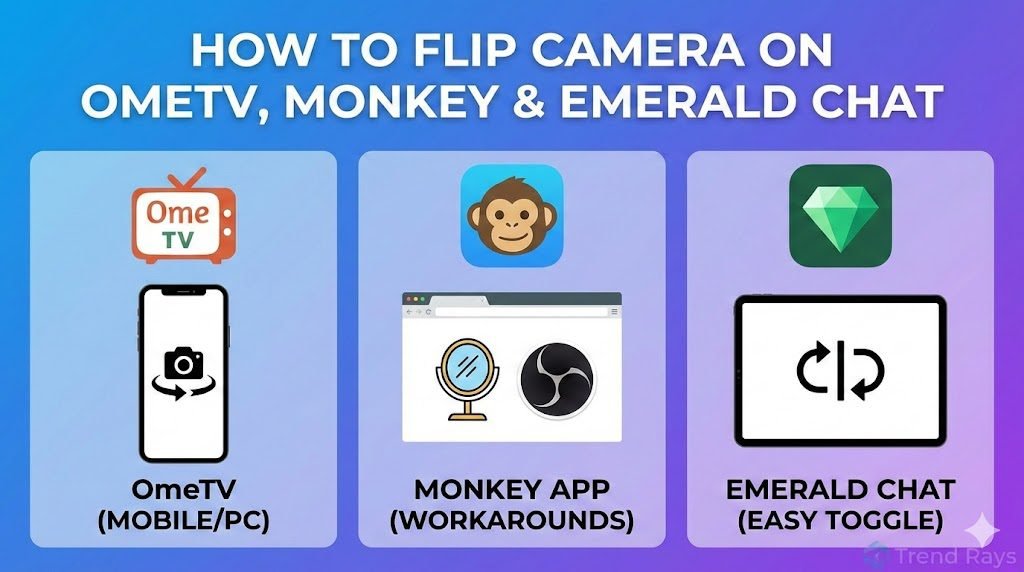
Method 1: Using the Native Apps (OmeTV / Monkey)
- Open the application and grant the required Camera and Microphone permissions.
- Look for the Camera Swap Icon (usually depicted as two arrows chasing each other in a circle). On OmeTV, this is located directly on your preview window.
- Tap the icon to instantly switch between your front-facing selfie camera and your device’s rear-facing main camera.
Method 2: Using a Mobile Web Browser (Safari, Chrome, Opera)
If you do not want to download an app and prefer using the website directly on your phone, you must choose the correct camera before the video connects.
- Visit the chat website (e.g.,
ome.tv) in your mobile browser. - Tap Start or Video.
- A browser security pop-up will ask for permission to use your camera and microphone.
- Before clicking Allow, look closely at the prompt. There is a drop-down menu listing your camera hardware. Tap it to select either the Front Camera or Back Camera.
- Tap Allow. If you want to switch cameras mid-chat, you must refresh the page and trigger the permission prompt again.
2. Monkey App (Best for Gen-Z)
Monkey.app was designed specifically for the TikTok generation. Instead of endless, awkward staring, Monkey uses short, timed interaction windows.
- How to use it: Once paired, you only have a few seconds to vibe with the other person. If both of you tap the “Time” button, the chat extends. If not, the call automatically drops and moves you to the next person. It is fast-paced, highly moderated by AI algorithms, and features built-in AR face filters.
How to Flip the Camera on Monkey App
Monkey App has quickly become one of the most popular alternatives since Omegle shut down. While the interface is user-friendly, flipping your camera works differently depending on the device you are using.
Flipping the Camera on the Monkey Mobile App (iOS & Android)
For smartphone users, the option to flip your camera from front to back is built directly into the app, but there is a major catch to be aware of.
- Locate the Flip Icon: During an active video chat, look for the Flip Camera icon, typically located in the top-left corner of your screen.
- The Premium Paywall: Currently, tapping this icon prompts you to purchase a Monkey Premium subscription (available in 7-day or 30-day packages). For mobile users, upgrading to premium is the only native way to mirror or flip your camera feed.
Flipping the Camera on Monkey Web (PC & Mac)
The web browser version of Monkey does not include a native camera flip button. To mirror your video feed, you will need to use a quick workaround.
- Use a Browser Extension: The easiest method is to install the VideoMirror Chrome Extension. Once installed, click the extension icon to instantly flip the HTML5 video player on your screen.
- Use OBS Studio: For more control, download OBS Studio. Add your webcam to a scene, right-click the video source, select Transform, and click Flip Horizontal. Then, click Start Virtual Camera in OBS and select the OBS Virtual Camera as your video input on the Monkey website.
- Switching External Cameras: If you are trying to switch from a built-in laptop camera to a USB webcam and the browser restricts it, go to your computer’s Device Manager (Windows) and temporarily disable the integrated camera.
3. Emerald Chat (Best for Finding Friends)
If you want meaningful conversations rather than random skips, Emerald Chat is the best option.
- How to use it: Emerald enforces a strict 18+ policy and utilizes an “Interest Matching System.” You type in your hobbies (e.g., “PC Gaming,” “Anime,” “Music”), and the algorithm pairs you with users who have overlapping tags. It also features a Reddit-style “Karma System” where users can upvote or downvote you based on your behavior, effectively hiding trolls from the platform.
How to Mirror and Flip Your Camera on Emerald Chat
Emerald Chat is a rising star in the random video chat space. It started as a strictly web-based platform but has recently expanded to mobile apps, making camera settings slightly different across platforms.
Using the Emerald Chat Mobile App
Emerald Chat makes camera control incredibly simple on mobile devices.
- Tap to Switch: Once you are in an active video call on the iOS or Android app, simply tap the Camera Switch icon on your screen.
- Instant Toggle: This will immediately toggle your feed between the front-facing selfie camera and the rear-facing camera without any premium paywalls.
Using Emerald Chat on a PC Browser
Like many web-based video chat sites, Emerald Chat’s desktop interface is clean but lacks a built-in mirroring or flipping tool. You can easily fix this using the same tools as other Omegle alternatives.
- The VideoMirror Extension: Download the VideoMirror extension for Google Chrome or Microsoft Edge. This lightweight tool lets you flip the incoming and outgoing video players directly in your browser with one click.
- The OBS Virtual Camera Method: For content creators or those wanting a professional setup, route your webcam through OBS Studio. Apply the Flip Horizontal transform to your webcam feed, turn on the Virtual Camera, and Emerald Chat will automatically pick up the corrected, mirrored feed.
How to Invert or Mirror Your Camera on a PC (Windows/Mac)
Unlike smartphones, desktop browsers like Google Chrome or Safari do not have a built-in button to “mirror” or “invert” your webcam feed. If the text on your shirt is backwards on-screen, you have to forcefully flip the video feed yourself.
Method 1: Use a Chrome Extension (The Easy Fix)
If you just want to un-mirror your camera so you look normal to yourself, you can flip the website’s HTML5 video player.
- Open the Google Chrome Web Store.
- Search for and install a free extension called VideoMirror.
- Pin the extension to your Chrome toolbar.
- Open your preferred chat site and start your webcam.
- Click the VideoMirror extension icon. It will instantly flip the video player on the page, fixing your mirrored camera.
Method 2: Use OBS Studio Virtual Camera (The Advanced Fix)
If you want to apply filters, use a high-end DSLR, or guarantee your camera is flipped for the person on the other end of the chat, you need virtual routing software.
- Download and install OBS Studio (Free).
- Add your webcam by clicking the + icon under the Sources box and selecting Video Capture Device.
- Right-click your newly added webcam feed in the preview window, select Transform, and click Flip Horizontal.
- Click the Start Virtual Camera button located on the bottom right panel of OBS.
- Go to your chat website, click the Camera Security Icon inside your URL address bar, and change your camera input from your default webcam to OBS Virtual Camera.
Frequently Asked Questions (People Also Ask)
1. Why is my camera backwards on OmeTV?
By default, web browsers locally mirror your camera feed so it feels like you are looking into a mirror. This makes it easier to adjust your hair or position. However, the person on the other end of the chat sees you normally, non-mirrored.
2. Is Omegle coming back in 2026?
No. Omegle is permanently shut down. The founder declared bankruptcy and the domain is defunct due to severe legal liabilities and settlements stemming from the A.M. v. Omegle lawsuit.
3. How do I flip my camera on Safari iOS for video chats?
In Safari, you cannot flip the camera while the video stream is active. You must tap the “aA” icon in the address bar, select “Website Settings,” reset your camera permissions, and select the rear camera when Safari prompts you for access again.
4. Can I use OBS Virtual Camera on browser-based chat sites?
Yes. Modern browsers like Chrome and Edge recognize the OBS Virtual Camera as a legitimate hardware webcam. Just select it from the browser’s site settings or permission pop-up before entering the chat.
5. What is the best free alternative to Omegle right now?
OmeTV is currently the largest and most populated alternative for random video chatting. For users looking for interest-based text and video chats without bots, Emerald Chat is highly recommended.
6. Why does my phone get hot on Monkey App or OmeTV?
Live video encoding over a WebRTC protocol is incredibly demanding on a phone’s processor and battery. Prolonged use forces the CPU to run at maximum capacity, generating significant heat. Lowering your screen brightness can help reduce thermal throttling.
7. Is it illegal to use a virtual camera on OmeTV?
It is not illegal, but it may violate the Terms of Service of specific platforms. OmeTV’s AI moderation algorithms frequently detect and ban users who route pre-recorded videos or looping GIFs through virtual cameras like OBS or ManyCam to prevent spam.
8. Why did my camera switch button disappear on mobile?
If you are using a mobile web browser rather than a dedicated app, the website interface often hides the camera switch button to save space. You must refresh the page and re-select your camera hardware from the browser’s permission prompt.
9. How do I fix the “Camera Not Found” error on Emerald Chat?
This error occurs when another application (like Discord or Zoom) is running in the background and has “exclusive control” over your webcam. Force close all other background applications and refresh the Emerald Chat webpage.
10. Do I need a VPN for OmeTV?
While not strictly required, using a high-quality VPN is highly recommended on any P2P (Peer-to-Peer) random chat site. It masks your IP address, protecting your exact location from malicious users who might attempt to dox or track you.
{ “@context”: “https://schema.org”, “@type”: “FAQPage”, “mainEntity”: [ { “@type”: “Question”, “name”: “How do I flip the camera on OmeTV?”, “acceptedAnswer”: { “@type”: “Answer”, “text”: “On the OmeTV mobile app, tap the Camera Swap Icon (two arrows in a circle) on the preview window. On a PC, desktop browsers lack a built-in mirror function, so you will need to use a browser extension like VideoMirror or the OBS Studio Virtual Camera to apply a horizontal flip.” } }, { “@type”: “Question”, “name”: “Can I flip my camera on the Monkey App?”, “acceptedAnswer”: { “@type”: “Answer”, “text”: “Yes, but on the Monkey mobile app, tapping the flip camera icon currently prompts you to purchase a premium subscription. On a PC web browser, you can bypass this by using the VideoMirror Chrome extension or OBS Studio’s Virtual Camera to mirror your feed for free.” } }, { “@type”: “Question”, “name”: “How do I mirror my camera on Emerald Chat?”, “acceptedAnswer”: { “@type”: “Answer”, “text”: “On the Emerald Chat mobile app, simply tap the camera switch icon during an active video call to toggle between the front and rear cameras. On a PC browser, you will need to use a third-party tool like the VideoMirror extension or OBS Studio to flip the video.” } } ] }