Introduction
If you’ve been using ChatGPT for a while, you’ve probably reached a point where your sidebar feels impossible to manage.
Dozens—or even hundreds—of conversations pile up over time.
One chat contains SEO research for a client.
Another has Python code you still need.
A third includes ideas for your next blog post.
Then there are random conversations about travel planning, brainstorming, shopping, or learning a new skill.
Before long, finding the right conversation becomes frustrating.
To solve this problem, OpenAI has introduced Projects, while Memory has become more capable over time. At the same time, many users still ask for traditional folders to organize conversations, and some rely on browser extensions to simulate that experience.
The result is understandable confusion.
Questions like these appear repeatedly across Google, Reddit, and AI communities:
- What exactly are ChatGPT Projects?
- Are Projects the same as folders?
- Does Memory replace Projects?
- Can Projects remember previous chats?
- Should every client have a separate Project?
- How should freelancers organize their ChatGPT workspace?
- What’s the best setup for agencies or developers?
Most existing articles answer these questions individually.
Very few explain how all these features work together in a practical workflow.
That’s exactly what this guide aims to do.
Instead of focusing only on feature comparisons, we’ll explore how to build an organized ChatGPT workspace that scales as your work grows. Whether you’re managing client projects, writing content, developing software, conducting research, or running a business, you’ll learn when to use Projects, when to rely on Memory, and when other organizational methods make more sense.
By the end of this guide, you’ll understand not only what each feature does but also how to combine them into a workflow that saves time, reduces clutter, and helps ChatGPT become a more effective long-term assistant.
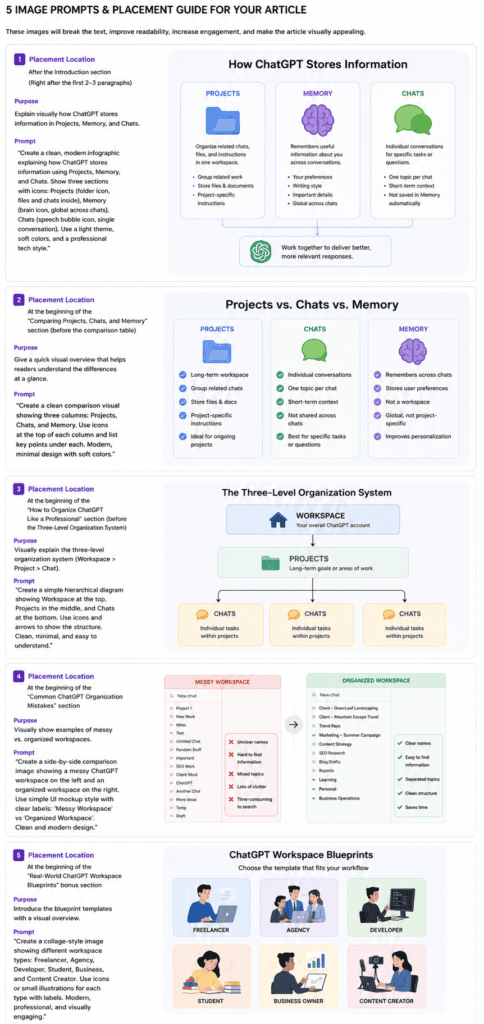
Why ChatGPT Organization Matters More Than Ever
When ChatGPT first launched, most people used it occasionally.
A few prompts.
A handful of conversations.
Organization wasn’t a major concern.
Today, the way professionals use AI has changed dramatically.
Freelancers may use ChatGPT to:
- Write client proposals.
- Create SEO strategies.
- Draft contracts.
- Brainstorm content ideas.
- Analyze competitors.
- Generate social media posts.
- Edit articles.
- Build marketing campaigns.
Developers use it to debug code, explain APIs, write documentation, and plan software architecture.
Marketing teams rely on it for campaign planning, audience research, and copywriting.
Students use it for research, revision, and study planning.
As usage grows, so does the number of conversations.
Without a clear organizational system, valuable information gets buried in an endless chat history.
This isn’t just inconvenient—it can reduce productivity.
Instead of continuing your work, you waste time searching for old conversations or repeating the same context because you can’t find an earlier chat.
That’s where modern ChatGPT organization features become valuable.
Projects, Memory, chat history, and custom instructions each solve different problems.
Understanding those differences is the key to creating a workspace that stays organized even as your AI usage expands.
What You’ll Learn in This Guide
This isn’t another quick comparison article.
We’ll go much deeper than simply defining each feature.
You’ll learn:
- What ChatGPT Projects are and how they work.
- What ChatGPT Memory actually remembers.
- Whether ChatGPT has folders and what alternatives exist.
- The differences between Projects, Memory, chats, and Custom GPTs.
- How professionals organize ChatGPT for client work.
- The best workspace structures for freelancers, agencies, developers, marketers, and students.
- Common mistakes that make ChatGPT harder to manage.
- Best practices for creating a scalable AI workspace.
- Answers to the most frequently asked questions about ChatGPT organization.
We’ll also include practical examples, comparison tables, workflow diagrams, and real-world setups that you can adapt to your own work.
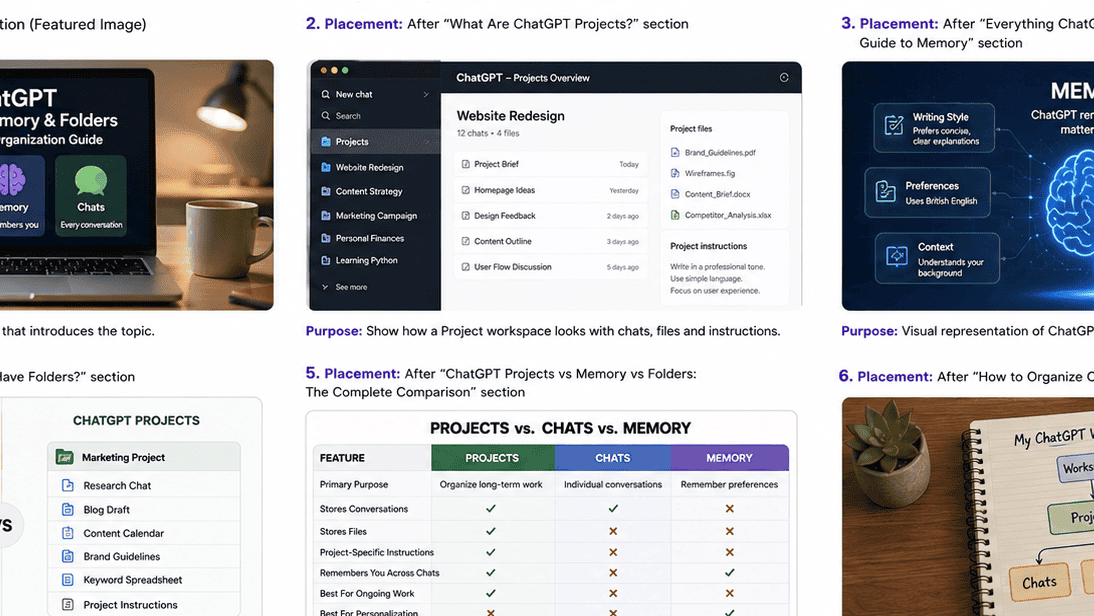
At a Glance: Projects vs Memory vs Folders
Before diving into the details, here’s a quick overview.
| Feature | Best Used For | Stores Conversations | Remembers Preferences | Organizes Work |
|---|---|---|---|---|
| Projects | Grouping related work | ✅ Yes | Project-specific context | ✅ Excellent |
| Memory | Remembering user preferences | ❌ No | ✅ Yes | ❌ No |
| Folders (Native) | Traditional organization | ❌ Not currently available as a standalone feature | ❌ No | N/A |
| Browser Extension Folders | Manual organization | ✅ Usually | ❌ No | ✅ Good (varies by extension) |
This table gives you the high-level picture.
The rest of this guide explains why these differences matter and how to use each feature effectively.
Why Most Users Get Confused
The confusion usually comes from assuming that these features serve the same purpose.
They don’t.
For example:
- Projects are designed to keep related conversations, files, and instructions together in one workspace.
- Memory helps ChatGPT remember information about you across conversations, depending on your settings and how you use the platform.
- Folders, in the traditional sense, are not currently a core organizational feature, though many users seek similar functionality through Projects or third-party tools.
Once you understand that each feature solves a different problem, choosing the right one becomes much easier.
The rest of this guide will build that understanding step by step.
How ChatGPT Actually Stores Information (The Foundation Most Articles Skip)
One of the biggest reasons people get confused about ChatGPT organization is that they assume everything is stored in the same place.
It isn’t.
Think of ChatGPT less like a single notebook and more like a digital workspace made up of several different layers.
Each layer has a different purpose.
Some remember conversations.
Some remember your preferences.
Some keep project files together.
Others are designed for reusable instructions.
Once you understand these layers, you’ll know exactly when to use Projects, Memory, or another feature—and when not to.

Think of ChatGPT as a Digital Office
Imagine your physical office.
Inside that office, you probably have:
- A filing cabinet for client documents.
- Sticky notes with personal reminders.
- Separate folders for different projects.
- A notebook for meeting notes.
- Reference books you consult when needed.
Each serves a different purpose.
ChatGPT works in a similar way.
Instead of treating every conversation as one long history, it organizes information into different components that work together.
The Six Building Blocks of ChatGPT
For most users, ChatGPT can be understood as six major organizational components:
| Component | Primary Purpose |
|---|---|
| Chats | Individual conversations |
| Projects | Organize related work |
| Memory | Remember useful information about you |
| Files | Store documents used within chats or projects |
| Custom Instructions | Persistent guidance on how ChatGPT should respond |
| Custom GPTs | Specialized AI assistants with tailored behavior |
Each solves a different problem.
Let’s look at them one by one.
1. Chats: Your Individual Conversations
Every time you start a new conversation, ChatGPT creates a separate chat.
Think of a chat as a single notebook.
It contains:
- Your prompts.
- AI responses.
- Uploaded files (if applicable).
- Context built during that conversation.
By default, each chat is independent.
If you start a brand-new chat, ChatGPT won’t automatically know what happened in your previous conversation unless a feature such as Memory or a Project provides additional context.
Best for
- One-off questions.
- Brainstorming.
- Quick writing tasks.
- Coding help.
- Temporary discussions.
2. Projects: Organized Workspaces
Projects are designed to group related work together.
Instead of dozens of unrelated chats filling your sidebar, you can create dedicated spaces for ongoing work.
For example:
SEO Clients
    ├── ABC Construction
    ├── Travel Blog
    ├── Keyword Research
    ├── Content Calendar

Marketing
    ├── Newsletter
    ├── Social Media
    ├── Landing Pages

Personal
    ├── Learning AI
    ├── Finance
    ├── Travel
Each Project can contain:
- Multiple chats.
- Uploaded files.
- Project-specific instructions.
- Shared context across conversations within that Project (depending on available features and settings).
This makes Projects particularly valuable for long-term work.
3. Memory: What ChatGPT Learns About You
Memory works differently.
It doesn’t organize your conversations.
Instead, it helps ChatGPT remember useful information about you.
Examples might include:
- Your preferred writing style.
- Your preferred programming language.
- The way you like answers formatted.
- Long-term preferences you’ve asked ChatGPT to remember.
Instead of opening a particular chat, Memory allows ChatGPT to provide more personalized responses across future conversations, subject to your settings and platform features.
Think of Memory as the assistant remembering your preferences—not your filing system.
4. Files: Supporting Documents
Files provide additional context for specific work.
Examples include:
- PDFs.
- Word documents.
- Excel spreadsheets.
- Images.
- Presentations.
- CSV files.
Files don’t replace Projects or Memory.
They’re simply resources that help ChatGPT understand the task you’re working on.
For example:
A freelancer writing an annual report might upload:
- Brand guidelines.
- Previous reports.
- Financial spreadsheets.
- Research documents.
Those files support the conversation but don’t automatically become part of your long-term Memory.
5. Custom Instructions: Your Default Preferences
Custom Instructions tell ChatGPT how you’d generally like it to respond.
For example:
- Write in British English.
- Keep explanations concise.
- Avoid jargon.
- Use Markdown formatting.
- Explain technical topics simply.
Unlike Projects, these instructions aren’t tied to a single client or workspace—they apply broadly to your interactions, depending on your settings.
They’re especially useful if you consistently prefer a certain communication style.
6. Custom GPTs: Specialized Assistants
Custom GPTs allow you to create AI assistants designed for specific purposes.
For example:
- SEO Assistant.
- Legal Drafting Assistant.
- Python Tutor.
- Travel Planner.
- Content Editor.
A Custom GPT can include:
- Custom instructions.
- Knowledge files.
- Specific workflows.
- Specialized behavior.
Think of it as creating a role-specific assistant rather than organizing your existing chats.
Visualizing the Relationship
A simplified view looks like this:
                     ChatGPT Workspace
                           │
        ┌──────────────────┼──────────────────┐
        │                  │                  │
     Projects           Memory        Custom Instructions
        │                  │                  │
        │                  │                  │
     Multiple Chats   Personal Preferences   Response Style
        │
        │
      Files
This diagram illustrates that these components complement one another rather than compete.
The Biggest Misconception
Many users assume:
“Projects replace Memory.”
They don’t.
Others assume:
“Memory replaces folders.”
It doesn’t.
Each feature addresses a different need:
- Chats → Individual conversations.
- Projects → Organize related work.
- Memory → Personalize future interactions.
- Files → Provide task-specific context.
- Custom Instructions → Define your preferred response style.
- Custom GPTs → Create specialized assistants.
Once you understand these roles, deciding which feature to use becomes much simpler.
A Real-World Example
Imagine you’re an SEO freelancer.
You have three clients:
- GreenLeaf Landscaping
- Mountain Escape Travel
- Urban Fitness Studio
A practical setup might look like this:
Project:
GreenLeaf Landscaping

Chats:
✓ Keyword Research
✓ Blog Ideas
✓ Competitor Analysis
✓ Content Briefs
✓ Meta Descriptions

Files:
✓ Brand Guidelines
✓ Keyword Spreadsheet
✓ SEO Audit

Memory:
"I prefer detailed SEO explanations with actionable recommendations."

Custom Instructions:
"Use Markdown headings, concise paragraphs, and UK English."
Notice how each feature plays a distinct role without overlapping unnecessarily.
Why Understanding This Matters
Without understanding the architecture, it’s easy to:
- Create too many Projects.
- Store unrelated work together.
- Expect Memory to organize chats.
- Use Custom Instructions when a Project would be more appropriate.
- Lose track of important conversations.
A clear mental model helps you build a workspace that stays manageable as your AI usage grows.
Key Takeaways
Before comparing features directly, remember these principles:
- Chats are individual conversations.
- Projects organize related work.
- Memory remembers useful information about you.
- Files support specific tasks.
- Custom Instructions define your default interaction style.
- Custom GPTs provide specialized assistants.
Each feature exists for a different purpose, and using them together thoughtfully creates a more efficient and organized ChatGPT experience.
What Are ChatGPT Projects? Everything You Need to Know
If ChatGPT chats are individual conversations, then Projects are the workspaces that keep those conversations organized.
Think of a Project as a dedicated area for a specific goal.
Instead of scattering related discussions across dozens of separate chats, you can group them together in one place, along with supporting files and project-specific instructions.
For professionals who use ChatGPT daily, Projects can quickly become one of the most valuable organizational features available.
Whether you’re managing client work, writing a book, building software, planning a marketing campaign, or studying for exams, Projects help keep everything connected.
Why OpenAI Introduced Projects
Before Projects existed, users often relied on long chat histories.
Imagine you’re writing a blog for a client.
Day one:
- Keyword research.
Day two:
- Competitor analysis.
Day three:
- Outline creation.
Day four:
- Article drafting.
Day five:
- SEO optimization.
Each task might become a separate conversation.
After several weeks, finding the right chat becomes frustrating.
Projects solve this by giving related conversations a permanent home.
Instead of searching through hundreds of unrelated chats, everything connected to that project stays together.
What Can You Store Inside a Project?
Although features continue to evolve, a Project typically allows you to keep related resources together, including:
- Multiple conversations.
- Uploaded documents.
- Project-specific instructions.
- Shared context between chats within that Project (where supported).
For example:
Project:
Travel Blog SEO

Contents

✓ Keyword Research

✓ Competitor Analysis

✓ Content Calendar

✓ Blog Drafts

✓ Internal Linking

✓ Featured Images

✓ Uploads
    Brand Guidelines
    SEO Checklist
    Keyword Spreadsheet
Everything related to that client or objective remains in one workspace.
Projects vs Individual Chats
Without Projects, your ChatGPT sidebar might look something like this:
Blog Outline

SEO Ideas

Keyword Research

Travel Client

Rewrite This

Meta Title

Content Brief

Blog Draft

Fix Grammar

Image Prompt
It’s difficult to remember which conversations belong together.
Now compare that with a Project:
Travel Client

├── Keyword Research

├── Competitor Analysis

├── Outline

├── Article Draft

├── SEO Review

├── Meta Tags

├── Internal Links

├── Image Prompts
The difference isn’t just visual.
It’s a much more efficient way to work.
How Projects Improve Productivity
Projects reduce the friction of switching between related tasks.
Instead of repeatedly explaining your objective, you can keep connected work in one place.
For example, an SEO consultant working on a single client might use one Project for:
- Website audit.
- Keyword research.
- Content planning.
- Blog writing.
- Meta descriptions.
- Schema markup.
- Internal linking.
- Monthly reports.
Rather than jumping between unrelated chats, everything remains organized under one client.
Real-World Example: Freelance Content Writer
Let’s say you’re a freelance writer managing four clients.
Without Projects, your conversations might become mixed together:
Fitness Blog

Travel Outline

Email Rewrite

SEO Keywords

Law Firm Draft

Healthcare Blog

Invoice Email

LinkedIn Post
Now imagine using Projects instead:
Project:
Travel Client

├── Destination Research

├── Blog Ideas

├── Competitor Analysis

├── Article Drafts

├── SEO Optimization

Project:
Law Firm

├── Website Copy

├── FAQs

├── Case Study

├── Landing Pages
Everything is easier to locate.
More importantly, your workflow becomes repeatable.
Real-World Example: Software Developer
Developers often work on multiple repositories and technologies simultaneously.
A practical Project structure could look like this:
React Dashboard

├── API Design

├── Authentication

├── Bug Fixes

├── Documentation

├── Deployment

Files

✓ API Documentation

✓ JSON Examples

✓ Database Schema
Instead of mixing frontend, backend, and unrelated experiments, each development effort stays organized.
Real-World Example: Digital Marketing Agency
An agency might organize Projects like this:
Client A

SEO

Content

Reports

Meetings

Files

Client B

Google Ads

Landing Pages

Analytics

Monthly Reports

Files
Each client has an independent workspace.
This reduces confusion and makes collaboration easier.
Project Instructions vs Custom Instructions
One area that confuses many users is the difference between Project Instructions and Custom Instructions.
Think of them this way:
Custom Instructions define how ChatGPT should generally respond to you.
For example:
- Use UK English.
- Write concise paragraphs.
- Explain technical concepts simply.
These preferences apply broadly.
Project Instructions, on the other hand, apply only within a specific Project.
For example:
Always write for a travel audience.

Use an informative but conversational tone.

Target UK readers.

Optimise headings for SEO.

Use metric measurements.
Those instructions stay relevant to that project without affecting unrelated work.
When Should You Create a New Project?
Not every conversation needs its own Project.
A good rule of thumb is:
Create a Project when:
- The work will continue over time.
- Multiple conversations belong to the same objective.
- You’ll upload supporting files.
- You’ll return to the work regularly.
- The project has its own writing style or workflow.
Examples include:
- Long-term clients.
- Software development.
- Research projects.
- Book writing.
- Marketing campaigns.
- Academic research.
- Business planning.
When a Simple Chat Is Enough
For one-off questions, creating a Project may add unnecessary complexity.
Examples include:
- A quick grammar check.
- Converting measurements.
- Brainstorming gift ideas.
- Writing a short email.
- Solving a simple coding issue.
- Asking a factual question.
In these situations, a standard chat is usually sufficient.
Common Mistakes People Make with Projects
Many new users create Projects without a clear strategy.
Some common mistakes include:
Creating Too Many Projects
A separate Project for every small task quickly becomes difficult to manage.
Instead, group related work together.
Avoid combining unrelated areas like:
SEO

Vacation Planning

Python

Personal Budget

Wedding Ideas
Projects work best when everything inside serves one clear purpose.
Ignoring Naming Conventions
Projects named:
Project 1

New Stuff

Testing

Ideas
become confusing over time.
Instead, use descriptive names such as:
- SEO – Trend Rays
- Client – Mountain Escape Travel
- React SaaS Dashboard
- YouTube Content Strategy
Consistent naming makes navigation much easier.
Best Practices for Organizing Projects
As your ChatGPT usage grows, a little structure goes a long way.
Some practical habits include:
- One Project per long-term client.
- One Project per major personal initiative.
- Consistent naming conventions.
- Keep temporary tasks in standalone chats.
- Archive or clean up inactive work periodically.
- Store only relevant files within each Project.
These habits help your workspace remain manageable over months and years.
Key Takeaways
Projects aren’t just a way to tidy your sidebar.
They’re designed to help you think and work in structured, long-term workflows.
When used effectively, they allow you to:
- Group related conversations.
- Keep supporting files together.
- Maintain project-specific context.
- Reduce clutter.
- Improve productivity.
- Build repeatable workflows for ongoing work.
The key is not creating more Projects—it’s creating the right Projects.
What Is ChatGPT Memory? How It Works and When Should You Use It?
One of the biggest misconceptions about ChatGPT is that Memory and Projects are the same thing.
They’re not.
Although both help ChatGPT become more useful over time, they solve completely different problems.
A simple way to think about it is this:
- Projects organize your work.
- Memory personalizes your experience.
If Projects are like folders in a filing cabinet, Memory is more like your assistant remembering how you prefer to work.
Instead of storing documents or organizing conversations, Memory helps ChatGPT remember information you’ve allowed it to retain so future conversations can feel more consistent and personalized.
What Does ChatGPT Memory Actually Remember?
Depending on your settings and how you interact with ChatGPT, Memory may remember useful information that improves future conversations.
Examples include:
- Your preferred writing style.
- Whether you prefer short or detailed answers.
- Your preferred programming language.
- Your favourite tone of communication.
- The way you like information formatted.
- Long-term preferences you’ve explicitly shared.
For example, if you often ask for SEO articles in Markdown with clear H2 and H3 headings, ChatGPT may remember that preference and apply it in future conversations where appropriate.
The goal isn’t to remember every conversation.
The goal is to remember information that helps make future interactions more useful.
What Memory Does Not Do
Understanding what Memory doesn’t do is just as important.
Memory does not:
- Organize your conversations.
- Replace Projects.
- Automatically save every chat.
- Create folders.
- Store all uploaded files.
- Keep every project you’ve ever worked on.
Many new users expect Memory to function like cloud storage.
It doesn’t.
Memory is about preferences and long-term context—not document management.
Projects vs Memory: The Core Difference
The easiest way to understand the distinction is to compare their primary purpose.
| Feature | Primary Role |
|---|---|
| Projects | Organize related conversations, files, and workspaces. |
| Memory | Remember useful information about you and your preferences. |
Think of it like this:
Imagine you hire a personal assistant.
Your assistant remembers:
- You prefer meetings in the morning.
- You like concise reports.
- You always write in UK English.
That’s Memory.
Now imagine your assistant also maintains separate filing cabinets for:
- Client A
- Client B
- Marketing
- Personal Finance
That’s Projects.
One remembers how you work.
The other remembers where your work belongs.
Real-World Example
Suppose you’re an SEO consultant.
Your setup might look like this:
Memory remembers:
- You write in British English.
- You prefer detailed SEO explanations.
- You usually structure articles with H2 and H3 headings.
- You optimise content for search intent.
Meanwhile, your Projects might look like this:
SEO Clients

├── Travel Agency

├── Real Estate

├── SaaS Startup

├── Local Business
Each client has its own workspace.
Memory doesn’t replace those workspaces.
It simply helps ChatGPT remember how you like to work across them.
Can Memory Work Together with Projects?
Yes.
This is where many users become confused.
Projects and Memory are designed to complement each other rather than compete.
A practical workflow could look like this:
Memory

↓

Preferred Writing Style

↓

Projects

↓

Client A

Client B

Client C

↓

Individual Chats

↓

Specific Tasks
In this setup:
Memory provides consistent personal preferences.
Projects organize the work itself.
The two features solve different problems while working together.
When Should You Rely on Memory?
Memory is most useful for information that stays relatively consistent over time.
Examples include:
- Your preferred language.
- Formatting preferences.
- Communication style.
- Coding preferences.
- Writing tone.
- Common workflows.
If you repeatedly tell ChatGPT the same things in every conversation, Memory may help reduce that repetition.
When Should You Not Use Memory?
Memory isn’t the best solution for:
- Client-specific instructions.
- Temporary project requirements.
- Confidential project details.
- Short-term experiments.
- One-off conversations.
For example:
Suppose you’re writing travel articles this week and legal content next week.
The writing style required for those two projects may differ significantly.
Rather than changing Memory every few days, it’s usually more practical to keep those instructions inside separate Projects.
Common Misconceptions About Memory
“Memory stores all my conversations.”
No.
Conversations and Memory are different systems.
“Memory replaces Projects.”
No.
Projects organize work.
Memory personalizes future interactions.
“Memory automatically knows everything about me.”
Not exactly.
Memory depends on your settings and the information you’ve chosen to share or allow ChatGPT to retain.
“Deleting a chat deletes Memory.”
Not necessarily.
Chat history and Memory are managed separately.
If you want to manage what ChatGPT remembers, review your Memory settings rather than assuming chat deletion will affect stored preferences.
Best Practices for Using Memory
To get the most benefit:
- Save only long-term preferences.
- Avoid storing temporary project instructions.
- Review your Memory periodically.
- Keep client-specific details inside Projects rather than relying on Memory.
- Use Memory to reduce repetition—not to replace good organization.
These habits help keep your AI workspace flexible and easier to manage.
Projects and Memory: A Practical Workflow
For many professionals, an effective setup looks like this:
Memory

✓ Preferred writing tone

✓ UK English

✓ Markdown formatting

✓ Detailed explanations

↓

Projects

Client A

Client B

Marketing

Learning

↓

Chats

Research

Drafts

Reviews

Brainstorming
This approach combines personalization with organization.
Instead of forcing one feature to do everything, each performs the role it was designed for.
Key Takeaways
Memory is often misunderstood because people expect it to function like a project management tool.
In reality:
- Memory helps ChatGPT remember you.
- Projects help ChatGPT organize your work.
- Chats contain individual conversations.
- Files provide task-specific context.
When you understand these differences, choosing the right feature becomes much easier—and your overall workflow becomes more efficient.
Want a deeper dive into how Memory works, what it stores, and how to manage it? Read our complete guide: ChatGPT Memory Explained: How It Works, What It Remembers, and How to Control It.
Does ChatGPT Have Folders? The Truth About Organizing Conversations
One of the most frequently searched questions about ChatGPT is surprisingly simple:
“Does ChatGPT have folders?”
The short answer is:
Not in the traditional sense.
If you’re expecting something similar to folders in Google Drive, Windows Explorer, or Gmail, ChatGPT currently doesn’t provide a standalone folder feature for organizing conversations.
Instead, OpenAI has introduced Projects, which solve many of the same organizational problems—but in a different way.
Understanding that difference is important because many users search for folders when what they actually need is a better workflow.
Why Everyone Wants Folders
The request for folders isn’t really about folders.
It’s about reducing chaos.
After using ChatGPT for several months, your sidebar may contain hundreds of conversations:
SEO Ideas

Python Bug

Marketing Plan

Trip to Italy

Travel Blog

Meeting Notes

Logo Concepts

Email Draft

React Component

Keyword Research

Landing Page Copy

Invoice Template
Scrolling through this list quickly becomes frustrating.
Users naturally think:
“Why can’t I just create folders?”
That’s a reasonable expectation because almost every productivity tool offers some form of folder-based organization.
Why OpenAI Chose Projects Instead
Rather than creating simple folders, OpenAI introduced Projects.
A folder is typically just a container.
Projects go further.
A Project can bring together:
- Related conversations.
- Uploaded files.
- Project-specific instructions.
- Shared context within that workspace (where supported).
Instead of acting as a passive storage location, a Project is designed to become an active workspace.
Think of the difference like this:
Traditional Folder
Marketing

├── File 1

├── File 2

├── File 3
ChatGPT Project
Marketing Project

├── Research Chat

├── Blog Draft

├── Content Calendar

├── Brand Guidelines

├── Keyword Spreadsheet

├── Project Instructions
The Project doesn’t just store information.
It helps organize an entire workflow.
Projects vs Traditional Folders
Let’s compare them directly.
| Feature | Traditional Folder | ChatGPT Project |
|---|---|---|
| Organizes related work | ✅ | ✅ |
| Holds multiple conversations | Limited (depends on app) | ✅ |
| Stores files | ✅ | ✅ |
| Includes project-specific instructions | ❌ | ✅ |
| Maintains shared project context | ❌ | ✅ (where supported) |
| Designed for AI collaboration | ❌ | ✅ |
This is why many users eventually find that Projects offer more flexibility than simple folders.
Why People Still Search for “ChatGPT Folders”
Even though Projects are powerful, users still search for folders because they expect certain capabilities, such as:
- Drag-and-drop organization.
- Nested folders.
- Color-coded categories.
- Easy archiving.
- Hierarchical navigation.
- Familiar file management.
These expectations come from years of using operating systems and productivity apps.
Projects solve many organizational challenges but don’t completely replicate the traditional folder experience.
Browser Extensions That Add Folder-Like Organization
Over the years, several browser extensions have appeared that add folder-style organization to ChatGPT.
Some allow users to:
- Group conversations.
- Add custom categories.
- Create colour labels.
- Archive chats.
- Improve sidebar navigation.
While these tools can be useful for some workflows, they are developed independently of OpenAI.
Before using any third-party extension, consider:
- Its privacy policy.
- Requested browser permissions.
- Update frequency.
- User reviews.
- Whether it aligns with your organization’s security requirements.
If you’re working with sensitive client information, always evaluate third-party tools carefully before granting access.
Are Browser Folder Extensions Better Than Projects?
Not necessarily.
It depends on your goal.
If your primary objective is:
Better organization
Projects usually provide a structured, integrated workspace.
If your objective is:
A browser extension may feel more familiar.
However, extensions generally cannot replace the deeper functionality of Projects, such as project-specific instructions and integrated workflows.
A Better Way to Think About It
Instead of asking:
“Where are the folders?”
Ask:
“What’s the best way to organize my work?”
For most professionals, that answer looks something like this:
Projects

↓

Clients

↓

Chats

↓

Tasks

↓

Files
Rather than recreating a computer’s file system, Projects encourage organizing work around objectives.
Example: SEO Freelancer
Instead of:
Folder

SEO
Use:
Project

Client:
GreenLeaf Landscaping

Chats

✓ Keyword Research

✓ Competitor Analysis

✓ Content Calendar

✓ Blog Drafts

✓ Internal Linking

✓ Reporting
Everything stays together in one workspace.
Example: Software Developer
Instead of:
Folder

Python
Use:
Project

Inventory App

Chats

API

Authentication

Testing

Deployment

Documentation

Files

Database Schema

Requirements

API Docs
Again, the focus shifts from storing files to managing an entire workflow.
When Folders Would Still Be Useful
Although Projects solve many problems, there are situations where traditional folders could still improve organization.
For example:
- Grouping multiple Projects under one department.
- Creating nested categories.
- Separating personal and professional work visually.
- Colour-coded navigation.
- Easier archive management.
These are areas many users continue to request.
If OpenAI introduces additional organizational features in the future, they may complement Projects rather than replace them.
Should You Wait for Native Folders?
Probably not.
If you’re delaying better organization because you’re waiting for folders, you’re missing the benefits that Projects already provide today.
Projects already allow you to:
- Separate long-term work.
- Keep related conversations together.
- Store supporting files.
- Maintain project-specific instructions.
- Build repeatable workflows.
For most freelancers, agencies, marketers, developers, and consultants, that’s more valuable than simply placing chats inside folders.
Best Practices for Organizing Without Folders
Even without traditional folders, you can keep your workspace clean by following a few habits:
- Create one Project for each long-term client or initiative.
- Use clear, consistent Project names.
- Keep one-off questions in standalone chats.
- Archive or clean up inactive conversations regularly.
- Avoid mixing unrelated work inside the same Project.
- Use Memory for long-term preferences—not for organizing conversations.
These practices scale much better than relying on a long, unstructured chat history.
Key Takeaways
ChatGPT doesn’t currently offer traditional folders in the way many users expect.
Instead, OpenAI has introduced Projects, which provide a more comprehensive approach to organizing AI work.
While some users may still prefer folder-style navigation, Projects combine conversations, files, and project-specific guidance into a single workspace—making them a stronger solution for many professional use cases.
Rather than asking whether ChatGPT has folders, the more useful question is:
“What’s the most effective way to organize my AI workflow?”
For most users, Projects are the answer.
ChatGPT Projects vs Memory vs Folders: The Complete Comparison
By now, you’ve seen that Projects, Memory, and folders are not competing features—they solve different problems.
Yet many users still ask questions like:
- Should I create a Project?
- Should I rely on Memory instead?
- Do I still need folders?
- When is a regular chat enough?
The easiest way to answer these questions is to compare the features side by side.
Quick Comparison Table
| Feature | Projects | Memory | Traditional Folders |
|---|---|---|---|
| Primary purpose | Organize long-term work | Personalize future conversations | Group items together |
| Stores conversations | ✅ Yes | ❌ No | Depends on the platform |
| Stores personal preferences | ❌ No | ✅ Yes | ❌ No |
| Supports uploaded files | ✅ Yes | ❌ No | Usually yes |
| Project-specific instructions | ✅ Yes | ❌ No | ❌ No |
| Helps organize client work | ✅ Excellent | ❌ Limited | ✅ Basic |
| Best for ongoing work | ✅ Yes | ⚠️ Not designed for this | ✅ Basic organization |
| Best for personalization | ❌ No | ✅ Yes | ❌ No |
| Available as a native ChatGPT workspace | ✅ Yes | ✅ Yes | ❌ Not as a standalone feature |
This table gives you the overview, but choosing the right feature depends on what you’re trying to accomplish.
When Should You Use Projects?
Projects are the best choice when your work continues over days, weeks, or months.
Examples include:
- Client projects.
- Website redesigns.
- SEO campaigns.
- Book writing.
- Software development.
- Research.
- Marketing campaigns.
- Academic work.
Projects keep everything related to one objective together.
Instead of searching through dozens of unrelated conversations, you return to one organized workspace.
When Should You Use Memory?
Memory is most useful for information that rarely changes.
For example:
- Preferred language.
- Writing style.
- Formatting preferences.
- Communication style.
- Long-term productivity preferences.
Memory saves you from repeating the same instructions every time you start a new conversation.
It doesn’t replace Projects—it complements them.
When Would Traditional Folders Be Helpful?
Folders are useful when you simply want visual organization.
For example:
Clients

Marketing

Personal

Learning

Ideas
Folders help people navigate information.
However, they don’t provide:
- Shared AI context.
- Project instructions.
- Integrated workflows.
- Personalized assistance.
That’s why Projects offer more value for many professional users.
Decision Tree: Which Feature Should You Use?
If you’re unsure, use this simple decision tree.
Start
 │
 ▼
Is this a one-time question?
 │
 ├── Yes → Use a regular Chat.
 │
 └── No
      │
      ▼
Will you return to this work multiple times?
 │
 ├── Yes → Create a Project.
 │
 └── No
      │
      ▼
Is this a personal preference that should apply across conversations?
 │
 ├── Yes → Use Memory.
 │
 └── No → Use a regular Chat.
This simple framework eliminates most of the confusion around ChatGPT organization.
Which Feature Solves Which Problem?
Let’s match common problems to the best solution.
| Your Goal | Best Choice |
|---|---|
| Organize multiple clients | ✅ Projects |
| Remember preferred writing style | ✅ Memory |
| Store SEO research for one website | ✅ Projects |
| Save coding preferences | ✅ Memory |
| Keep conversations together | ✅ Projects |
| Brainstorm a single idea | ✅ Regular Chat |
| Ask a quick factual question | ✅ Regular Chat |
| Work on a long-term marketing campaign | ✅ Projects |
| Avoid repeating formatting instructions | ✅ Memory |
Notice that there isn’t one feature that does everything.
Each has a specific role.
Example Workflow for a Freelancer
Imagine you’re managing five SEO clients.
A practical setup might look like this:
Memory

✓ Use British English.

✓ Write detailed SEO content.

✓ Prefer Markdown formatting.

↓

Projects

Client A

Client B

Client C

Client D

Client E

↓

Chats

Keyword Research

Competitor Analysis

Blog Draft

Internal Linking

Content Updates
This structure combines personalization with organization.
Example Workflow for an Agency
An agency might organize work like this:
Memory

✓ Company writing style.

↓

Projects

Client Alpha

Client Beta

Client Gamma

Internal Operations

Sales

↓

Chats

Campaign Planning

Reports

Meeting Notes

Content Reviews
Each client remains isolated while the agency maintains consistent working preferences.
Example Workflow for Developers
Developers often work on several products simultaneously.
A scalable structure could look like this:
Memory

✓ Prefer Python examples.

✓ Explain code step by step.

↓

Projects

React Dashboard

Inventory API

Personal Learning

Open Source

↓

Chats

Debugging

Architecture

Testing

Deployment
Instead of mixing code from unrelated projects, everything stays organized.
Example Workflow for Students
Students can also benefit from Projects.
Memory

✓ Explain concepts simply.

↓

Projects

Mathematics

History

Biology

Computer Science

↓

Chats

Assignments

Revision

Exam Preparation

Practice Questions
Each subject becomes its own learning workspace.
The Biggest Mistake People Make
Many users try to force one feature to do everything.
For example:
- Using Memory to remember client information.
- Creating dozens of tiny Projects.
- Keeping all work inside one endless chat.
- Expecting folders to solve workflow problems.
The result is usually a cluttered workspace and unnecessary repetition.
Instead, think of each feature as part of a complete system:
- Chats handle individual conversations.
- Projects organize ongoing work.
- Memory remembers your long-term preferences.
- Files provide supporting context.
- Custom Instructions define your default interaction style.
- Custom GPTs handle specialized tasks.
Together, these components create a flexible, scalable AI workspace.
Best Combination for Most Professionals
If you’re a freelancer, consultant, marketer, or small business owner, this setup will work well for most situations:
- Use Memory for your permanent preferences (language, formatting, tone).
- Create one Project for each long-term client or initiative.
- Keep temporary or unrelated questions in standalone chats.
- Upload only the files relevant to each Project.
- Review your workspace periodically and archive inactive work where appropriate.
This approach keeps your ChatGPT environment clean and easy to manage without overcomplicating it.
Key Takeaways
Projects, Memory, and folders are often compared, but they’re not interchangeable.
- Projects are for organizing work.
- Memory is for remembering your preferences.
- Folders are a familiar organizational concept but are not currently a standalone native feature in ChatGPT.
Once you stop asking which feature is “better” and instead ask which feature is right for this task, organizing ChatGPT becomes much simpler.
How to Organize ChatGPT Like a Professional
Understanding ChatGPT’s features is only half the equation.
The real productivity boost comes from using them in a structured way.
Professionals who rely on ChatGPT every day don’t create random conversations whenever a new task appears. Instead, they build a system that keeps related work together, reduces repetition, and makes it easy to pick up where they left off.
Think of ChatGPT as your digital workspace rather than just an AI chatbot.
A well-organized workspace helps you:
- Find previous work in seconds.
- Reduce duplicated conversations.
- Keep client information separated.
- Stay focused on one project at a time.
- Build long-term AI workflows that scale with your business.
The exact structure will depend on your profession, but the principles remain the same.
The Three-Level Organization System
One of the simplest and most effective ways to structure your workspace is to think in three levels.
Workspace
    │
    ├── Project
    │       │
    │       ├── Chat
    │       ├── Chat
    │       ├── Chat
    │
    ├── Project
    │       │
    │       ├── Chat
    │       ├── Chat
    │
    └── Project
Each level has a different purpose:
Workspace → Your overall ChatGPT account.
Projects → Long-term goals or areas of work.
Chats → Individual tasks within those Projects.
Keeping this hierarchy in mind prevents your workspace from becoming cluttered.
Recommended Naming Convention
One of the easiest ways to stay organized is to use clear, descriptive Project names.
Instead of naming Projects:
Project 1

Ideas

New Work

Testing
Use names that immediately tell you what the workspace contains.
Examples:
SEO – Trend Rays

Client – GreenLeaf Landscaping

Website – Mountain Escape Travel

Book – AI Productivity Guide

Course – Python Fundamentals

Marketing – Summer Campaign
Good names reduce confusion, especially once you have dozens of active Projects.
Workspace Example for Freelancers
Freelancers often juggle multiple clients, each with unique requirements.
Instead of creating a new chat every time, create one Project for each client.
Freelance Business

├── Client – GreenLeaf Landscaping

├── Client – Mountain Escape Travel

├── Client – Urban Fitness Studio

├── Personal Brand

├── Business Operations
Inside each Project, organize work by task.
Example:
Client – GreenLeaf Landscaping

├── Keyword Research

├── Competitor Analysis

├── Blog Outlines

├── Article Drafts

├── Internal Linking

├── Monthly Reports

├── SEO Audit

Files

Brand Guidelines

Keyword Spreadsheet

Content Calendar
This structure keeps all client-related work together and makes it easy to resume a project without searching through unrelated chats.
Workspace Example for Digital Marketing Agencies
Agencies often manage several clients simultaneously while also handling internal operations.
A scalable structure might look like this:
Agency Workspace

Clients

├── Client – Alpha

├── Client – Beta

├── Client – Gamma

Internal

├── Sales

├── Hiring

├── SOPs

├── Marketing

├── Finance
Within each client Project, separate conversations by purpose.
Client – Alpha

SEO Strategy

Blog Planning

Ad Copy

Email Campaigns

Monthly Reporting

Landing Pages

Meeting Notes
This approach minimizes context switching and helps team members stay aligned.
Workspace Example for Bloggers and Content Creators
Content creators benefit from grouping work by content type or publication.
Example:
Content Business

Trend Rays

YouTube

Newsletter

Social Media

Personal Learning
Within the Trend Rays Project:
Keyword Research

Competitor Analysis

Content Calendar

Draft Articles

SEO Updates

Internal Linking

Featured Images

Schema Markup
This setup mirrors a complete editorial workflow.
Workspace Example for Software Developers
Developers frequently work on multiple products, frameworks, or clients.
Instead of mixing code discussions together, create separate Projects.
Development

Inventory Management App

React Dashboard

Python Automation

Open Source

Learning
Inside a Project:
Inventory Management App

Architecture

Database Design

API Development

Frontend

Testing

Deployment

Bug Fixes

Documentation
You can also upload API documentation, requirements, and reference materials relevant to that Project.
Workspace Example for Students
Students often switch between subjects throughout the semester.
Projects provide a simple way to keep each subject separate.
Semester 1

Mathematics

Computer Science

Physics

English

Research
Within a subject:
Computer Science

Lecture Notes

Assignments

Coding Practice

Exam Revision

Project Work

Research Papers
Instead of searching through dozens of unrelated conversations, everything stays grouped by subject.
Workspace Example for Small Business Owners
Business owners often use ChatGPT across multiple departments.
Rather than creating one Project for everything, separate work by function.
Business

Marketing

Sales

Finance

Customer Support

Operations

Hiring

Legal
Each Project can then contain dedicated chats for ongoing tasks.
For example:
Marketing

Content Strategy

SEO

Email Campaigns

Social Media

Competitor Research

Advertising
This makes it easier to maintain consistency across different areas of the business.
Keep Projects Focused
A common mistake is turning one Project into a catch-all workspace.
For example:
Business

SEO

Invoices

Travel Plans

Hiring

Recipe Ideas

Vacation

Python
This quickly becomes difficult to navigate.
Instead, ask yourself one simple question:
Does this conversation support the main purpose of this Project?
If the answer is no, it probably belongs elsewhere.
Use Chats for Individual Tasks
Within each Project, think of chats as individual work sessions.
For example, inside an SEO Project you might have chats such as:
- Keyword Research
- Competitor Analysis
- Article Outline
- Draft Version 1
- Content Optimization
- Internal Linking
- FAQ Generation
- Meta Titles and Descriptions
Breaking work into focused chats makes it easier to revisit and update specific tasks later.
Review Your Workspace Regularly
Just as you tidy your email inbox or file system, your ChatGPT workspace benefits from occasional maintenance.
Every few weeks, consider:
- Archiving completed work where possible.
- Removing outdated files.
- Renaming unclear Projects.
- Consolidating duplicate conversations.
- Creating new Projects for emerging long-term initiatives.
A few minutes of organization can save hours of searching later.
Organization Best Practices Checklist
Use this checklist to keep your workspace manageable:
- ✅ Create one Project for each long-term objective.
- ✅ Use descriptive Project names.
- ✅ Keep unrelated work in separate Projects.
- ✅ Break large Projects into focused chats.
- ✅ Store supporting documents with the relevant Project.
- ✅ Use Memory only for long-term preferences.
- ✅ Keep temporary questions in standalone chats.
- ✅ Review and tidy your workspace regularly.
Following these habits will help your ChatGPT environment scale as your workload grows.
Key Takeaways
An organized ChatGPT workspace isn’t about having the most Projects—it’s about having the right structure.
By grouping related work, using consistent naming conventions, and separating long-term initiatives from one-off questions, you can create a system that supports productivity instead of creating clutter.
The best setup is one you’ll actually maintain. Start simple, refine it over time, and let your workspace evolve with your needs.
10 Common ChatGPT Organization Mistakes (and How to Fix Them)
Learning what not to do is just as important as learning the right workflow.
After working with hundreds of conversations, many users unknowingly develop habits that make ChatGPT harder to use over time.
The good news is that most of these problems are easy to fix once you understand how Projects, Memory, and chats are designed to work together.
Let’s look at the most common mistakes—and the better alternatives.
Mistake #1: Creating a New Project for Every Small Task
One of the first mistakes people make after discovering Projects is creating far too many of them.
For example:
Project

Write LinkedIn Post

Project

Fix Email

Project

Translate Document

Project

Create Invoice
After a few weeks, your sidebar becomes just as cluttered as it was before.
Better approach
Create Projects only for work that continues over time.
Examples:
- Client projects.
- Business operations.
- Long-term research.
- Software development.
- Marketing campaigns.
- Book writing.
For quick tasks, use a regular chat instead.
Mistake #2: Keeping Everything in One Endless Chat
Some users do the opposite.
Instead of creating Projects, they keep months of work inside one conversation.
Eventually, that chat contains:
- SEO research.
- Email drafts.
- Python code.
- Marketing ideas.
- Meeting notes.
- Random questions.
Finding anything becomes frustrating.
Better approach
Think of chats as individual work sessions.
Create a new chat for each major task while keeping them inside the relevant Project.
Mistake #3: Mixing Personal and Professional Work
Imagine a Project like this:
Business

SEO Audit

Vacation Planning

Recipe Ideas

Invoice

Birthday Gift

Website Redesign
Although everything technically fits into one Project, it creates unnecessary confusion.
Better approach
Separate personal and professional work into different Projects.
For example:
Business

Marketing

Operations

Clients

Personal

Travel

Learning

Finance
A clean separation improves focus and makes it easier to find information later.
Mistake #4: Expecting Memory to Remember Everything
Memory is one of the most misunderstood features in ChatGPT.
Many users assume it stores:
- Every conversation.
- Every uploaded file.
- Every client.
- Every project.
It doesn’t.
Memory is designed to remember useful long-term preferences, not act as a complete archive.
Better approach
Use Memory for stable preferences such as:
- Preferred language.
- Writing tone.
- Formatting style.
- Coding preferences.
Keep project-specific details inside Projects.
Mistake #5: Using Generic Project Names
Names like these become confusing surprisingly quickly:
Project 1

New Stuff

Ideas

Testing

Important
After several months, you’ll struggle to remember what each Project contains.
Better approach
Use clear, descriptive names.
Examples:
Client – GreenLeaf Landscaping

Website – Trend Rays

Marketing – Summer Campaign

Book – AI Productivity

Course – Python Basics
Future you will appreciate the extra clarity.
Mistake #6: Ignoring Project Instructions
Many users repeatedly explain the same requirements in every conversation.
For example:
“Write in British English.”
“Use Markdown.”
“Optimise for SEO.”
“Keep paragraphs short.”
Repeating these instructions wastes time.
Better approach
If the guidance applies to all work within a Project, use Project Instructions (where available) so your chats begin with consistent context.
Projects become difficult to manage when they contain documents that don’t belong together.
For example:
SEO Client

Brand Guidelines

Wedding Photos

Tax Return

Travel Tickets

Logo Design

Python Notes
Better approach
Treat each Project like a dedicated workspace.
Only upload files that directly support that Project.
Mistake #8: Depending Entirely on Search
Search is useful.
Structure is better.
Many users rely on searching old conversations because their workspace has no organization.
Eventually, every search returns dozens of similar results.
Better approach
Use Projects and consistent naming so you know where information belongs before you need to search for it.
Search should complement organization—not replace it.
Mistake #9: Never Reviewing Your Workspace
Over time, Projects accumulate:
- Outdated chats.
- Duplicate conversations.
- Obsolete files.
- Old experiments.
Without occasional maintenance, even a well-organized workspace becomes cluttered.
Better approach
Set aside a few minutes every month to:
- Rename unclear Projects.
- Archive completed work.
- Remove duplicate files.
- Consolidate similar chats.
- Delete content you no longer need.
A tidy workspace is easier to navigate and more enjoyable to use.
Mistake #10: Building a System That’s Too Complicated
Some users spend hours designing the “perfect” organizational system.
They create:
- Dozens of Projects.
- Multiple naming conventions.
- Complex hierarchies.
- Excessive categories.
Ironically, this complexity often reduces productivity.
Better approach
Keep your structure simple.
A practical system that’s easy to maintain will always outperform an elaborate system you eventually abandon.
A Simple Workflow That Works for Most People
If you’re unsure where to start, this structure works well for many professionals:
Memory

↓

Personal Preferences

↓

Projects

Clients

Marketing

Learning

Business

Personal

↓

Chats

Research

Drafts

Reviews

Planning

Files
This approach balances simplicity with flexibility.
As your workload grows, you can add more Projects without changing the overall structure.
Signs Your Workspace Needs Reorganizing
Ask yourself these questions:
- Do I struggle to find old conversations?
- Am I repeating the same instructions in every chat?
- Are unrelated topics mixed together?
- Do I have Projects I no longer use?
- Am I relying on search for everything?
- Are my Project names unclear?
- Is my sidebar becoming difficult to navigate?
If you answered “yes” to several of these, it’s probably time for a quick workspace cleanup.
Key Takeaways
The goal isn’t to create the most organized ChatGPT workspace—it’s to create one that’s easy to use every day.
Avoid overcomplicating your setup.
Use Projects for ongoing work, Memory for long-term preferences, and regular chats for one-off questions.
A simple, consistent system will serve you far better than an elaborate one that’s difficult to maintain.
Frequently Asked Questions About ChatGPT Projects, Memory & Organization
1. What is the difference between ChatGPT Projects and Memory?
Projects organize related conversations, files, and project-specific instructions into one workspace.
Memory, on the other hand, helps ChatGPT remember useful information about you—such as your preferred writing style or formatting preferences—across future conversations, depending on your settings.
In short:
- Projects = organize your work
- Memory = personalize your experience
2. Does ChatGPT have folders?
Not in the traditional sense.
ChatGPT currently uses Projects as its primary organizational feature instead of standalone folders.
Projects provide a more powerful workspace by combining conversations, files, and project-specific instructions.
3. Are Projects better than folders?
For many workflows, yes.
Traditional folders simply organize files or items.
Projects go further by allowing you to group related conversations, upload documents, and maintain project-specific context, making them more suitable for ongoing work.
4. Can I move existing chats into a Project?
Yes, ChatGPT allows eligible chats to be moved into Projects, making it easier to organize ongoing work. The exact experience may vary depending on your account type and the current version of the interface.
5. Can one chat belong to multiple Projects?
No.
A conversation belongs to one Project at a time.
If information is needed elsewhere, you may need to start a new conversation or copy relevant content into another Project.
6. Does ChatGPT Memory remember every conversation?
No.
Memory is not a complete archive of your chat history.
Instead, it remembers selected long-term information that helps personalize future conversations, subject to your settings.
7. Can I turn Memory off?
Yes.
Memory can be managed through your ChatGPT settings, where you can review, edit, or disable remembered information.
8. Should every client have a separate Project?
Generally, yes.
If you regularly work with multiple clients, creating one Project per client helps keep conversations, files, and instructions organized.
9. Should I create a Project for every task?
No.
Projects work best for long-term initiatives.
For quick questions or one-off tasks, a regular chat is usually sufficient.
10. Can Projects replace Memory?
No.
Projects organize work.
Memory remembers your preferences.
Most professionals benefit from using both together.
11. What’s the best way to organize ChatGPT?
A simple system works best:
- One Project for each long-term client or initiative.
- Individual chats for specific tasks.
- Memory for long-term preferences.
- Clear naming conventions.
- Regular workspace reviews.
12. Can I upload files to a Project?
Yes.
Projects support relevant files that provide additional context for your work, such as documents, spreadsheets, PDFs, and presentations, depending on the platform’s capabilities.
13. Do uploaded files become part of Memory?
No.
Files support the current Project or conversation.
They don’t automatically become part of your long-term Memory.
14. What’s the difference between Project Instructions and Custom Instructions?
Project Instructions apply only within a specific Project.
Custom Instructions apply more broadly to your ChatGPT interactions, depending on your settings.
Project Instructions are ideal for client-specific requirements, while Custom Instructions are better for your general preferences.
Collaboration features may vary depending on your ChatGPT plan and workspace type.
If sharing is available for your account, Projects can support collaborative workflows within the supported environment.
16. Is Memory available on every ChatGPT plan?
Availability can vary based on your subscription, region, and OpenAI’s current rollout.
Check your account settings or OpenAI’s official documentation for the latest information.
17. How many Projects can I create?
Limits may change over time and can depend on your subscription plan.
For most users, the more important consideration is creating a manageable structure rather than maximizing the number of Projects.
18. Should students use Projects?
Absolutely.
Projects are a practical way to separate subjects, assignments, revision sessions, and research, making it easier to stay organized throughout a semester.
19. Are Projects useful for developers?
Yes.
Developers can create separate Projects for different applications, repositories, or clients, keeping architecture discussions, debugging sessions, documentation, and uploaded reference files together.
20. What’s the biggest mistake people make?
The most common mistake is expecting one feature to solve every organizational problem.
Projects, Memory, chats, files, and Custom Instructions each have different purposes.
Using them together creates a much more effective workflow.
21. Can I use Projects for personal organization?
Yes.
Projects work well for personal goals such as travel planning, learning a new skill, home renovations, fitness plans, or writing a book.
22. Do Projects improve ChatGPT’s responses?
Projects can help keep related work and context together, making it easier to continue ongoing tasks without repeatedly providing the same background information.
23. Are browser extensions for ChatGPT folders safe?
Some extensions are useful, but always review:
- Requested permissions.
- Privacy policies.
- Developer reputation.
- Update history.
Avoid installing extensions you don’t trust, especially if you work with sensitive or confidential information.
24. Can I rename Projects later?
Yes.
Using descriptive names—and updating them when necessary—helps keep your workspace organized as your projects evolve.
25. Should I delete old Projects?
If a Project is no longer useful, consider archiving or removing it according to the features available in your workspace.
Regular cleanup helps keep your sidebar manageable.
26. What’s the ideal number of active Projects?
There’s no universal number.
The best approach is to maintain only the Projects you’re actively using and archive completed work where possible.
27. Can I use Memory for client-specific information?
It’s generally better to keep client-specific instructions and files inside the relevant Project.
Memory is better suited for your own long-term preferences.
28. How often should I review my ChatGPT workspace?
A monthly review is a good habit.
Check for outdated Projects, duplicate chats, and files you no longer need.
29. What is the best workflow for freelancers?
A practical workflow is:
- One Project per client.
- Separate chats for research, drafting, and revisions.
- Memory for personal writing preferences.
- Consistent Project naming.
- Supporting files stored with the relevant Project.
This keeps client work organized and easy to revisit.
30. What is the future of ChatGPT organization?
OpenAI continues to evolve ChatGPT with new organizational and collaboration features.
While the exact roadmap is unknown, it’s reasonable to expect continued improvements that help users manage increasingly complex AI workflows.
The best long-term strategy is to build a clean organizational system that can adapt as new features become available.
Final Thoughts
The way we use AI is changing rapidly.
What started as a simple chatbot has evolved into a workspace for writing, coding, research, planning, learning, and business operations.
As your usage grows, organization becomes just as important as prompting.
Projects, Memory, chats, files, and Custom Instructions each solve a different problem.
When used together, they create a structured environment where ChatGPT becomes more than an assistant—it becomes a reliable part of your daily workflow.
Instead of asking which feature is “best,” focus on using the right feature for the right task.
That’s the key to building an AI workspace that stays efficient, scalable, and easy to manage over time.
Real-World ChatGPT Workspace Blueprints (Copy These Templates)
Understanding how ChatGPT Projects, Memory, and chats work is one thing.
Building a workspace that stays organized for months or even years is another.
Rather than starting from scratch, you can use one of the following workspace blueprints as a foundation.
These examples are designed around real-world workflows used by freelancers, agencies, developers, students, content creators, and small businesses.
Feel free to adapt them to your own needs.
Blueprint 1: SEO Freelancer Workspace
This setup works well if you manage multiple SEO or content marketing clients.
Workspace

├── Client – GreenLeaf Landscaping
│     ├── Website Audit
│     ├── Keyword Research
│     ├── Competitor Analysis
│     ├── Blog Outlines
│     ├── Blog Drafts
│     ├── Internal Linking
│     ├── Meta Titles & Descriptions
│     ├── Monthly Reports
│     └── Technical SEO

├── Client – Mountain Escape Travel
│     ├── Content Strategy
│     ├── Destination Research
│     ├── Keyword Clusters
│     ├── Blog Drafts
│     ├── Image Ideas
│     └── SEO Reviews

├── Trend Rays
│     ├── Keyword Research
│     ├── Pillar Content
│     ├── Content Calendar
│     ├── Internal Linking
│     ├── Schema Markup
│     ├── Featured Images
│     └── Link Building Ideas

└── Personal Learning
      ├── AI
      ├── SEO
      ├── Analytics
      └── Business
Recommended Memory
- Prefer UK English.
- Write SEO-first articles.
- Use Markdown headings.
- Explain concepts clearly.
- Prioritize search intent over keyword stuffing.
Blueprint 2: Blogging & Content Creator Workspace
Perfect for bloggers, YouTubers, and newsletter creators.
Content Business

├── Blog
│     ├── Keyword Ideas
│     ├── Content Calendar
│     ├── Draft Articles
│     ├── Updates
│     └── Internal Linking

├── YouTube
│     ├── Video Ideas
│     ├── Scripts
│     ├── Titles
│     ├── Thumbnails
│     └── SEO

├── Newsletter
│     ├── Weekly Drafts
│     ├── Promotions
│     └── Subscriber Ideas

└── Social Media
      ├── LinkedIn
      ├── X
      ├── Instagram
      └── Facebook
This structure keeps every content channel separate while maintaining a consistent workflow.
Blueprint 3: Digital Marketing Agency
Agencies benefit from separating client work from internal operations.
Agency Workspace

Clients

├── Client Alpha
│     ├── SEO
│     ├── PPC
│     ├── Landing Pages
│     ├── Reports
│     └── Meetings

├── Client Beta
│     ├── SEO
│     ├── Content
│     ├── Email Marketing
│     └── Analytics

Internal

├── Sales
├── Hiring
├── SOPs
├── Marketing
├── Finance
└── Team Documentation
Why it works
- Client information stays isolated.
- Internal operations remain separate.
- Easier onboarding for team members.
- Faster access to project history.
Blueprint 4: Software Developer
Developers often manage multiple codebases simultaneously.
Development

├── SaaS Dashboard
│     ├── Frontend
│     ├── Backend
│     ├── API
│     ├── Testing
│     ├── Deployment
│     └── Documentation

├── Python Automation
│     ├── Scripts
│     ├── Debugging
│     ├── Scheduling
│     └── Optimization

├── Open Source
│     ├── Issues
│     ├── Pull Requests
│     └── Documentation

└── Learning
      ├── React
      ├── Docker
      ├── Kubernetes
      └── AI APIs
Recommended Memory
- Prefer Python examples.
- Explain code step by step.
- Include comments in code.
- Suggest best practices when relevant.
Blueprint 5: Student Workspace
Students can organize their academic work by semester and subject.
Semester 1

├── Mathematics
│     ├── Lecture Notes
│     ├── Assignments
│     ├── Revision
│     └── Practice Questions

├── Computer Science
│     ├── Programming
│     ├── Algorithms
│     ├── Databases
│     └── Projects

├── Physics

├── English

└── Research
This makes exam preparation much easier because each subject remains self-contained.
Blueprint 6: Small Business Owner
Small businesses often use ChatGPT across several departments.
Business

├── Marketing
│     ├── SEO
│     ├── Email Campaigns
│     ├── Advertising
│     └── Social Media

├── Sales
│     ├── Lead Generation
│     ├── Cold Emails
│     ├── CRM
│     └── Proposals

├── Customer Support
│     ├── FAQs
│     ├── Help Articles
│     └── Templates

├── Operations

├── Finance

└── Hiring
This setup helps business owners avoid mixing marketing, operations, and customer support conversations.
Blueprint 7: AI Power User
If ChatGPT is part of your daily workflow, create Projects based on the type of work you perform.
AI Workspace

├── Writing

├── Coding

├── Research

├── Learning

├── Prompt Library

├── Automation

├── Business

└── Personal
Each Project can then contain dedicated chats for brainstorming, drafting, reviewing, and refining.
Universal Naming Convention
As your number of Projects grows, consistency becomes increasingly important.
A simple naming pattern works well:
Client – Company Name

Website – Project Name

Marketing – Campaign Name

Course – Subject

Book – Title

Research – Topic

Business – Department

Learning – Skill
Avoid vague names such as:
Ideas

Test

Project 1

New Stuff

Important

Random
Clear names reduce confusion and make navigation faster.
Monthly Workspace Maintenance Checklist
Even the best workspace needs occasional maintenance.
Once a month, spend 10–15 minutes reviewing your setup.
Projects
- Archive inactive Projects where possible.
- Rename unclear Projects.
- Remove duplicates.
Chats
- Delete temporary conversations you no longer need.
- Keep important discussions inside the correct Project.
Files
- Remove outdated uploads.
- Upload the latest versions of frequently used documents.
Memory
- Review remembered preferences.
- Remove outdated information.
- Keep only preferences that still reflect how you work.
This small habit prevents your workspace from becoming cluttered over time.
The “80/20” Organization Rule
You don’t need a perfect system.
A simple structure that you consistently use is far more effective than a complex one that’s difficult to maintain.
For most people, this framework is enough:
Memory

↓

Your Preferences

↓

Projects

↓

Long-Term Work

↓

Chats

↓

Individual Tasks

↓

Files

↓

Supporting Documents
If you follow this structure consistently, you’ll spend less time searching for information and more time getting work done.
Final Thoughts
As AI becomes a larger part of our daily work, organization is no longer optional.
A well-structured ChatGPT workspace helps you move faster, reduce repetitive instructions, and maintain context across long-term projects.
Whether you’re a freelancer managing clients, a developer building software, a student preparing for exams, or a business owner running multiple departments, the principles remain the same:
- Use Projects to organize ongoing work.
- Use Memory for long-term preferences.
- Keep chats focused on individual tasks.
- Review your workspace regularly.
- Build a system that’s simple enough to maintain.
The goal isn’t to create the most complex setup—it’s to create one that supports the way you work.