Basic “Approve/Deny” push notifications are no longer sufficient to secure enterprise networks or pass cyber insurance audits. Threat actors routinely bypass legacy Multi-Factor Authentication (MFA) using “MFA Fatigue” or “Push-Bombing” attacks. The Solution: To secure the identity perimeter and satisfy stringent underwriter requirements, IT Administrators must enforce Entra ID Number Matching across their Microsoft 365 tenant. This configuration mathematically neutralizes push-bombing by requiring the user to look at their login screen and manually type a 2-digit cryptographic challenge into their Microsoft Authenticator app.
The Cyber Insurance Mandate: Why “Basic MFA” is Dead
For years, the cybersecurity golden rule was simply: “Turn on MFA.” In 2026, that advice is obsolete.
Cyber liability insurance premiums have skyrocketed, and the underwriters issuing these multi-million dollar policies are no longer accepting a simple “Yes” checkbox next to MFA on their renewal forms. They are aggressively auditing the type of MFA deployed.
If your enterprise suffers a ransomware breach because a hacker successfully bypassed a basic push notification, and you had not deployed modern cryptographic mitigations, the insurer can classify your security posture as “negligent” and legally deny your payout. The burden has shifted from simply deploying a tool to actively proving that your identity perimeter can withstand modern social engineering tactics.
The Anatomy of an MFA Fatigue Attack (Push-Bombing)
To understand the required architecture, you must understand the attack vector. An MFA Fatigue attack (often called push-bombing) does not involve hacking the authenticator app itself. It hacks the human psychology of your employees.
- The Compromise: A threat actor purchases an employee’s valid username and password on the dark web or extracts it via a phishing kit.
- The Bombardment: The attacker attempts to log in at 3:00 AM local time. This triggers an “Approve / Deny” push notification on the sleeping employee’s phone. The attacker rapidly scripts this login attempt 50 to 100 times in a row.
- The Breach: The exhausted, confused employee—assuming their phone is glitching or simply wanting the device to stop buzzing so they can sleep—eventually taps “Approve.” The attacker is instantly granted full network access.
Basic MFA relies entirely on the user’s judgment. Modern identity security removes human judgment from the equation entirely.
Advanced Identity Architecture (Deep Dive)
To secure the enterprise and guarantee cyber insurance compliance, Identity and Access Management (IAM) architects must deploy the following specific configurations within their Microsoft tenant.
Meeting Cyber Insurance IAM Requirements
Modern cyber insurance IAM requirements mandate moving away from “something you have” (a phone receiving a push) to “verifiable physical presence.” The auditor needs mathematical proof that the person holding the mobile device is physically staring at the exact same computer screen where the login is occurring.
Deploying Entra ID Number Matching Configuration
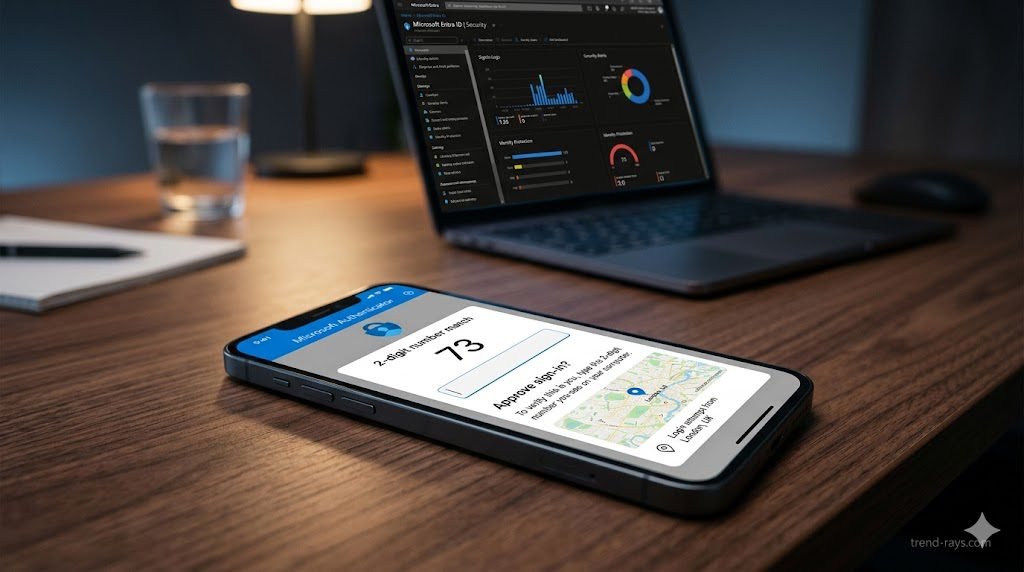
The definitive technical fix for push-bombing is the Entra ID number matching configuration. When enabled, the login screen displays a random 2-digit number. The Microsoft Authenticator app will not display an “Approve” button; instead, it presents a blank keypad. If a hacker in another country triggers a prompt on your employee’s phone, the employee physically cannot approve it because they cannot see the 2-digit number displayed on the hacker’s screen.
How to Deploy:
- Navigate to the Microsoft Entra admin center.
- Go to Protection > Authentication methods > Policies.
- Select Microsoft Authenticator.
- Under the Configure tab, ensure the status is set to Enabled.
- Under the Feature settings tab, change “Require number matching for push notifications” from Microsoft Managed to Enabled.
Adding Authenticator App Location Context
To provide defense-in-depth, admins should augment number matching with Authenticator app location context. When enabled in the same Feature Settings tab, the authenticator app will display a GPS map of the IP address requesting the login, alongside the application name (e.g., “Microsoft Office”). If an employee in London receives a prompt showing a login attempt from a server farm in Russia, it acts as an immediate, glaring red flag, drastically reducing the chances of accidental approval.
FIDO2 Security Keys vs Push Notifications
While number matching stops push-bombing, the ultimate evolution of identity security is eliminating passwords entirely. When comparing FIDO2 security keys vs push notifications, FIDO2 (like a physical YubiKey or Windows Hello for Business) is the undisputed gold standard. FIDO2 utilizes public-key cryptography bound to the specific hardware device, making it 100% immune to both push-bombing and advanced Adversary-in-the-Middle (AiTM) phishing proxies.
Identity Protection Risk-Based MFA
Number matching is a reactive defense. For proactive defense, enterprises must license Entra ID P2 to deploy Identity Protection risk-based MFA. This utilizes Microsoft’s machine learning graph to evaluate every login in real-time. If the system detects an “Impossible Travel” scenario (a user logs in from New York, and 10 minutes later attempts to log in from Tokyo), it automatically elevates the session risk to “High” and silently blocks the login before an MFA prompt is even generated.
Executing a Conditional Access Policy Rollout
You should never deploy massive identity changes globally without testing. A proper Conditional Access policy rollout requires targeting a pilot group (like the IT department) first. Create a strict Conditional Access policy that mandates Number Matching and location context, apply it to the pilot group, monitor the sign-in logs for 48 hours to ensure legacy protocols aren’t breaking, and then slowly expand the policy to the wider organization to avoid a helpdesk overload.
The NPS Extension Dilemma: Fixing Legacy VPNs and RADIUS
While number matching works flawlessly for cloud apps (like Microsoft 365 or Salesforce), it introduces a catastrophic breaking point for on-premise infrastructure.
If your enterprise uses a legacy VPN, a firewall appliance (like pfSense or Fortinet), or a Remote Desktop Gateway (RDG) that authenticates via the Network Policy Server (NPS) extension using RADIUS, you have a massive problem. Legacy RADIUS clients do not have the graphical interface required to display the 2-digit number to the user.
By default, the modern NPS extension attempts to solve this by forcing the user to type a Time-Based One-Time Password (TOTP) from their authenticator app into the VPN client. However, if your VPN only supports the MS-CHAPv2 protocol, TOTP will fail, and your employees will be permanently locked out of the VPN.
The Registry Key Fix (Fallback to Push Notifications)
To keep your legacy VPNs online while maintaining compliance, SysAdmins must explicitly configure the NPS server to bypass number matching and fall back to the legacy “Approve/Deny” push notification only for RADIUS traffic.
You must execute this exact registry modification on the Windows Server hosting your NPS Extension:
- Open the Registry Editor on the NPS Server.
- Navigate to:
HKEY_LOCAL_MACHINE\SOFTWARE\Microsoft\AzureMfa - Create a new String Value.
- Name the string:
OVERRIDE_NUMBER_MATCHING_WITH_OTP - Set the Value data to:
FALSE - Restart the Network Policy Server (IAS) service.
Note for Auditors: Be prepared to document this registry exception in your System Security Plan (SSP). You must explain to the cyber insurance underwriter that this fallback is strictly limited to legacy VPN traffic and that all standard cloud authentication still enforces strict number matching.
The greatest hurdle to deploying number matching is not technical; it is cultural. When you force executives to type a number instead of just tapping a button, they will complain about “friction” and “lost productivity.”
IT Directors must reframe the conversation. Do not apologize for the friction. Explain to the C-suite that this 3-second delay is a legally mandated requirement to maintain the company’s cyber liability insurance. Remind them that the minor friction of typing a 2-digit code is infinitely preferable to the friction of a company-wide ransomware shutdown.
Frequently Asked Questions (Entra ID & MFA)
Does Entra ID Number Matching work with the Apple Watch?
No. Microsoft explicitly removed support for approving MFA prompts via the Apple Watch or Android smartwatches when number matching is enabled. Because a smartwatch screen is too small to comfortably display the context map and the number pad, users must physically pick up their smartphone to complete the challenge. This intentional friction is a core security feature.
Can I enable number matching for specific groups only?
Yes, but it is highly discouraged for long-term architecture. While you can use Entra ID targeted policies to roll out number matching to pilot groups, your ultimate goal must be 100% enforcement. Leaving a subset of legacy users on basic “Approve/Deny” push notifications leaves a backdoor open for attackers to exploit via MFA fatigue.
What is the difference between Entra ID MFA and Windows Hello for Business?
Entra ID MFA (using the Authenticator app) is a cloud-based verification method where the challenge is sent over the internet to a secondary device. Windows Hello for Business is a device-bound, passwordless credential. It uses a hardware TPM chip on the local laptop combined with a PIN or biometric (face/fingerprint) to unlock cryptographic keys, making it significantly more resistant to phishing than standard MFA.