Getting a passport photo taken at a local pharmacy is often expensive, inconvenient, and results in a photo you aren’t exactly thrilled with.
The good news is that you don’t need to leave your house. Modern iPhone cameras are more than capable of capturing a biometric-compliant photo from your living room. However, government agencies use strict automated software to scan these photos. If your lighting is slightly off, or if you use the wrong camera setting, your application will be instantly rejected.
Here is your step-by-step guide to the exact lighting, posing, and apps you need to guarantee your DIY iPhone passport photo gets accepted the first time.
The Strict Biometric Requirements (Get This Right)
Before you pick up your phone, you need to understand what the government scanners are looking for. While specific dimensions vary by country (e.g., 2×2 inches for the US and India, 35x45mm for the UK and Europe), the core biometric rules are universal:
- Sizing: The head must be centered and take up a specific percentage of the total image height.
- The Background: It must be plain white or off-white. There can be no textures, patterns, doors, or furniture visible in the frame.
- Facial Expression: You must maintain a neutral expression. Keep both eyes open, looking directly into the lens, with your mouth closed (no smiling).
- Accessories: Glasses are almost universally prohibited as they cause glare. Hats and head coverings are also not allowed unless worn daily for religious purposes (and even then, they cannot cast a shadow on your face).
The Setup: Lighting and Camera Angles
Having a great iPhone camera doesn’t matter if your lighting is wrong. Biometric scanners are incredibly strict about shadows; even a slight shadow across your cheek or a dark halo behind your head will result in an immediate rejection.
Mastering Flat Lighting
To get your photo approved, you need completely even, flat light.
- Natural Light is Best: Face a large window during the day. This provides soft, even illumination across your entire face without washing out your skin tone.
- Control Your Flash: If you must use artificial light, never point a harsh flash directly at your face. Bounce the light off a ceiling or use a diffuser to soften it.
- Kill the Background Shadow: Do not lean directly against the wall. Step several feet away from your white background. This allows the light to fall evenly behind you and eliminates the dark drop-shadow outline around your shoulders.
Perfect Camera Placement
Never take a selfie. When you hold the phone yourself, your shoulders naturally hunch, and the angle of your arm throws off the required biometric alignment.
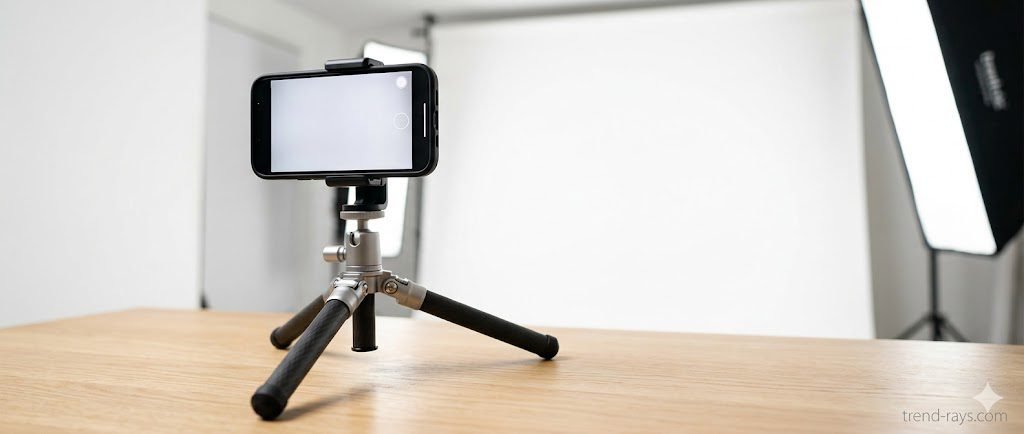
- Set your iPhone on a tripod, or have a friend hold it exactly at your eye level.
- Ensure the camera is perfectly vertical, not tilted up or down.
The Newborn Hack: If you need a passport photo for a baby who cannot sit up, lay a plain white blanket flat on the floor and place the baby on it. Stand directly over them and shoot downward.
The Best iPhone Camera Settings
You need to configure your iPhone to bypass its own automatic enhancements, as digital alterations are strictly prohibited.
- Switch to “Square” Mode: Standard iPhone photos are rectangular, but passport photos require a perfect 1:1 square aspect ratio. To avoid distorting your face when cropping later, change your iPhone camera setting from “Photo” to “Square” before you start shooting.
- Choose the Right Lens (2x or 3x): Do not use the standard 1x wide lens. Wide-angle lenses slightly distort the center of the image, making your nose appear larger and your ears further back. Use the 2x or 3x telephoto lens to compress the image and capture your true facial proportions.
- Turn OFF Portrait Mode: Do not use Portrait Mode to blur the background. Government agencies will automatically reject any photo that has been unnaturally edited or filtered.
Top AI Apps to Format and Crop Your Photo
Once you take the raw photo, you need to ensure it is cropped to exact government specifications. While you should never use AI to alter your face or replace your background with a fake white screen, there are excellent formatting tools available.
If you need a free visa photo app or a passport formatting tool, look for utilities that overlay a digital silhouette on your screen. This allows you to perfectly align your chin and the crown of your head before cropping. Apps like Biometric Passport Photo or iVisa are excellent for checking compliance.
(Note: If you are looking to generate stylized profile pictures for social media or corporate use rather than official travel documents, you will want to use a different set of tools. Check out our complete guide to the best AI avatar maker apps to find the best AI headshot generators).
How to Print Your Passport Photo Cheaply
Do not send a single 2×2 image file directly to a printer, as pharmacies will recognize it and charge you a premium $15 passport photo fee.
Instead, use one of the formatting apps mentioned above to utilize the “4×6 grid trick.” The software will take your perfectly cropped passport image and duplicate it, placing 4 to 6 photos onto a standard 4×6 photo template.
You can then use standard apps to print passport photos by sending that 4×6 image file to your local print shop for just a few cents. Simply cut out the individual squares, and you are ready to submit your application.
Conclusion & FAQ
Taking your own biometric photo saves time and money, provided you strictly follow the rules of lighting, framing, and formatting. Stick to a raw, unedited image, use a telephoto lens, and format it correctly before printing.
Can I wear makeup in a passport photo?
Yes, but it must be subtle and natural. Avoid heavy contouring or dramatic eyeliner that alters your natural facial structure, as this can confuse biometric scanners.
Will my iPhone photo definitely be accepted by the government?
Yes. As long as the photo meets all biometric requirements (lighting, background, sizing, and zero digital alterations), government agencies do not care if it was taken on a DSLR or an iPhone.