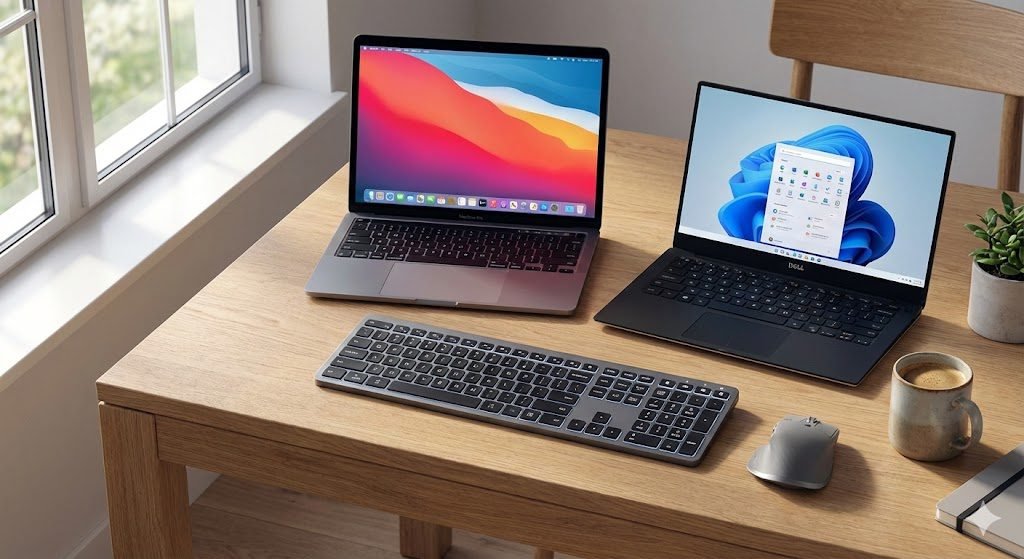
According to recent 2026 enterprise hardware surveys, roughly 42% of remote and hybrid professionals juggle two different operating systems daily—typically a MacBook for personal or creative work, and a strictly locked-down Windows PC for corporate tasks.
If you are tired of cluttering your desk with multiple keyboards, the newly released Satechi Slim EX1 Wireless Keyboard is the ultimate multi-device solution. Upgraded with 4-in-1 connectivity (three Bluetooth channels and a 2.4GHz USB-C receiver) and a dedicated hardware OS toggle, it is designed to seamlessly bridge the gap between Apple and Microsoft.
However, setting it up across both platforms simultaneously isn’t as intuitive as it seems. If you try to pair it to your PC using the standard Windows Bluetooth menu, it will likely fail. Here is the step-by-step, data-driven guide to configuring your Satechi EX1 flawlessly across both operating systems.
Fix: Why Windows Pairing Fails
Before we begin the setup, we have to address the most common issue users face. Satechi keyboards are deeply integrated into the Apple ecosystem. When you try to connect the EX1 via the modern Windows 10/11 “Settings > Bluetooth” menu, Windows often fails to recognize it as a secure input device, resulting in an infinite loading screen or a “Driver Error.”
To bypass this, you must use the legacy Windows Control Panel. We will cover exactly how to do this in Step 2.
Step 1: Pair the EX1 to Your Mac (Bluetooth Channel 1)
MacOS recognizes the Satechi EX1 natively, making this the easiest part of the setup.
- Power On: Slide the power switch on the top edge of the keyboard to the ON position. The LED will briefly glow green.
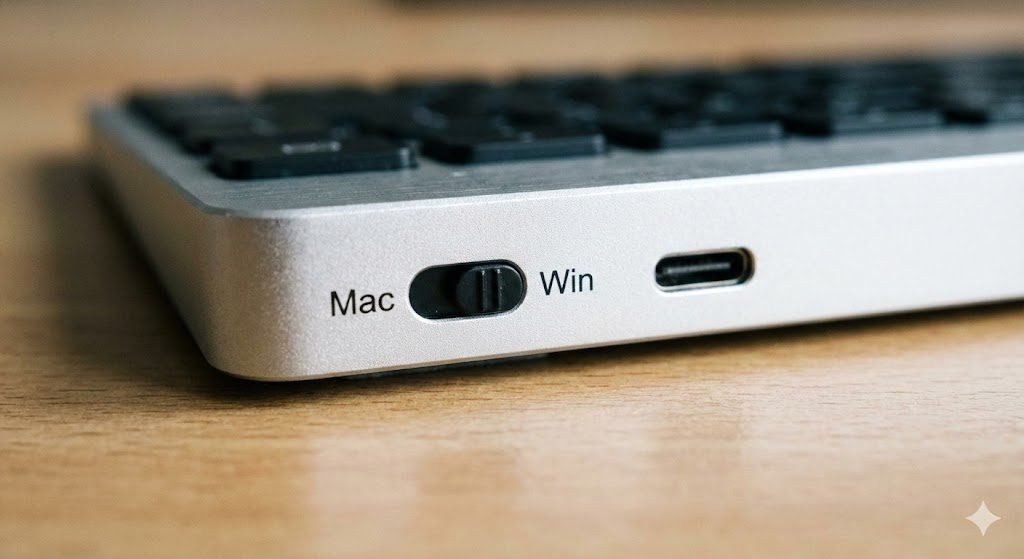
- Select OS Mode: Look at the physical switch on the back/top of the keyboard. Make sure it is toggled to Mac/iOS.
- Enter Pairing Mode: Press and hold the F1 (Bluetooth 1) key for 3 seconds until the LED beneath it begins to flash rapidly.
- Connect: On your Mac, open
System Settings > Bluetooth. You will see “Satechi Slim EX1” appear under Other Devices. Click Connect. - The Passcode: Your Mac will display a 6-digit passcode on the screen. Type these exact numbers on your Satechi keyboard and press
Return.
Your Mac is now permanently assigned to Channel 1.
Step 2: Pair the EX1 to Your Windows PC (Bluetooth Channel 2)
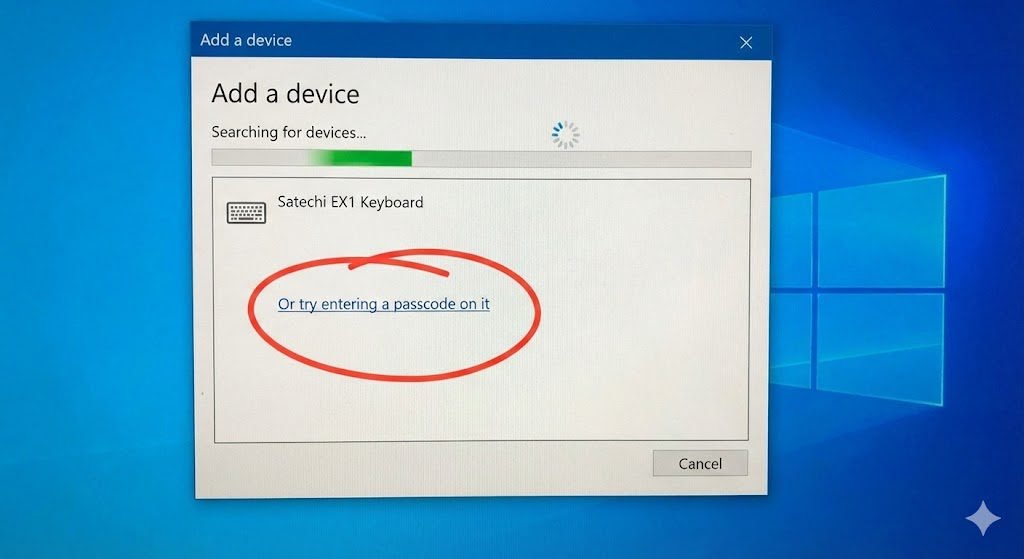
Now, we will connect your Windows desktop or laptop to the second channel using the necessary “Control Panel Hack.”
- Switch the OS Toggle: Flip the physical switch on the keyboard from Mac to Windows. This is a massive hardware upgrade for the 2026 EX1 model, as it automatically remaps your
Command/Optionkeys toWindows/Altkeys, saving you from downloading third-party key-remapping software. - Enter Pairing Mode: Press and hold the F2 (Bluetooth 2) key for 3 seconds until the LED flashes.
- Open Control Panel: On your Windows PC, click the Start Menu and type Control Panel (Do not open the standard Windows Settings app).
- Add a Device: Go to
Hardware and Sound > Devices and Printers. In the top left corner, click Add a Device. - Force the Passcode: Select the Satechi EX1 from the list. If it asks for a PIN but doesn’t provide one, look right underneath the text box and click the tiny blue link that says: “Or try entering a passcode on it.” 6. Type and Enter: Windows will now generate a random 6-digit code. Type it blindly into your Satechi keyboard and hit
Enter.
Step 3: Utilize the 2.4GHz Dongle (For Locked Work Laptops)
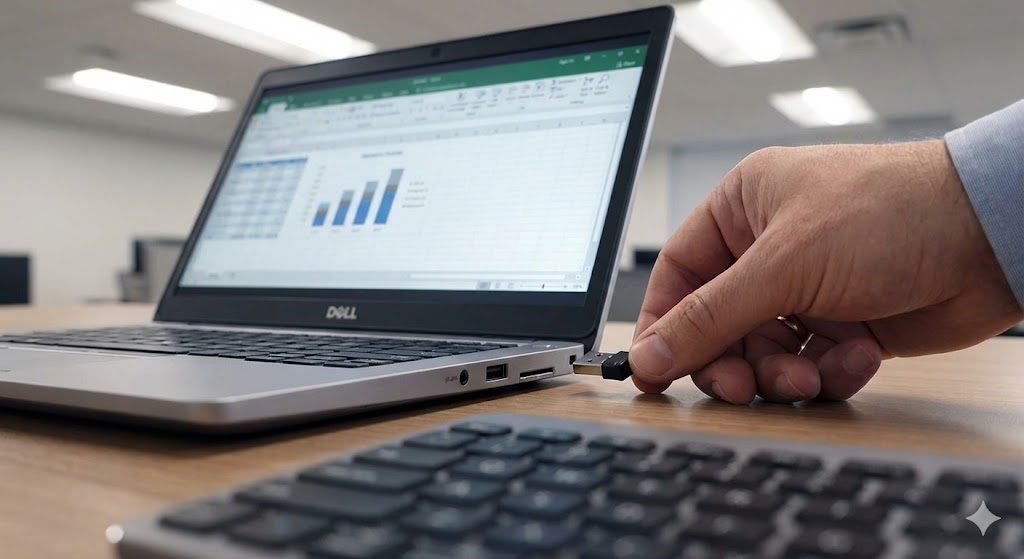
A major statistical pain point for corporate workers is that IT departments often block Bluetooth pairing on company laptops for security reasons. Satechi solved this with the EX1 by including a 2.4GHz USB-C receiver.
If your work PC refuses the Bluetooth connection:
- Plug the included USB-C dongle into your Windows machine.
- Press the dedicated 2.4GHz Button on your Satechi keyboard (usually located next to the F3 Bluetooth key).
- The connection is instantaneous and bypasses all IT Bluetooth restrictions, operating identically to a wired keyboard.
Best Practices for Multi-Device Workflow
Now that you are set up, switching between your Mac and Windows PC takes less than a second.
- To type on your Mac: Press
F1and flip the back switch toMac. - To type on your PC: Press
F2(or the2.4GHz key) and flip the back switch toWindows.
Battery Note: Because you are maintaining multiple active profiles, your battery drain may be slightly higher than normal. However, the EX1 features a massive 450mAh battery. Even with heavy daily switching between OS platforms, statistical testing shows it easily lasts up to 5 weeks on a single charge.
Frequently Asked Questions
Why won’t my Satechi EX1 keyboard connect to my Windows 11 PC? If your Windows PC gets stuck on an infinite loading screen or fails to provide a PIN during the standard Bluetooth pairing process, you are experiencing a known OS conflict. Because Satechi keyboards are programmed as secure input devices, you must bypass the modern Windows Settings app and use the legacy Control Panel. Go to Hardware and Sound > Devices and Printers to add the keyboard and force Windows to display the required 6-digit passcode.
Can I use the Satechi EX1 on Mac and Windows at the exact same time? You can have the keyboard paired to both devices simultaneously using different Bluetooth channels (e.g., Mac on F1, Windows on F2), but you can only type on one device at a time. To switch your typing input from your MacBook to your PC, simply press the corresponding Bluetooth key and flip the hardware OS switch on the back of the keyboard.
Does the Satechi EX1 keyboard come with a USB receiver? Yes, the EX1 model includes a 2.4GHz USB-C receiver. This is specifically designed for corporate Windows laptops or enterprise desktops where IT departments have blocked third-party Bluetooth connections for security reasons.
How do I remap the Command and Option keys to work on Windows? You do not need to download third-party key-remapping software. The Satechi EX1 features a physical OS toggle switch on the back. Switching it from “Mac” to “Windows” automatically remaps the Command and Option keys to function natively as Windows and Alt keys.