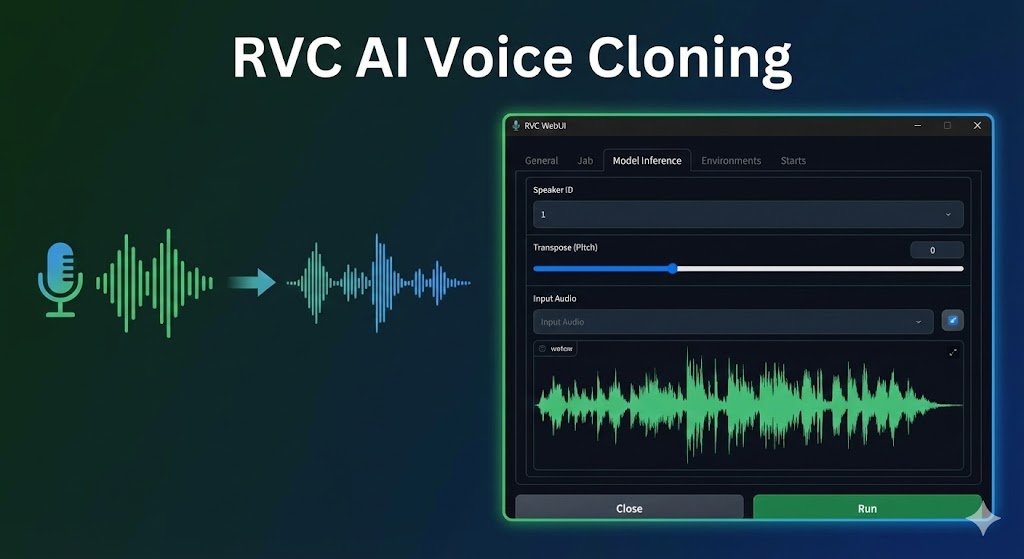
Paid AI tools are convenient, but they get expensive. If you have a decent computer and a bit of patience, you can clone voices for free using RVC (Retrieval-based Voice Conversion). This technology has taken the modding and gaming world by storm in 2025 because it runs locally—meaning no subscription fees and total privacy.
Prerequisites: Do You Have the Hardware?
Unlike cloud tools, RVC uses your computer’s power.
- GPU: NVIDIA Graphics Card with at least 8GB VRAM (RTX 3060 or better recommended).
- RAM: 16GB minimum.
- OS: Windows 10/11 (Linux is also supported).
- Alternative: If you have a weak PC, you can run RVC in the cloud using Google Colab (free tier available).
Step-by-Step Installation Guide
- Download the Software:
- Navigate to the official
RVC-ProjectGitHub page or use the “AICoverGen” one-click installer package widely available on HuggingFace. - Download the
.7zfile (approx 5GB).
- Navigate to the official
- Unzip and Launch:
- Extract the folder to a drive with at least 20GB of free space.
- Run the file named
go-web.bat. This opens a command prompt and eventually launches a user interface in your web browser.
How to Clone a Voice (Training Phase)
- Prepare Your Dataset:
- You need 10–30 minutes of clean audio of the target voice.
- Crucial Step: RVC hates background noise and music. You must have clean, dry vocals. The best free tool for this is Ultimate Vocal Remover 5 (UVR5). Download it and use the “MDX-Net” model to separate vocals from instrumentals with high quality before feeding the audio to RVC.
- Process Data:
- In the RVC “Train” tab, name your model (e.g., “MyVoice_V1”).
- Point the tool to your folder of audio clips.
- Click “Process Data.” The AI will slice your audio into small chunks.
- Start Training:
- Set “Epochs” to 200 (for a balanced quality).
- Click “Train Model.” Depending on your GPU, this will take 1–4 hours.
How to Use Your New Voice
Once trained, you get a .pth file.
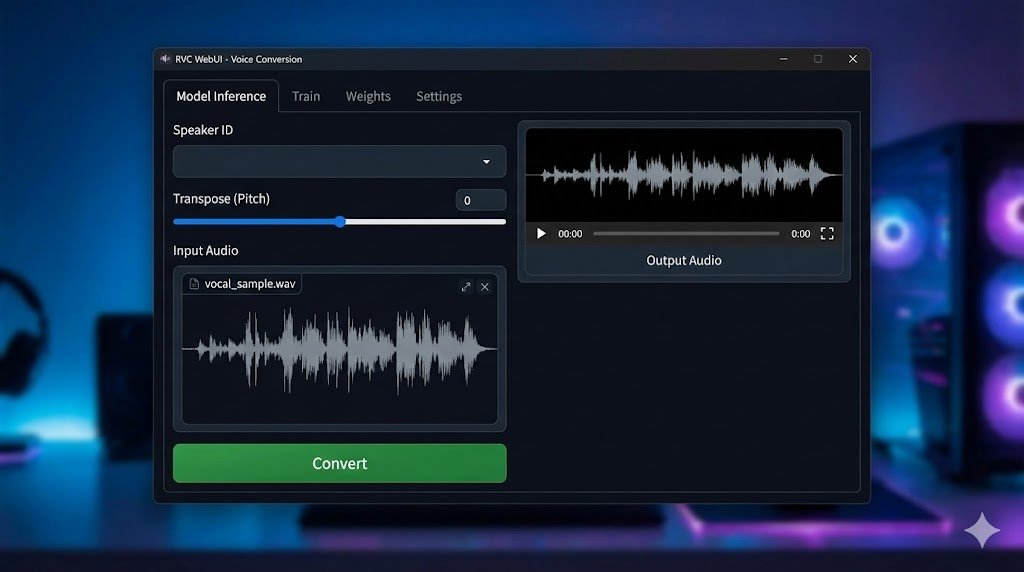
- Go to the “Model Inference” tab.
- Click “Refresh” to see your new voice model.
- Upload any audio file (e.g., you speaking into a mic) and click “Convert.” The AI will re-render your words in the cloned voice!
Troubleshooting Common Errors
“Deep/High Pitch”: You must adjust the “Pitch Semitone.” If converting Male-to-Female, set pitch to +12. If Female-to-Male, set to -12.
“Robotic / Metallic Sound”: This usually means you “Over-trained” the model (too many epochs). Try using an earlier save file (e.g., epoch 150 instead of 200).