You recorded the perfect lecture, interview, or personal note on your iPhone, but playing it back reveals distracting wind, traffic, or a loud AC hum. iPhone microphones are incredibly sensitive, which is great for capturing detail but terrible for background interference.
To quickly remove background noise from a Voice Memo on an iPhone, open the recording, tap the Options icon (the three horizontal lines), and toggle on “Enhance Recording” (the magic wand icon). For extremely heavy noise, save the memo to your Files app and upload it to a free AI audio cleaner like Adobe Podcast Enhance or ElevenLabs.
Whether you need a quick fix for an audio file directly on your device, want to strip background noise from a video, or require a studio-quality AI restoration, this guide covers the absolute best methods for salvaging noisy iPhone recordings.
Quick Guide: Which Noise Removal Method is Best?
Tool / Feature Best Used For Cost Audio Quality Voice Memos “Magic Wand” Quick audio notes, quiet environments. Free (Built-in) Good iOS Audio Mix (Photos App) Videos shot on iPhone 16 or newer. Free (Built-in) Excellent CapCut “Isolate Voice” TikTok, Reels, and older iPhone videos. Free App Excellent ElevenLabs / Adobe AI Podcasts, heavy wind, chaotic traffic. Free Tier Studio Grade iMovie “Reduce Noise” Basic video editing on older iPhones. Free App Average
Method 1: The Native iOS “Magic Wand” (Fastest Solution)
Apple built a surprisingly capable noise-reduction tool directly into the Voice Memos app. It works locally on your device, meaning you don’t need to download extra apps or worry about uploading private audio to the cloud.
How to use Enhance Recording:
- Open the Voice Memos app and tap the recording you want to fix.
- Tap the Options icon (three horizontal lines or dots below the recording).
- Toggle on Enhance Recording (the magic wand icon).
Note for iOS 17/18 users: Apple has upgraded this feature on newer devices. You may see an option called Studio Voice instead, which provides a slider to manually adjust the level of background noise reduction and reverb.
- Pros: Instant, completely free, and highly private.
- Cons: As many audio professionals note on Reddit troubleshooting forums, Apple’s built-in algorithm can sometimes aggressively compress the audio. If the background noise is too loud (like heavy wind), the Magic Wand might make your voice sound slightly muffled, robotic, or clipped.
Bonus Tip: “Voice Isolation” for Live Recording
If you know you are about to record in a noisy environment, you can block the noise before it gets into the file.
While recording in Voice Memos (or during a FaceTime/phone call), swipe down from the top right of your screen to open the Control Center. Tap the Mic Mode control (or the app controls module) and switch it from “Standard” to Voice Isolation. This uses Apple’s machine learning to prioritize human vocal frequencies in real-time while aggressively muting traffic, keyboard clicks, and wind.
How to Remove Background Noise from a Video on iPhone
If you recorded a video in your Camera app (like a vlog, interview, or a clip for social media) and the background noise is ruining the footage, the Voice Memos app won’t help you. You need to process the video file directly. Here are the two best ways to do it right on your iPhone without losing video quality.
(Ensure you embed your original, watermarked screenshots of the iMovie and CapCut interfaces here to protect your trend-rays.com visual assets from being scraped).
Method A: The Native “Audio Mix” Feature (For iPhone 16 & 17)
If you own an iPhone 16, iPhone 16e, or the newer iPhone 17 models, you don’t need any third-party apps. Apple introduced a feature called Audio Mix directly inside the native Photos app, which uses Spatial Audio recording to separate background noise from voices.
Note: This only works if your Camera app was set to record in “Spatial Audio” (which is on by default).
How to use Audio Mix on Video:
- Open the Photos app and select your noisy video.
- Tap Edit at the bottom of the screen.
- Tap Audio Mix (the icon with three sliders).
- Swipe left to choose from Apple’s AI noise-reduction modes:
- In-Frame: Automatically mutes sounds and voices of people not visible on camera.
- Studio: Aggressively removes background traffic, wind, and room echo, making it sound like you used a professional mic.
- Cinematic: Pushes all voices to the front but leaves a little environmental surround sound for a movie-like feel.
- Drag the slider below the options to adjust the intensity, then tap Done.
Method B: The Native iMovie Fix (Free & Built-in)
Every iPhone comes with Apple’s iMovie app. It has a hidden feature that allows you to reduce background noise from video clips.
- Open iMovie and tap Start New Project > Movie.
- Select your noisy video from your camera roll and tap Create Movie.
- Tap on the video timeline at the bottom so it highlights in yellow.
- Tap the Audio icon (the speaker) at the bottom of the screen.
- You will see a slider and an option to Reduce Background Noise. Toggle this ON and adjust the percentage (usually 50% is the sweet spot before voices sound robotic).
- Tap Done in the top left, then tap the Share button to save the cleaned video back to your Photos app.
Method C: Using CapCut’s AI “Isolate Voice” (Best for Social Media)
If you are posting to TikTok or Instagram Reels, CapCut is the most powerful free tool for mobile video editors. Its AI audio processing is currently superior to Apple’s native iMovie tools.
- Download CapCut from the App Store and create a New Project with your video.
- Tap on the video clip in the timeline.
- Swipe right on the bottom toolbar until you find the Isolate Voice tool.
- Select Keep Voice.
- The AI will take a few seconds to process the video, aggressively stripping out wind, traffic, and AC hums while keeping your vocal track perfectly synced to your mouth movements. Export the video when done.
Method 2: Free Browser-Based AI Tools (Best Audio Quality)

If the native iPhone magic wand makes your voice sound too underwater, you need to use a dedicated AI vocal separator. These tools use deep neural networks to completely reconstruct your voice while deleting the noise.
First, you need to export the file: Tap the Share button on your Voice Memo and select Save to Files. This saves it as an .m4a file that you can easily upload to Safari web tools.
Top Free Web AI Cleaners:
- Adobe Podcast Enhance (Free Tier): Access this via Safari. You upload your file, and Adobe’s AI completely isolates the vocals, making it sound like it was recorded in a professional, sound-treated studio.
- ElevenLabs Voice Isolator: Highly recommended for extreme noise. ElevenLabs is fantastic at pulling spoken words out of chaotic environments (like busy offices or windy streets) without flattening the speaker’s vocal tone.
- Descript (Studio Sound): If you are editing the audio on a computer later, Descript’s “Studio Sound” feature is an industry favorite for instantly removing echo and room noise with a single click.
Method 3: Dedicated Third-Party iOS Apps (For Power Users)
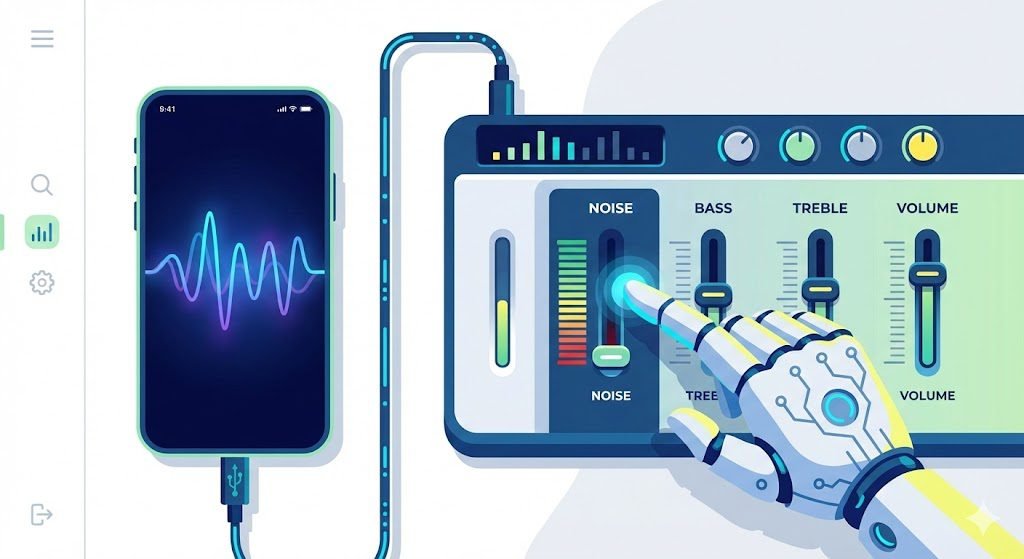
If you frequently record field interviews, lectures, or podcasts directly on your iPhone and want a dedicated tool without relying on a browser or Apple’s built-in magic wand, the App Store has several powerful AI solutions.
Here are the top three iOS apps for 2026, broken down by how to use them and who they are best for:
1. ByeNoise – Video Audio Editor
ByeNoise is widely considered one of the most user-friendly noise reduction apps on the market, relying on smart AI algorithms to automatically detect and eliminate static, wind, and electrical hums.
- Best For: Everyday users, beginner podcasters, and vloggers who need a quick, reliable fix without diving into complex audio engineering.
- How to Use It: 1. Open the app and tap “Load File” to import your Voice Memo from your Files app or iCloud.2. Choose the “Speech Only” AI filter, which tells the app to aggressively remove anything that isn’t a human vocal cord.3. Tap “Play Cleaned” to preview the audio. You can adjust the noise reduction strength slider until it sounds natural.4. Hit save or share the cleaned
.m4afile directly to your email or social media. - The Benefits: It features a built-in volume booster so that when the noise is removed, your voice doesn’t sound quiet or distant. It also supports video files, making it a great two-in-one tool.
- Pricing: Free to download (but limits processing to the first 30 seconds of a clip). Pro subscriptions unlock unlimited length and run around $8.99/week or $24.99/month.
2. Noise Eraser (by DeepWave)
Noise Eraser is a professional-grade AI audio editor that gives you granular control over exactly what type of background noise you want to eliminate.
- Best For: Advanced content creators, journalists, and filmmakers who need to preserve the high-fidelity stereo sound of their original recording.
- How to Use It: 1. Import your audio or video file into the dashboard.2. The AI will automatically analyze and separate the tracks into “Human Voice” and “Background.”3. Instead of a single “clean” button, you use specialized sliders like Split Wind, Split Traffic, or Split AC. If you want to keep the ambient city sounds but lower the traffic roar, simply slide the “Traffic” meter down.4. Use the built-in trimming tool to cut out any dead air before exporting.
- The Benefits: It doesn’t just flatten the audio; it intelligently separates the stems. The ability to adjust the voice-to-noise ratio means you never get that “robotic underwater” sound that cheaper apps cause.
- Pricing: Free trial available. Pro plans start at $7.99/month or $49.99 for a lifetime license.
3. Audio Video Noise Reducer AI (by Inverse.AI)
This app is a powerhouse utility that strips away background interference while allowing you to easily compare your results in real-time.
Pricing: Free basic access with watermarks/limits. Premium unlocks for $5.99/week, $9.99/month, or a $49.99 lifetime payment.
Best For: Students recording lectures, musicians reviewing practice tapes, and anyone dealing with exceptionally chaotic background environments.
How to Use It: 1. Launch the app and select your noisy Voice Memo.2. The app’s AI immediately processes the file upon upload.3. Tap the Compare button to instantly toggle between the original noisy file and the newly scrubbed noiseless version.4. Once you are satisfied with the comparison, select your desired export format (WAV, MP3, AAC) and save it to your device.
The Benefits: The side-by-side “Compare” feature ensures you aren’t accidentally losing important audio quality. It also features a built-in “Smart Recorder” that actively suppresses noise while you record, allowing you to bypass the native Apple Voice Memos app entirely in the future.
Frequently Asked Questions (FAQs)
Can I use iOS 18 Voice Isolation on pre-recorded videos?
No. The iOS Control Center “Voice Isolation” feature only works during live phone calls, FaceTime, or while actively recording a Voice Memo. To remove noise from a video you have already recorded, you must use a video editor like iMovie, CapCut, or a third-party app like ByeNoise to process the audio track.
Why does my iPhone Voice Memo sound muffled?
If your recording sounds muffled before applying any noise reduction, you may have accidentally covered the iPhone’s bottom microphone with your hand while holding it. Alternatively, lint and dust in the microphone grille can severely degrade audio quality. Always hold the phone with the bottom mic pointed toward the speaker, completely unobstructed.
Can I remove background music from a voice memo?
Yes, but the native iOS “Enhance Recording” tool won’t do it perfectly. To separate human speech from loud background music, you need a specialized AI stem-splitter like LALAL.AI or ElevenLabs Voice Isolator. These algorithms are specifically trained to differentiate between musical instruments and human vocal cords.
Does iOS transcribe voice memos?
Yes. Starting with iOS 18 and the rollout of Apple Intelligence, the Voice Memos app now features built-in, real-time live audio transcription. You can view the text as it is spoken and even search your transcripts later to find specific quotes.
Troubleshooting: Why Does My Voice Sound “Robotic” or “Underwater”?
If you apply a noise reduction tool and your voice suddenly sounds metallic, robotic, or muffled, you are experiencing Audio Artifacting.
When background noise (like heavy wind) shares the same frequency as human speech, the AI struggles to separate them. If you set the noise reduction to 100%, it accidentally deletes parts of your vocal cords’ frequency, causing that “underwater” sound.
The Fix: Never set your noise reduction slider to 100%. Whether you are using iMovie, CapCut, or ByeNoise, dial the intensity back to 60% or 70%. Leaving a tiny bit of natural background noise always sounds better than a heavily processed, robotic voice.
Conclusion: Which Method Should You Choose?
Dealing with ruined audio on an iPhone doesn’t require expensive sound engineering software anymore. However, using the wrong tool for the wrong file type will just waste your time.
To make your decision easy, here is the final verdict on exactly which tool you should use based on your situation:
- For Quick Personal Notes (Audio Only): Stick to the iPhone’s built-in “Magic Wand” in the Voice Memos app. It takes one tap, costs nothing, and is perfect for personal lectures or quick memos where studio quality doesn’t matter.
- For Social Media Videos (TikTok, Reels, Shorts): Use CapCut’s “Isolate Voice” feature. It is currently the most powerful free tool for mobile video, successfully stripping out heavy wind and traffic while keeping your audio perfectly synced to your lips.
- For Professional Content (Podcasts, YouTube, Interviews): Do not rely on mobile apps. Take the extra 60 seconds to export your file to Adobe Podcast Enhance or ElevenLabs. These dedicated AI tools are the only methods that will reconstruct your vocal frequencies to sound like you recorded in a professional, sound-treated studio.
Don’t let a windy day or a noisy street ruin your content. Try out the CapCut method for your next video, or hit the magic wand on your latest voice memo right now to hear the difference instantly.
What is your go-to method for cleaning up smartphone audio? Have you tried Apple’s new Voice Isolation mode yet? Let us know in the comments below!