If you walk into a CVS, Walgreens, or Walmart today and ask for a passport photo, you will be handed two printed squares and charged anywhere from $15 to $20.
If you use the “4×6 template hack,” you can walk into that exact same store, use their printing kiosk, and get the exact same photos for under 40 cents.
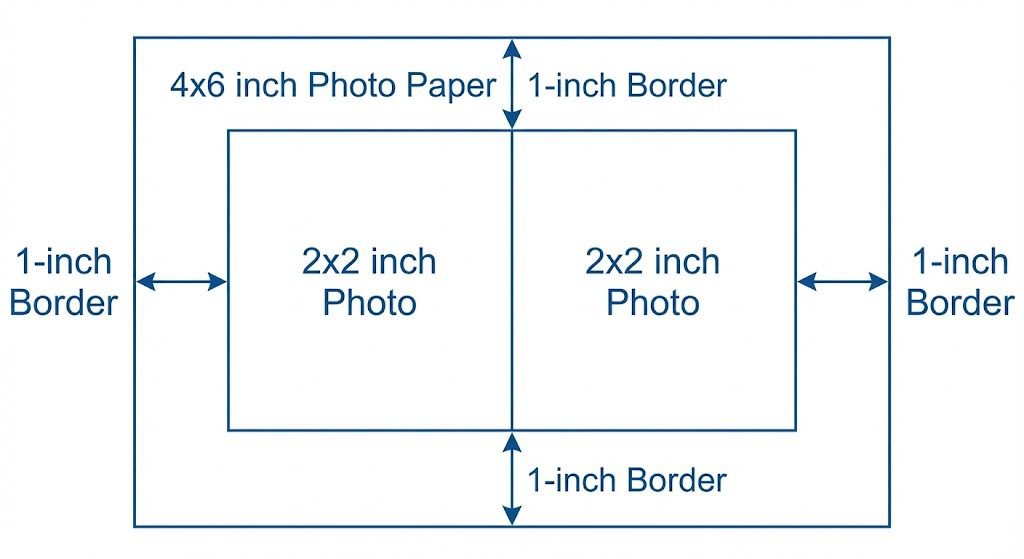
The secret lies in understanding how retail photo pricing works. Pharmacies charge a massive premium for the “Passport Photo Service.” But if you bypass the service and simply print a standard 4×6-inch family photo, it costs pennies. Because two 2×2-inch passport photos fit perfectly onto a single 4×6-inch canvas, you can format the photo yourself at home, print it as a standard picture, and cut it out.
Here is the step-by-step guide to formatting your own 4×6 passport template for free, bypassing the expensive apps, and guaranteeing your photo is accepted by the US Department of State.
Why the 4×6 Hack Works (The Math)
The standard US passport photo size is exactly 2 x 2 inches (51 x 51 mm).
The most common and cheapest photo print size in the world is 4 x 6 inches.
4×6 Passport Photo Formatter
DIY 4×6 Passport Photo Formatter
Upload your perfectly cropped square (1:1) selfie. We will format it onto a standard 4×6 inch print template at 300 DPI for cheap pharmacy printing.
If you place two 2×2 inch photos side-by-side, they take up a total space of 4 x 2 inches. This fits comfortably inside a 4×6 inch piece of photo paper, leaving a 1-inch white border around the edges. This white border is actually beneficial—it gives you room to hold the paper without leaving fingerprints on your face, and it makes cutting the photos out significantly easier.
Step 1: Capture and Crop Your 2×2 Photo
Before making the template, you need a compliant digital photo. You cannot simply use a regular selfie.
- Take the Photo: Stand 1.5 feet away from a plain white or off-white wall. Face a window so natural light hits you evenly (avoiding shadows on your face or the wall). Keep a neutral expression, ensure both ears are visible, and take off your glasses (glasses are an automatic rejection in 2026).
- Crop to 2×2: Do not guess the sizing. The government requires your head to be between 1 inch and 1 3/8 inches from the bottom of your chin to the top of your head.
- Use a Free Tool: Go to the US Department of State’s free official Photo Cropping Tool. Upload your image, align the digital overlays with your eyes and chin, and download the perfectly cropped 2×2 square.
Step 2: Create the 4×6 Template (Free Method)
Many “passport photo apps” will charge you $16.95 just to generate this template. You can do it for free using Canva in less than two minutes.
How to format using Canva (Desktop or Mobile):
- Go to Canva.com and click “Create a design.”
- Select “Custom size.” Change the measurement dropdown from pixels (px) to inches (in).
- Enter Width: 6 and Height: 4. Click “Create new design.”
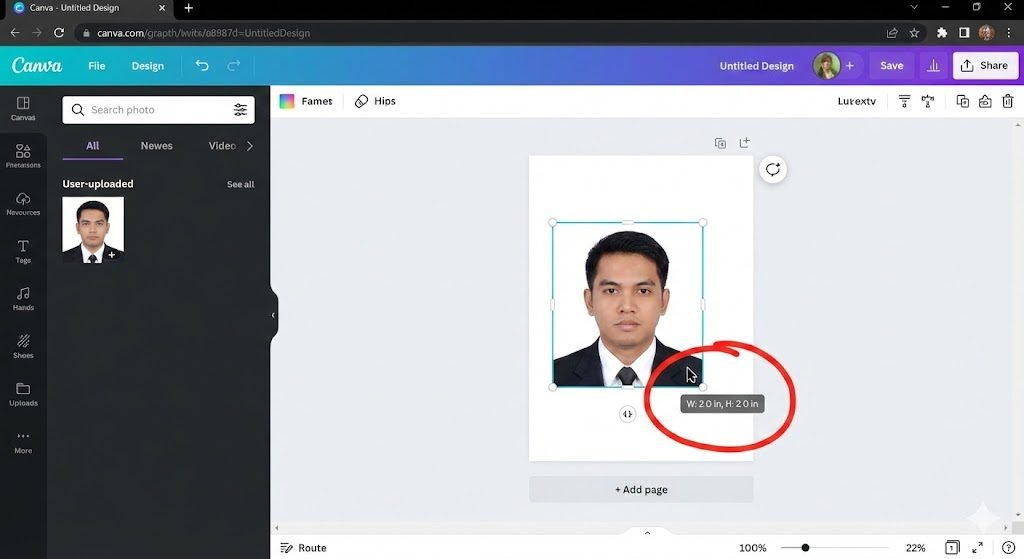
- Upload your cropped 2×2 digital photo to Canva.
- Drag the photo onto your blank 4×6 canvas.
- Click and drag the corner of your photo to resize it. As you drag, Canva will display the dimensions in a small black box. Stop exactly when it says W: 2.0 in, H: 2.0 in.
- Copy and paste the photo so you have two identical images.
- Arrange them side-by-side in the middle of the canvas, leaving a small gap between them for cutting.
- Click “Share” -> “Download”. Select PNG or JPG and ensure the quality slider is at 100%.
Step 3: Print Your Template (The Crucial Step)
Now that you have your 4×6 image file, you can send it to Walgreens, CVS, Walmart, or print it at home.
If printing at a pharmacy kiosk or app:
- Select 4×6 Print (Glossy or Matte).
- WARNING: You must check the crop settings before hitting print. Retail kiosks often default to “Fit to Fill” or “Center Crop.” You must ensure the photo is set to Actual Size or Uncropped. If the kiosk scales the image up to fill the paper, your 2×2 faces will stretch to 2.3 inches, and the government will reject them.
If printing at home:
- Use high-quality photo paper. If you are unsure which paper passes biometric scanning, check out our deep dive on the Best Paper for Printing Passport Photos at Home to avoid the dreaded “texture rejection.”
- In your printer settings, set the paper size to 4×6 and ensure “Scale: 100%” is selected. Never use “Borderless Printing” for this hack, as it slightly enlarges the image.
Step 4: Cut with Precision
Do not use dull household scissors. Uneven, jagged edges are a frequent reason for application delays.
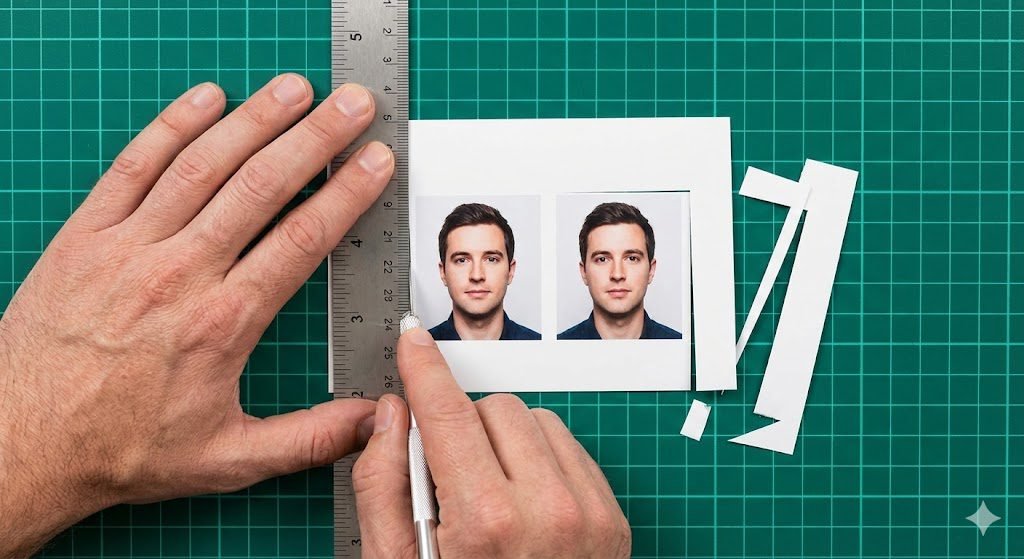
If you have a paper trimmer/guillotine, use it. If not, use a metal ruler and a craft knife (like an X-Acto blade) to cut exactly along the edges of your 2×2 photos. Ensure there is no white border left inside the 2×2 square, but do not cut into the image itself.
Frequently Asked Questions (FAQ)
Will CVS or Walgreens refuse to print my 4×6 template?
No. You are paying for a standard 4×6 photo print. The automated kiosks and mobile apps do not monitor what is on the 4×6 canvas. When you go to pick up your photos, the clerk will simply hand you an envelope with your 4×6 print inside.
Should I choose Matte or Glossy for my 4×6 print?
The US Department of State accepts both matte and glossy finishes. However, matte is often preferred because it prevents glare during the government’s digital scanning process and doesn’t pick up fingerprint smudges while you are cutting it.
Can I put four photos on a 4×6 instead of two?
Technically, yes. A 4×6 canvas can fit exactly three 2×2 photos mathematically, but printing margins make it incredibly tight and risky. Sticking to two photos guarantees you have safe margins for printer bleeding and cutting. Since you only need two photos for a US passport application, two is perfect.
Does this hack work for international visas or UK passports?
This specific mathematical hack works for US parameters (2×2 inches). The UK and EU use a 35mm x 45mm standard. You can still use the 4×6 hack for EU/UK photos; you will just size the images differently in Canva (roughly 1.37 x 1.77 inches) and you can easily fit four of them onto a single 4×6 print.