The PLAUD NotePin S is a powerful productivity tool, but like any 2026 AI wearable, it can run into technical glitches. Whether you are facing a “Syncing Failed” error, a mysterious flashing purple light, or your device simply won’t turn on, 90% of these issues are software-based and can be solved in under 60 seconds. Below is the definitive troubleshooting guide for the NotePin S, compiled from official support data and real-world fixes, so you can get back to recording without needing a return.
Here is the definitive troubleshooting guide for the NotePin S, compiled from official support data and real-world fixes from the r/PLAUDAI community.
Why Is My NotePin S Malfunctioning?
Before diving into the fixes, it helps to understand why your 2026 AI wearable is acting up. Most NotePin S issues boil down to four main hardware and software quirks:
- Bluetooth Stack Collisions (Syncing Errors): The NotePin S relies on Low Energy (BLE) protocols. If your phone is simultaneously connected to a smartwatch, wireless earbuds, and a car system, the Bluetooth bandwidth gets crowded. This causes the PLAUD app to drop the connection or fail to locate the device. Furthermore, aggressive battery-saving modes on modern Android and iOS devices often kill background Bluetooth scanning.
- Firmware Kernel Panics (The “Dead” Device): When your device freezes or shows a solid red light that won’t turn off, the internal software (the kernel) has crashed. This usually happens if a background over-the-air (OTA) update was interrupted by a weak Wi-Fi signal, or if the device tried to process a massive audio file while the battery was critically low.
- Sensor Miscalibration (Battery Drain): Lithium-ion batteries rely on software to read their charge levels. If you frequently charge your NotePin S in short bursts (e.g., from 40% to 60%) instead of doing full charge cycles, the software loses track of the actual battery capacity, causing it to report false “low battery” warnings or drain unexpectedly.
- Oxidation and Debris (Charging Failures): The NotePin S uses magnetic “Pogo Pins” for charging. Because it’s a wearable device constantly exposed to sweat, skin oils, and dust, an invisible layer of oxidation can form over the gold contacts. This microscopic barrier prevents the electrical current from passing from the dock to the device.
The “Ultimate Fix”: How to Hard Reset
If your NotePin S is frozen, won’t turn on, or shows a solid red light, a hard reset is your first step.
- The Method: Connect the device to a power source (not a computer). Press and hold the Record button for exactly 12 seconds.
- The Result: The indicator light will turn off. Wait 30 seconds, then try to power it back on. This clears the cache without deleting your stored recordings.
Fixing “Syncing Failed” & Bluetooth Errors
Many users report that the Plaud App “cannot find device” even when it’s right next to the phone.
- The Android Fix: Ensure Location Services are turned ON. On Android 12+, Bluetooth scanning requires location permissions to function.
- The iOS Fix: Go to Settings > Plaud and toggle Bluetooth permissions OFF and then back ON.
- The Pro-Tip: Toggle your phone’s Airplane Mode on and off to “force-refresh” the Bluetooth stack.
Is It the Device or the App? (App-Side Fixes)
Sometimes your NotePin S is perfectly fine, but the PLAUD app on your phone is causing the “Syncing Failed” or “Device Not Found” errors. Before assuming your hardware is broken, try these app-side fixes:
- Clear the App Cache (Android): Go to your phone’s Settings > Apps > PLAUD > Storage > Clear Cache. This forces the app to dump temporary corrupted files that might be blocking the Bluetooth connection.
- The “Offload” Trick (iOS): Go to Settings > General > iPhone Storage > PLAUD and tap Offload App. This deletes the app but keeps your data and recordings safe. Reinstall it from the App Store to get a fresh, bug-free version.
- Check for App Updates: A 2026 firmware update on the NotePin S will often fail to sync if you are using an outdated version of the phone app. Always verify you have the latest version from the App Store or Google Play.
Dealing with Battery Drain (2026 Update)
Is your NotePin S dying in 2 days instead of lasting 40?
- Calibrate the Battery: Fully discharge the device until it shuts down. Charge it to 100%, and once the light turns green, leave it plugged in for an extra 15 minutes. This recalibrates the battery sensor.
- Check the Firmware: Early versions of the 2026 firmware had a “Background Search” bug. Ensure you are on version V2.1 or later via the Plaud App settings.
“Access via USB” Not Working?
If your computer won’t recognize the NotePin S as a drive:
- The Security Rule: Starting in 2026, PLAUD disabled “Access via USB” by default for data compliance.
- The Fix: You must go into the Plaud App > Device Settings and manually toggle “Allow USB Access” to ON before plugging it into your PC/Mac.
If your PLAUD NotePin S is acting up, don’t panic. Whether it’s a “Syncing Failed” error or a mysterious purple light, 90% of issues are software-based and can be fixed without a return.
This guide covers the technical “edge cases” that Reddit threads miss and provides the official 2026 light-code meanings.
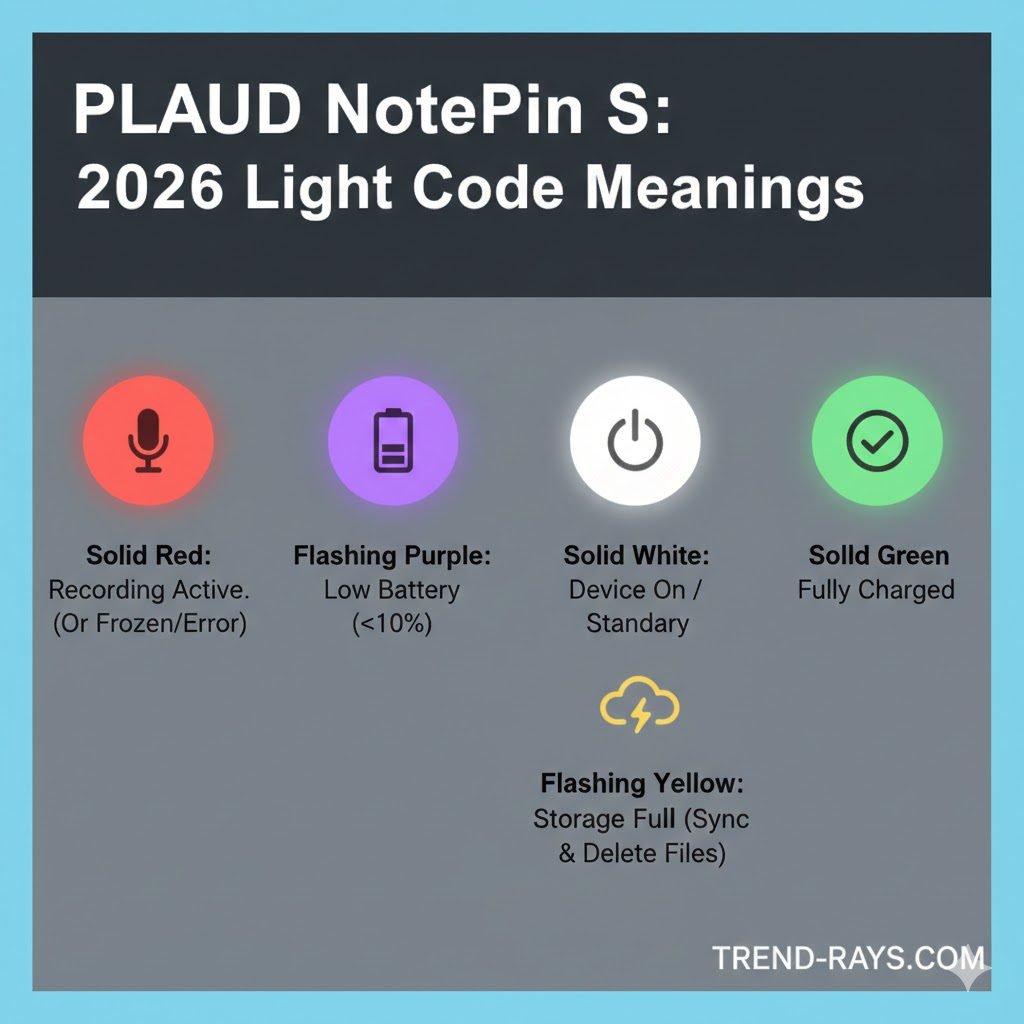
Decode the Lights: The PLAUD NotePin S Color Guide
Users often search for “What does [color] mean on NotePin?” This section satisfies that intent immediately.
| Light Color | Status / Meaning | Action Required |
| Solid Red | Recording is active. | None. (Note: If it stays on after stopping, perform a Hard Reset). |
| Flashing Purple | Battery is critically low (<10%). | Charge immediately to avoid audio file corruption. |
| Solid White (5s) | Normal wakeup / Battery >10%. | None. Ready to use. |
| Flashing Yellow | Storage is Full (64GB limit reached). | Sync with the Plaud App and delete old files to free up space. |
| Solid Green | Fully charged and connected to power. | Unplug and resume use. |
Advanced Connection & Sync Fixes
Most “Bluetooth not found” errors in 2026 are due to App Permissions or Frequency Interference.
- The Android “Location” Trap: On modern Android OS, Bluetooth scanning requires Location Services to be toggled to “Always Allow.” If it’s set to “While Using,” the background sync will fail.
- The “Double Bind” Error: If you previously paired the NotePin to a different phone, it will refuse to show up on a new one. Fix: Long-press the button while charging to “unbind” the old connection.
- Wi-Fi Fast Transfer: For long meetings (1 hour+), Bluetooth is too slow. Switch to the Wi-Fi Hotspot mode in the Plaud App for 20x faster speeds.
Hardware Maintenance: Cleaning the “Pogo Pins”
The NotePin S uses a magnetic charging dock. A common “Doesn’t Charge” issue is actually skin oil buildup.
- The Fix: Use a 70% Isopropyl Alcohol swab to clean the small gold contact points on the back of the device and the pins in the dock.
- Warning: Never use metal tools to scrape the pins; this will void your warranty and damage the 2026 waterproof coating.
Firmware V2.1 “Deep Sleep” Bug
Some early 2026 units experience a “Deep Sleep” where the device won’t wake up even when shaken.
- Plug the device into a DC-5V wall charger (not a laptop port).
- Press and hold the tactile button for 12 seconds.
- The device will “vibrate twice”—this indicates a successful kernel reboot.
How to Safely Update the NotePin S Firmware
Running outdated firmware is the #1 cause of battery drain and connection drops. Here is how to update your device safely without causing a critical error:
- Ensure your NotePin S has at least 50% battery. Never attempt an update on a low battery.
- Keep the device physically touching your phone to ensure the strongest Bluetooth connection.
- Open the PLAUD App, go to Device Settings > Firmware Update.
- Do not close the app or lock your phone screen while the update is downloading and installing. Let the progress bar reach 100% and wait for the NotePin S to automatically reboot (indicated by a short vibration and a white light).
When to Contact Support (Warranty & Replacements)
If you have tried the 12-second Hard Reset, cleaned the Pogo pins, and reinstalled the app, but your NotePin S still shows a solid red light or refuses to charge, you likely have a hardware failure.
- The Warranty: The PLAUD NotePin S comes with a standard 12-month warranty covering manufacturing defects (like a dead battery cell or a broken microphone).
- What to Do: Do not attempt to open the device, as this will instantly void your warranty and ruin the waterproofing.
- How to Contact: Reach out to PLAUD’s official support team via the app or their website. Pro-tip: Tell them you have already performed a “12-second hard reset and cleaned the charging contacts.” This helps you bypass the automated troubleshooting bot and gets you connected to a human agent much faster for a replacement.
FAQ: Frequently Asked Questions
Why is my NotePin S light flashing purple?
A flashing purple light indicates a low battery. If it flashes while recording, the device may shut down soon. Charge immediately.
Can I recover deleted recordings?
No. Once a recording is deleted from the device or the app, it is gone for security reasons (HIPAA compliance). Always sync before deleting.
Why does the transcript have “Unknown Speaker”?
This happens if the audio is muffled. For best Speaker Diarization, ensure the NotePin S is not covered by a heavy jacket or scarf.