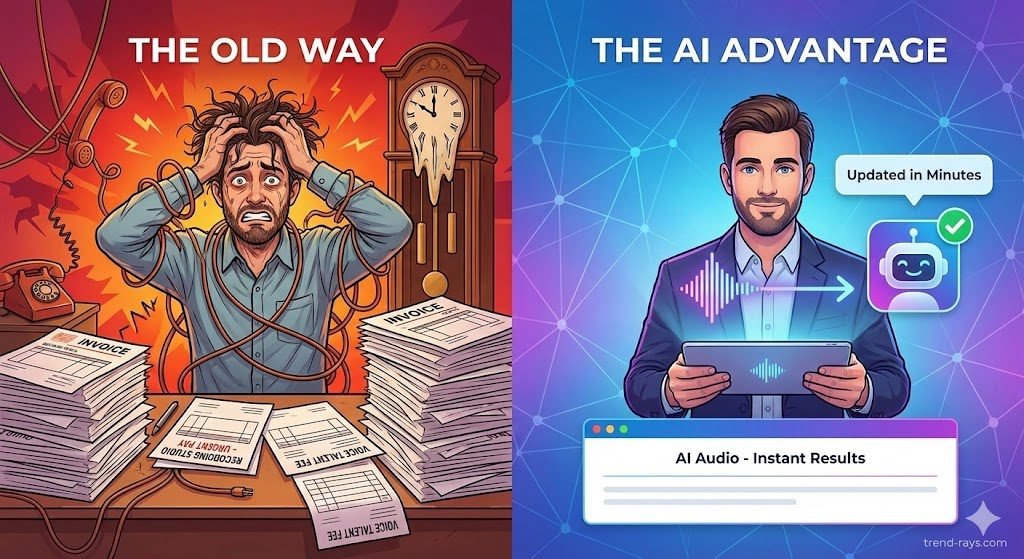
You love the reliability, speed, and lack of expensive monthly subscription fees that come with your legacy QuickBooks Desktop (Pro, Premier, or Enterprise). But while your accounting department is perfectly happy, your sales team is bleeding time.
Modern AI quoting software can generate instant, highly accurate estimates in seconds, helping contractors and B2B wholesalers close deals faster than ever. The problem? Intuit desperately wants you to upgrade to their cloud-based QuickBooks Online to get native AI features. If you refuse, you are left with a massive bottleneck: your sales reps are generating beautiful AI quotes in the cloud, and your accounting team is stuck manually re-typing that exact same data into your local hard drive to create an invoice.
You do not have to migrate to the cloud to fix this. In this guide, we break down exactly how to bridge modern cloud-based AI estimating tools with your on-premise QuickBooks Desktop to permanently eliminate double data entry.
What is AI Quoting Software (And Why Focus on QuickBooks Desktop?)
Traditional estimating requires a sales rep to manually look up current material costs, calculate labor hours, and type out a proposal. AI quoting software completely automates this. By using machine learning, these tools can instantly read a client’s email or scan a construction blueprint, cross-reference your historical pricing data, and generate a highly accurate, profitable estimate in seconds.
You might be wondering why this guide focuses entirely on the Desktop version instead of QuickBooks Online (QBO). The reality is that millions of established businesses—especially in construction, manufacturing, and wholesale—refuse to move to the cloud. QuickBooks Desktop handles massive, multi-decade inventory lists and complex job-costing far better than QBO. If your business has 15 years of complex financial history anchored to a local server, migrating to the cloud is a logistical nightmare. This guide exists because the industry has abandoned you to push QBO, and we are here to help you modernize your legacy system without being forced to upgrade.
The Core Problem: Cloud AI vs. On-Premise Accounting
Understanding why this integration is notoriously difficult is the first step to solving it.
Cloud-based AI quoting software (like QuoteWerks, ServiceTitan, or custom-built SaaS tools) lives on the internet. It uses open APIs to instantly talk to other cloud applications. Your QuickBooks Desktop, however, lives locally on your office server or a specific computer’s C: Drive. For obvious security reasons, cloud software cannot just reach through the internet and write data directly to your local hard drive.
To make these two systems talk, you need a secure “bridge” that fetches the cloud data and translates it into a language your local QuickBooks database understands. Here are the three best ways to build that bridge in 2026.
Before you build a bridge between the two, you must understand where each system excels:
- Cloud AI (Best for Speed and Sales): Cloud-based quoting is built for the modern sales team. It allows your reps to generate quotes on an iPad from a customer’s driveway, capture digital signatures instantly, and dynamically update pricing based on live supplier feeds.
- On-Premise Accounting (Best for Security and Complex Ledgers): Your local QuickBooks Desktop is a fortress. It is best for processing payroll, managing complex multi-assembly inventory, and keeping your core financial data safe from internet outages or cloud server breaches.
The Verdict: Do not try to make QuickBooks act like a sales tool, and do not try to make your AI quoting tool act like a CPA. Keep your quoting in the cloud for speed, keep your accounting on-premise for security, and use the integration methods below to securely sync the final numbers.

Method 1: The “Direct Native” Integration (Best for Non-Technical Users)
The absolute easiest way to sync your systems is to purchase an AI quoting tool that has already done the heavy lifting for you by building a native QuickBooks Desktop integration.
How it works: Instead of relying on web-based APIs, these software companies provide a small, lightweight desktop application (often called a “Sync Tool” or “Connector Agent”). You install this tiny program on the exact same computer that hosts your QuickBooks Desktop company file. When your sales team approves an AI-generated quote on their iPad out in the field, the cloud server pings your local Connector Agent. The agent securely opens QuickBooks in the background and pushes the quote in as an open Estimate or Sales Receipt.
Method 2: The QuickBooks Web Connector & No-Code Workflows (Best for Custom AI)
If your company has built a custom AI quoting bot, or if you are using a newer AI SaaS tool that only integrates with QuickBooks Online, you will need to use the official Intuit middleman: the QuickBooks Web Connector (QBWC).
How it works: The Web Connector is a free Microsoft Windows application provided by Intuit. It acts as a secure bouncer for your local company file.
- You connect your AI quoting software to an enterprise automation platform like n8n or Make (formerly Integromat) using standard webhooks.
- You configure the QuickBooks Web Connector to “ping” your automation platform every 15 minutes to ask, “Are there any new approved quotes?”
- If the answer is yes, the automation platform sends an XML file (the language QuickBooks speaks) down through the Web Connector, which safely injects the new invoice into your desktop file.

Method 3: AI-Assisted CSV / Excel Batch Imports (The Failsafe)
If webhooks and APIs fail—or if your IT security policies strictly forbid external internet traffic from touching your accounting server—you must rely on the bulletproof fallback: AI-assisted flat-file importing.
How it works: Every modern AI quoting tool allows you to export your daily won estimates as a CSV or Excel spreadsheet. The issue is that the columns in that export rarely match the strict columns QuickBooks Desktop requires for importing (e.g., matching the exact spelling of “Item”, “Description”, “Qty”, “Rate”). In 2026, you can use an AI data-mapping tool (like Easy-Insight or a custom GPT script) to automatically reformat your daily sales spreadsheet in seconds. Once formatted, you simply use the native File > Utilities > Import > Excel Files function in QuickBooks Desktop to batch-upload 100 quotes at once with zero manual typing.
Top 3 AI Quoting Tools That Actually Play Nice with QB Desktop
If you are currently evaluating software, skip the tools that only cater to the cloud. Here are three platforms that respect the on-premise ecosystem, along with exactly how to connect them.
1. QuoteWerks (Best for B2B, IT, and Wholesale)
QuoteWerks is the undisputed king of legacy integrations. While it utilizes modern cloud features and AI-assisted pricing feeds (pulling live prices from distributors like Tech Data or Ingram Micro), it was fundamentally built to talk to local databases.
- Key Features: It compares prices across all your vendors instantly, generates interactive PDF quotes, and allows customers to electronically sign and pay.
- How to Integrate it with QuickBooks Desktop:
- Download and install the QuoteWerks software on the same PC/Server that hosts your QuickBooks file.
- Open QuickBooks Desktop and log in as the Administrator in Single-User Mode.
- Open QuoteWerks, navigate to
Contacts > Setup Contact Manager, and select QuickBooks. - Go to
Tools > Export to QuickBooks. A pop-up will appear in QuickBooks asking for permission to grant QuoteWerks access. Select “Yes, always; allow access even if QuickBooks is not running.” - The Result: When a quote is won, QuoteWerks will now automatically push it into QBD as an Estimate, Sales Order, or Invoice.
2. ConX (Best for Construction, HVAC, and Trades)
Built specifically for the trades, ConX solves the most tedious part of contracting: the takeoff.
- Key Features: It uses AI to automatically scan uploaded blueprints and architectural drawings. It instantly counts materials (like the number of doors, linear feet of piping, or square footage of drywall) and generates a labor and material quote based on those AI extractions.
- How to Integrate it with QuickBooks Desktop:
- ConX focuses on keeping the takeoff process clean. Once your AI takeoff is converted into a final quote and approved by the client, you will navigate to the ConX integration dashboard.
- Because ConX is fully cloud-based, you will use a middleware connector (like their approved Zapier endpoints) paired with the QuickBooks Web Connector.
- You will map the ConX “Total Contract Value” and “Line Item Materials” directly to your QBD “Item List.”
- The Result: The approved blueprint estimate flows securely through the Web Connector and populates as a ready-to-bill invoice in your desktop software.
3. PandaDoc (Best for Custom API Workflows & Service Businesses)
If your business sells high-end services (like consulting, marketing, or commercial landscaping) where the proposal needs to look like a beautiful, multi-page magazine, PandaDoc is the premier choice.
- Key Features: It features AI-assisted document drafting, allowing you to automatically generate complex proposals based on CRM data. It also includes robust engagement tracking (notifying you the exact second the client opens the quote).
- How to Integrate it with QuickBooks Desktop:
- PandaDoc does not have a native desktop app, so you must use an automation platform like Make (Integromat).
- In Make, set your trigger as “PandaDoc: Document Completed/Signed.”
- Set your action as “QuickBooks Desktop: Create Invoice.”
- You will be prompted to download the Make configuration file and load it into your QuickBooks Web Connector on your server.
- The Result: The moment your client digitally signs the PandaDoc proposal on their phone, the Web Connector pulls that data and generates the final invoice on your local machine without anyone lifting a finger.

3 Fatal Mistakes to Avoid When Syncing AI to Legacy Software
Automating your accounting is incredible—until a bad sync corrupts your ledger. Avoid these three disasters:
- Mistake 1: Forgetting to Map Tax Codes. Cloud software often calculates regional sales tax dynamically. QuickBooks Desktop uses strict, pre-defined “Tax Items.” If your automation doesn’t explicitly map the AI’s tax rate to your specific QBD Tax Item, the sync will fail, or worse, underreport your tax liability.
- Mistake 2: Duplicating Customer Profiles. Always set your integration to “Match by Customer Name” or “Match by Email” before creating a new profile. Otherwise, “John Doe” and “John Doe LLC” will become two separate accounts, ruining your accounts receivable aging reports.
- Mistake 3: Skipping the
.qbbBackup. Never run your first test sync on your live company file. Always create a manual local backup (.qbb) and run your automation tests in “Single User Mode” until you confirm the data maps perfectly.

Conclusion & Next Steps
You do not have to abandon the security and speed of your legacy accounting system just to leverage modern artificial intelligence. By utilizing native desktop connectors or properly configuring the QuickBooks Web Connector, your sales and accounting teams can finally work in perfect sync.
Once your estimating and invoicing bottlenecks are cleared, you can begin automating the rest of your client interactions. Be sure to check out our complete 2026 guide on the 15 Best Custom AI Chatbots for Small Businesses to see how no-code AI can handle your front-desk customer service while your team focuses on fulfilling those new, automated orders.