Introduction
So, you have downloaded Voloco, but your recording sounds messy, off-beat, or robotic in the wrong way. Don’t worry—you are not alone. While Voloco is the best mobile recording studio out there, it requires a specific setup to get that “studio quality” sound. Voloco is great for original vocals. But if you prefer using popular tracks and your library is empty, read our fix for Instagram music not working.
In this guide, we will walk you through the exact settings used by professional mobile artists to get crisp vocals.
(Still looking for the right app? Check out our ranked list of the Best Auto-Tune Apps for You to see why Voloco is our #1 pick.)
Voloco Settings Cheat Sheet (Steal These Presets)
Don’t know where to start? Use these exact settings to get the sound of your favorite genres immediately.
Genre Style Effect / Preset Pitch Correction Compressor Reverb Trap / Rap Hard Tune (Natural) 100% (Max) ON Low (10-20%) Modern R&B Natural (Super Vocoder) 50-70% ON Medium (30-40%) Pop Vocals Big Chorus 60-80% ON High (50%) T-Pain Style Super Vocoder 100% (Max) ON Low Pro Tip: Always set your Key first! If the key is wrong, even the best settings will sound bad.
Step 1: The Golden Rule (Fixing the Lag)
Before you even press record, we need to address the biggest enemy of mobile recording: Latency.
Latency is the delay between when you sing and when you hear your voice in the headphones.
- The Mistake: Using Bluetooth headphones (AirPods, Galaxy Buds, etc.). Bluetooth introduces a 100-200ms delay. If you rap with this delay, you will naturally slow down, and your recording will be off-beat.
- The Fix: You must use wired headphones. If your phone doesn’t have a headphone jack, use a USB-C or Lightning dongle.
Pro Tip: If you must use Bluetooth, go to Voloco Settings and tap “Vocal Sync” after recording to manually drag your vocal track backward until it aligns with the beat. But for real-time monitoring, wires are non-negotiable.
Step 2: Setting Up Your Session
- Import Your Beat: Tap the
+button. You can choose a free beat from the “Voloco Beats” library (great for practice) or tap “Browse” to import a beat you downloaded from YouTube or a producer. - Wear Headphones: Voloco will not record properly without them (it prevents feedback loops).
Step 3: Mastering the “Key” and “Scale”
This is where 90% of beginners fail. Auto-tune works by snapping your voice to the nearest “correct” note in a scale.
- If the Key is Wrong: The app will snap your voice to the wrong notes, making you sound “wobbly” or “drunk.”
- How to Fix It:
- Tap the Key button (bottom left).
- Voloco usually detects the key of the beat automatically.
- Troubleshooting: If it sounds bad, tap “Major” or “Minor” to swap scales. If you know the key of your beat (e.g., C Minor), set it manually.
Step 4: Choosing the Right Effect
Voloco offers different “styles” of tuning. Here is what to use:
- Hard Tune (Natural): This is the classic “Trap” sound. It snaps your voice instantly. Use this for modern Hip-Hop.
- Natural (Super Vocoder): Use this for R&B or Pop. It keeps your natural vibrato while gently fixing pitch.
- Big Chorus: Automatically adds harmonies behind your voice. Perfect for hooks.
(Curious about how these effects work? Read our deep dive: Is Auto-Tune Cheating? The Truth About Pitch Correction.)
Step 5: Recording & Mixing
- Mic Position: Hold your phone microphone about 6 inches from your mouth. Too close = distorted bass. Too far = echo.
- Monitor: You will hear your voice with the effect live in your ears. This helps you sing with confidence.
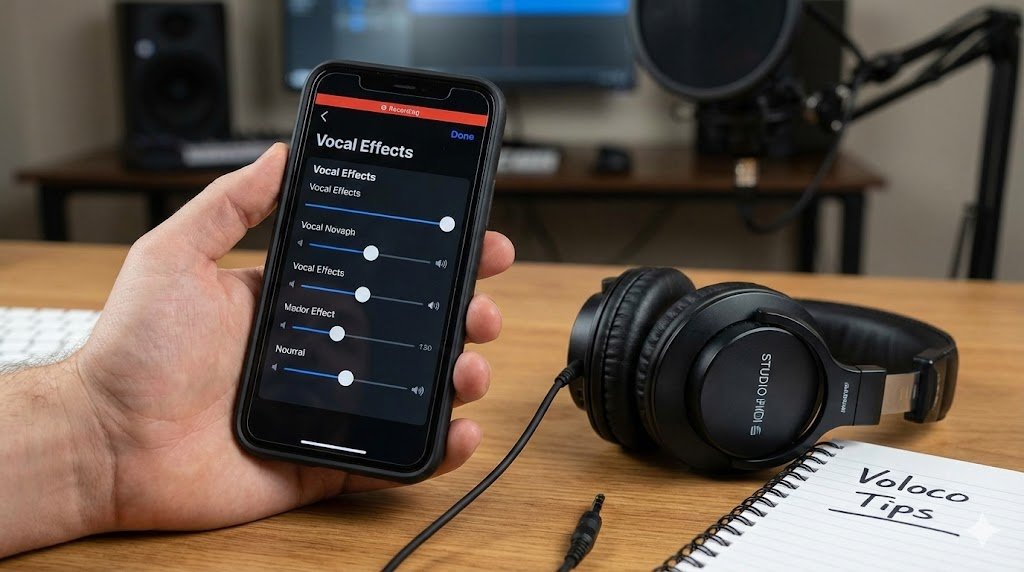
- The Mix: After recording, tap the Volume/Mixer icon.
- Compressor: Turn this ON. It makes your quiet whispers louder and loud screams quieter, giving you a balanced “radio” sound.
- Reverb: Add a little bit of reverb to make the vocals sit “in” the beat, not “on top” of it.
Conclusion
You don’t need a million-dollar studio. With wired headphones and the right Key settings, Voloco is a powerhouse.
Want to upgrade your sound further? Your phone’s built-in mic is good, but an external mic is better. Check out our guide on Best Budget Microphones for iPhone & Android.
Frequently Asked Questions About Voloco
Why is there a delay when I record in Voloco? The delay (latency) is usually caused by using Bluetooth headphones. Bluetooth has a natural lag of 100-200ms. To fix this, use wired headphones or go to Settings > Vocal Sync to manually align your vocals after recording.
Is Voloco completely free? Voloco is free to download and use for basic recording. However, specific premium beats and advanced effect presets (like the “Alien” or “Daft” effects) require a paid subscription.
Can I use Voloco on PC? Voloco is primarily a mobile app for Android and iOS. However, you can use the Voloco VST plugin if you are recording on a desktop DAW like FL Studio or Ableton.
How do I find the key of a beat for Voloco? If Voloco’s auto-detect fails, you can use a free app like “KeyFinder” or “Tunebat” online. Simply upload your beat there to get the exact Key and Scale (e.g., C Minor), then set it manually in Voloco.