In an era of endless Zoom calls, we often forget that the most critical business decisions still happen in physical rooms. However, bringing a laptop to an in-person meeting creates a physical barrier, and relying on memory often leads to lost action items.
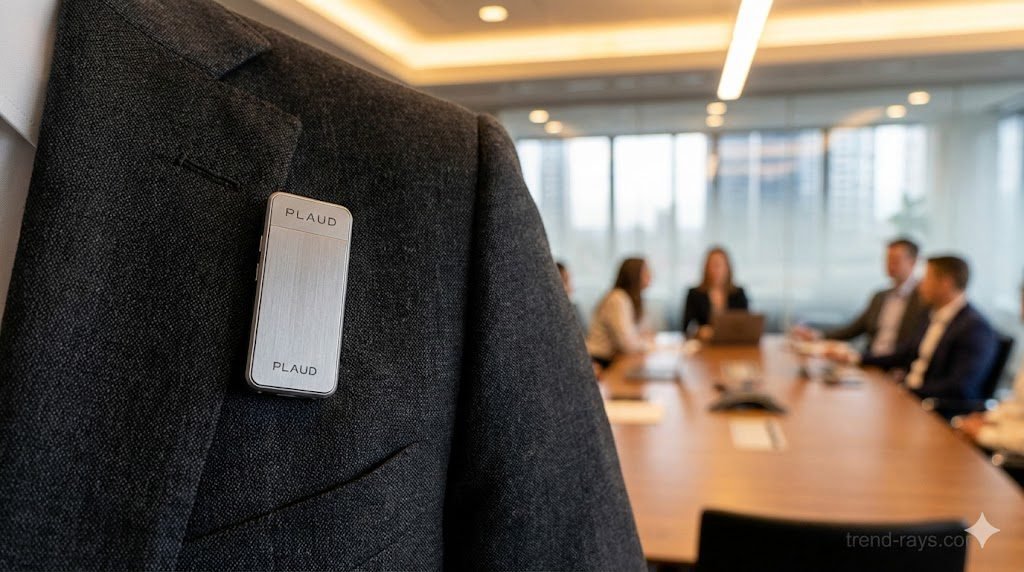
Enter the Plaud NotePin S. Released as the 2026 upgrade to the original NotePin, this ultra-lightweight (0.59 oz) wearable AI voice recorder is designed exclusively for offline, hands-free capture. It boasts 64GB of local storage, 20 hours of continuous battery life, and high-end data compliance (HIPAA, SOC 2, and ISO 27001).
But simply pressing “record” isn’t enough to get perfect meeting minutes. To get the most out of the NotePin S’s dual MEMS microphones and Plaud Intelligence LLMs, you need a structured workflow. Here is the definitive guide to recording, transcribing, and summarizing your offline meetings like a pro.
Meeting Summary Cost Calculator
Meeting Summary Cost Calculator
Discover exactly how much money your company wastes paying you to manually type, format, and distribute meeting notes instead of using offline AI transcription.
Step 1: The Physical Setup (Using the New “S” Button)
The biggest complaint about the original 2024 NotePin was its capacitive touch surface, which led to accidental recordings or missed meetings. The NotePin S solves this with a dedicated, tactile physical button featuring clear haptic feedback.
How to capture the best offline audio:
- Wearable Mode (1-on-1s): If you are at a coffee shop or a fast-paced networking event, use the magnetic clip to attach the NotePin S to your collar or lapel. Ensure it is not rubbing against a jacket zipper, as the microphones are highly sensitive.
- Boardroom Mode (Group Meetings): If you are in a large conference room with multiple speakers, take the NotePin S off your shirt and place it perfectly flat in the center of the table. Its omnidirectional microphones can clearly pick up voices from up to 5 meters (16 feet) away.
- Start Recording: Press and hold the physical button until you feel a distinct vibration and see the red status light. Your phone can stay in your pocket; the device is now recording directly to its internal 64GB drive.
Step 2: The “Multimodal” Whiteboard Hack
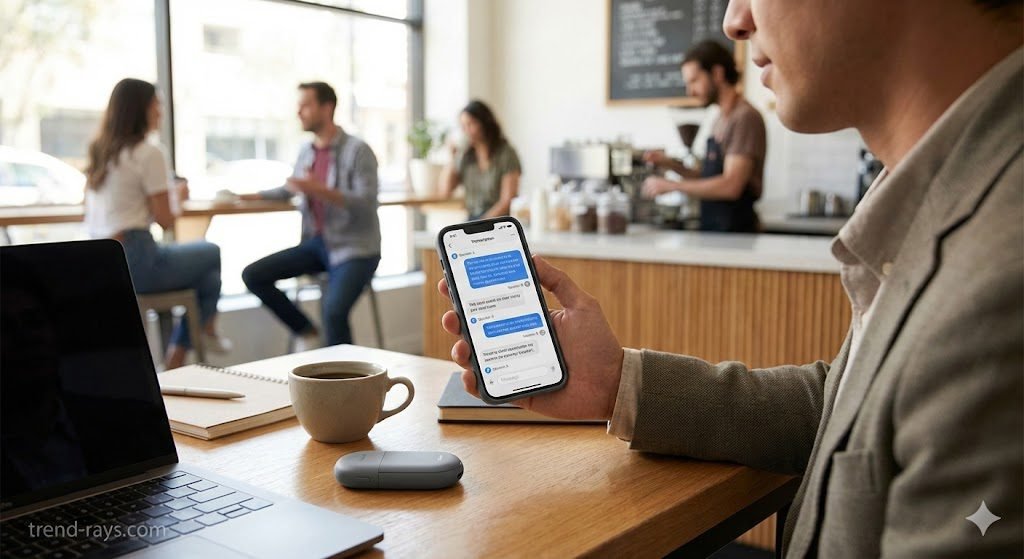
One of the NotePin S’s most powerful, yet underutilized, features is its multimodal syncing. Offline meetings frequently involve visual aids—someone draws a diagram on a whiteboard, or hands out a physical paper brief.
Audio cannot capture a chart. The Workflow: While the NotePin S is recording offline on your lapel, discreetly pull out your smartphone, open the Plaud App, and snap a photo of the whiteboard or slide. The app will automatically sync that photograph to the exact timestamp of your audio recording. When you review the transcript later, your AI summary will literally include the visual context of what was being discussed at that exact second.
Step 3: Syncing and Speaker Diarization
Once the meeting concludes, press and hold the tactile button again until you feel two vibrations. The recording has stopped.
- Transfer the Data: When you are back on Wi-Fi or a cellular connection, open the Plaud App. The NotePin S will connect via Bluetooth and seamlessly offload the encrypted audio file.
- Generate the Transcript: Tap the “Generate” button. Plaud supports 112 languages and features industry-leading Speaker Diarization.
- Label the Voices: The AI will automatically separate the text into “Speaker A,” “Speaker B,” and “Speaker C.” Take 30 seconds to rename these to your colleagues’ actual names (e.g., “Sarah,” “John”). The transcript is now a clean, readable script.
Step 4: Generating “Multidimensional” Summaries
You don’t just want a wall of text; you want insights. The 2026 Plaud Intelligence update introduced Multidimensional Summaries.
Instead of a generic paragraph, you can instruct the AI to view the meeting through a specific professional lens. Using the app’s 10,000+ templates, you can turn one 45-minute recording into:
- For the Project Manager: A strict bulleted list of Action Items and deadlines.
- For the Sales Rep: A summary of client objections and buying signals.
- For Leadership: A strategic, high-level overview of project risks.
You can then instantly export these formatted notes directly to Notion, Slack, or email.
💡 Pro-Tip: How to Bypass the 300-Minute Free Tier Limit
The Plaud NotePin S comes with a free “Starter Plan” that includes 300 minutes (5 hours) of cloud AI transcription per month. If you are a heavy user, you can upgrade to the Pro plan (1,200 minutes) for an annual fee.
But what if you run out of free minutes and don’t want to pay?
Because the NotePin S functions as a standalone USB mass storage device, you are never locked into their ecosystem.
- Plug the NotePin S directly into your computer using the included USB-C cable.
- Open the internal drive and drag-and-drop the raw
.MP3or.WAVaudio files onto your desktop. - Upload that audio file directly into ChatGPT Plus, Claude 3.5, or Apple Notes (which now features native audio transcription). You can prompt these AI models to transcribe and summarize your offline meeting entirely for free, bypassing the Plaud app’s paywall entirely.