Intro: It happens to the best of us. You pull your Jackery out of the garage after winter, plug it in, and… nothing. No input watts, no lights. The battery likely isn’t dead; it’s “asleep.” The BMS (Battery Management System) has entered protection mode. Here is the secret button combination to wake it up.
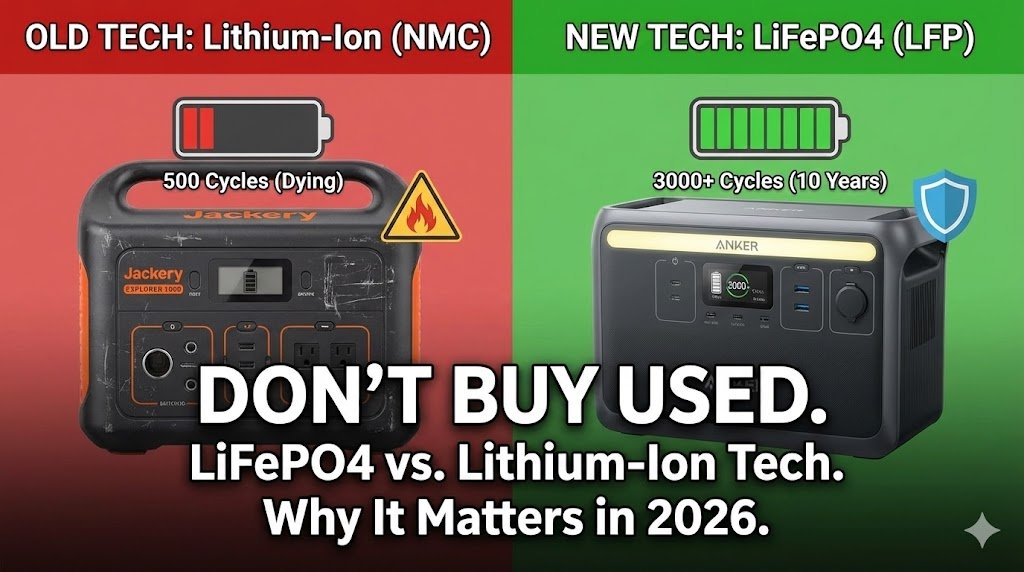
Tired of Jackery issues? See why we recommend LFP batteries in our LiFePO4 vs Lithium Guide.
Method 1: The “Soft Reset” (For Glitchy Screens)
Use this if the screen is on but stuck (e.g., shows 99% but won’t output power).
- Older Models (Explorer 240/500/1000 v1): Hold the DISPLAY button for 10 seconds.
- Newer Models (Explorer 1000 v2 / Plus): Hold the POWER button for 10-15 seconds until the screen flashes.
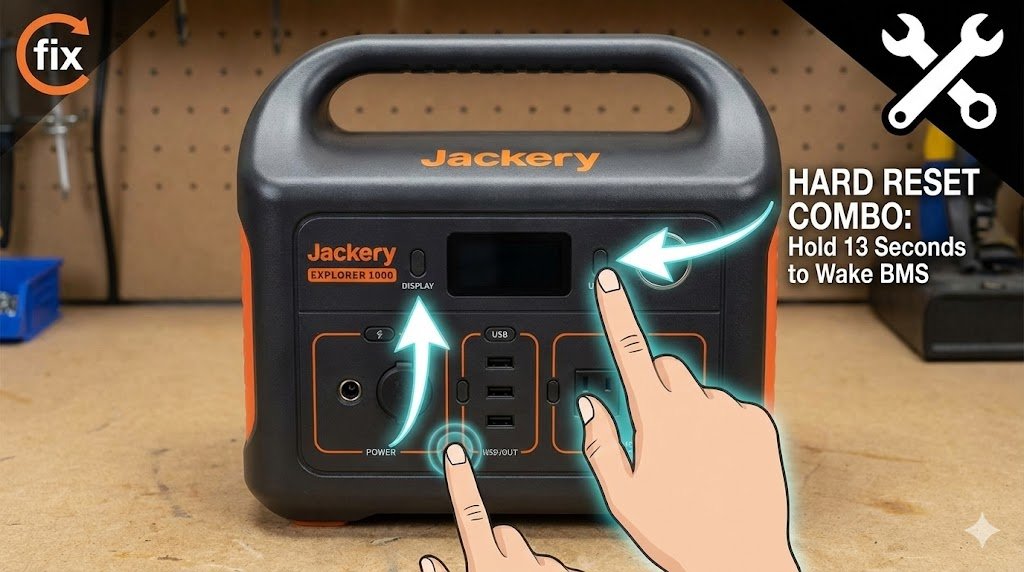
Method 2: The “Hard Reset” (For Dead Units)
Use this if the unit won’t turn on at all.
- The Combo: Hold the DISPLAY button + the USB button simultaneously.
- Time: Hold for 13 seconds (count slowly).
- Result: The screen should flicker and show a factory code or reset icon. Release the buttons.
Method 3: The “DC Input” Jumpstart
If the buttons don’t work, the battery voltage might be too low for the computer to boot.
- Plug in the Wall Charger.
- At the same time, plug in a USB-C charger (if your model supports dual charging).
- Leave it alone for 6 hours.
- Sometimes the BMS needs a trickle of power before it “accepts” a charge.
Warning: If you smell burning plastic or hear a popping sound, STOP. This is a hardware failure. Contact Jackery Support immediately.