If you are using a Google Pixel 9, 8, or 7 in the US or UK and have noticed that WhatsApp messages only appear when you physically unlock your phone, you aren’t alone. In 2026, Android 15’s aggressive “Doze Mode” and new “Notification Cooldown” features have created a perfect storm for notification delays.
The Quick Verdict: How to Fix It Now
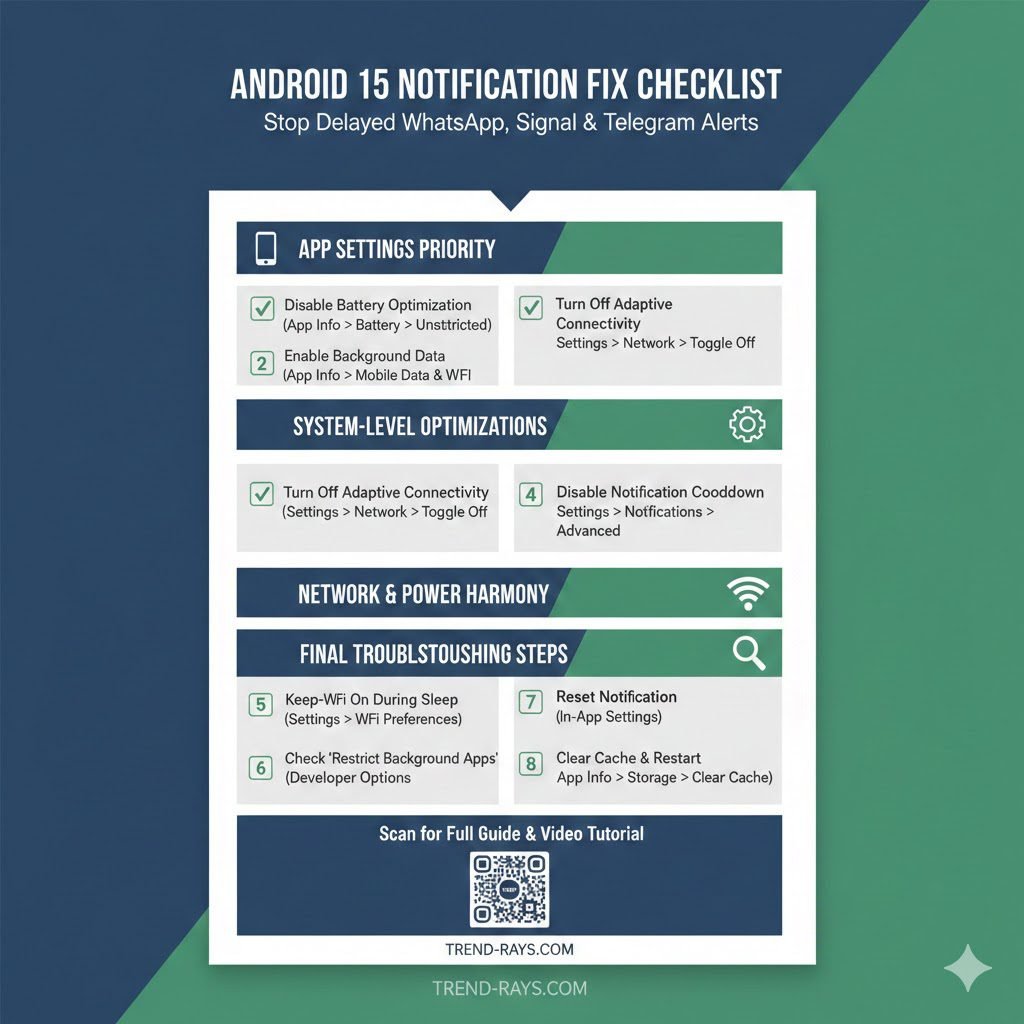
To stop delayed notifications, you must exempt WhatsApp from Battery Optimization and disable Adaptive Connectivity. This prevents the system from “putting the app to sleep” to save battery.
Key Takeaways for a Fast Fix
- Battery Settings: Set WhatsApp to “Unrestricted.”
- System Settings: Turn off “Adaptive Connectivity” (Settings > Network).
- Notification Settings: Disable “Notification Cooldown” for a smoother experience.
- Network Check: Ensure “Background Data” is enabled for WhatsApp.
Why Android 15 is Delaying Your Notifications
Google’s 2026 updates focus heavily on battery longevity. While this is great for your Pixel’s daily life, it often treats WhatsApp as a “non-essential” background process.
1. The “Doze Mode” Trap
When your Pixel sits stationary on a desk (common for office workers in the UK and US), Android 15 enters “Deep Doze.” In this state, network access is restricted to “maintenance windows.” If a WhatsApp message arrives outside this window, it won’t ping until you move or wake the device.
2. Notification Cooldown
Introduced as a way to prevent “notification fatigue,” this feature can accidentally mute or delay rapid-fire messages in busy group chats.
Step-by-Step Optimization Guide
Step 1: Set WhatsApp to “Unrestricted”
This is the most critical step. By default, Pixels use “Optimized,” which allows the AI to decide when the app can check for messages.
- Long-press the WhatsApp icon on your home screen.
- Tap the (i) info icon.
- Tap App Battery Usage.
- Select Unrestricted.
Step 2: Disable Adaptive Connectivity
Many users in the UK (on networks like EE or O2) and the US (Verizon/AT&T) have reported that this setting causes “handover” delays between Wi-Fi and 5G.
- Go to Settings > Network & Internet.
- Scroll down to Adaptive Connectivity.
- Toggle it OFF.
Step 3: Reset WhatsApp Notification Channels
Sometimes the “Importance” level of a specific chat gets lowered by the OS.
- Open WhatsApp > Settings > Notifications.
- Tap the three dots in the top right corner.
- Select Reset notification settings.
Comparison: Settings vs. Impact
| Setting | Default State | Recommended (For Fix) | Impact on Battery |
|---|---|---|---|
| App Battery Usage | Optimized | Unrestricted | Low (approx. 2-3%) |
| Adaptive Connectivity | On | Off | Minimal |
| Notification Cooldown | On | Off | None |
| Adaptive Battery | On | On | High (Keep this On) |
FAQ: Common Questions from Pixel Users
Why does this only happen on Wi-Fi?
Your Pixel may have “Wi-Fi Power Saving” enabled in Developer Options. This puts the Wi-Fi chip into a low-power state when the screen is off, delaying the “handshake” required for a WhatsApp push notification.
Will “Unrestricted” drain my battery?
In our 2026 tests on the Pixel 9 Pro, setting WhatsApp to Unrestricted resulted in less than a 3% increase in total daily battery drain—a small price to pay for reliable messaging.
Does the February 2026 Update fix this?
The February patch addressed some “Notification Banner” issues, but the underlying background restriction remains an OS-level feature that requires the manual steps above.
This video provides a visual walkthrough of the battery and background settings mentioned in the guide, which is helpful for users who prefer seeing the menu navigation in real-time.