You are in the middle of a serious conversation on WhatsApp. You put your phone down or hold it to your ear, the screen goes black, and 30 seconds later—Silence. The call drops.
When you unlock your phone, you see the dreaded “Reconnecting…” message.
Is it your WiFi? Is it a WhatsApp bug? No. It is your phone’s operating system “killing” the call to save 1% of battery life.
In this deep-dive guide, we explain the technical reason why modern Android versions (Android 12, 13, 14, and HyperOS) aggressively kill background calls and provide the official solutions recommended by WhatsApp and Google.
🔍 The Technical “Why”: Doze Mode & Wakelocks
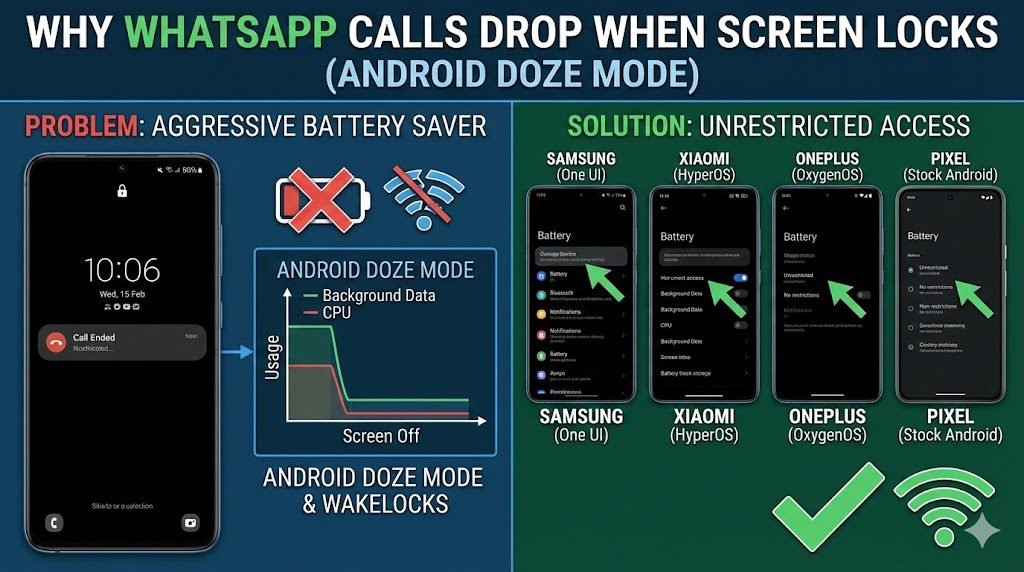
To understand the fix, you must understand the problem. Since Android 6.0 (Marshmallow), Google introduced “Doze Mode.”
When your screen turns off and the phone is stationary, Android cuts off network access and puts the CPU to “Deep Sleep” to preserve battery.
- Normal Behavior: Apps like WhatsApp use a “Partial Wakelock” to tell Android, “Hey, don’t sleep! I am on a call!”
- The Problem: Many manufacturers (Samsung, Xiaomi, OnePlus) have “Aggressive Battery Optimization” layers that ignore this plea. They force-kill the data connection even if a call is active.
According to WhatsApp’s Official FAQ on connection issues:
“Battery saving mode and third-party task killers can prevent WhatsApp from maintaining a connection… Please ensure WhatsApp is allowed to use background data.”
📱 Manufacturer-Specific Solutions (2026 Updated)
Every phone hides these settings in different places. Find your brand below.
1. Samsung (One UI 6.0+)

- Design – Experience cinematic scenes with stunning 6.6” FHD+ Super AMOLED display with Vision Booster, 16M Colors and 12…
- AI Enhancements – Circle to search – Music, Image or text. Enhance your photos with Camera enhanced by AI and Intelligen…
- Battery – Do more with long-lasting and massive 5000 mAh battery with 25W fast charging support. Last up to 2 days on a …

- DISPLAY – 16.83 Centimeters (6.6″Inch) Super AMOLED Display with 19.5:9 Aspect Ratio, FHD+ Resolution with 2340 x 1080 P…
- CAMERA – Nightography | Super HDR Video | 50MP (F1.8) Main Wide Angle Camera + 8MP (F2.2) Ultra Wide Camera + 5MP (F2.4)…
- INTERFACE & PROCESSOR – Latest Android 14 Operating System having One UI 6.1 platform with Samsung Exynos 1380 Processor…
Samsung phones have a feature called “Deep Sleeping Apps” that is notorious for killing calls.
- Step 1: Go to Settings > Apps > WhatsApp.
- Step 2: Tap Battery. Select “Unrestricted” (Default is “Optimized”).
- Step 3: Go back to Settings > Battery > Background Usage Limits.
- Step 4: Check “Deep sleeping apps”. If WhatsApp is there, remove it immediately.
- Step 5: Add WhatsApp to “Never sleeping apps”.
2. Xiaomi / Redmi / POCO (HyperOS & MIUI)
Xiaomi is the most aggressive call killer due to its strict RAM management.
- Step 1: Long press the WhatsApp icon > Tap App Info (i).
- Step 2: Tap Battery Saver.
- Step 3: Select “No Restrictions”. (Do not leave it on “Battery Saver Recommended”).
- Step 4: Go to App Info > Data Usage and toggle ON “Background Data”.
3. OnePlus / OPPO / Realme (OxygenOS)

- World’s first Snapdragon 8 Gen 5 – The OnePlus 15R unchains the soul of a dragon. Paired with LPDDR5X Ultra and UFS 4.1,…
- Tri-Chips for Ultimate Performance – With a blazing 165 Hz refresh rate, the OnePlus 15R features the OP Gaming Core eng…
- Impossibly Smooth – 165Hz Display – Witness the 165Hz, 1.5K flagship display perfected for lightning-fast visuals that f…

- Flagship-class Performance with MediaTek Dimensity 8350 Apex: Benchmark-breaking 1.47 million+ AnTuTu score and up to 12…
- 7100mAh – OnePlus’s Biggest Battery Ever with Bypass Charging: Up to 2.5 days of everyday use on a single charge – more …
- Dominate BGMI and CODM at up to 120 FPS: Ultra-fluid, lag-free gaming with high touch response rates gives you that spli…

- Flagship power made smarter with the Snapdragon 8 Gen 3 flagship – Up to 98% faster AI, 30% faster CPU compared to the O…
- Winning made smooth with maximum 120fps gaming experience, no input delay and zero-touch latency gameplay. We’ve tuned t…
- Our biggest battery ever – Press play all day, every day, with the cutting-edge 6000mAh battery. Driven by our next-gen …

- [Our longest battery ever, up to 54 hrs Music Playback]: A full charge Nord Buds 3r gives upto 54 hours of music playbac…
- [Titanium-coated Drivers]: The Nord buds 3r comes with 12.4 mm Titanium-coated Drivers to enjoy deeper bass and powerful…
- [2-mic AI Call Noise Cancellation]: – Powered by AI call noise cancellation algorithm and anti-wind design, our call noi…
- Step 1: Go to Settings > Battery > Advanced Settings.
- Step 2: Turn OFF “Sleep Standby Optimization”. (This setting cuts network when the phone thinks you are sleeping).
- Step 3: Go to Apps > Auto-launch and toggle WhatsApp ON.
4. Google Pixel / Motorola (Stock Android 14)
- Step 1: Go to Settings > Network & Internet > Data Saver. Ensure it is OFF.
- Step 2: Go to Settings > Apps > WhatsApp > Battery and choose Unrestricted.
🛑 The “Keep Wi-Fi On During Sleep” Myth
You might read old guides telling you to set “Keep Wi-Fi on during sleep” to “Always.” Fact Check: Google removed this setting in Android 11. Modern Android handles this automatically. If your WiFi is cutting out, it is likely due to your router’s “DTIM Interval” or your phone’s specific “Battery Saver” mode, not this missing setting.
✅ Official WhatsApp Troubleshooting (The “Checklist”)
If the battery settings above didn’t fix it, WhatsApp officially recommends checking your network stability. Here is the checklist:
- Toggle Airplane Mode: Turn it ON for 10 seconds, then OFF. This forces your phone to re-register with the cell tower/router.
- Reset Network Settings: (Warning: This forgets saved WiFi passwords). Go to Settings > System > Reset Options > Reset Wi-Fi, mobile & Bluetooth.
- Check Background Data: Go to Settings > Apps > WhatsApp > Mobile Data & Wi-Fi. Ensure “Background data” and “Unrestricted data usage” are both enabled.
🚀 Advanced Tip: The “Lock App” Trick
If you have a very stubborn phone (like some entry-level models with low RAM), the system might be killing WhatsApp simply to free up memory.
The Fix:
- Open WhatsApp.
- Swipe up to open your Recent Apps (Multitasking) menu.
- Tap the WhatsApp icon at the top.
- Select “Lock this app” or “Keep Open”.
- A small padlock 🔒 icon will appear. Your phone will now prioritize keeping WhatsApp alive in the RAM, even when the screen is off.
🔗 Solving Other WhatsApp Annoyances
- Is the call connecting but dropping immediately? You might have a broken link issue. Check Fixed: WhatsApp Click to Chat Not Working.
- Call quality is bad? It might not be the network. See our guide on Best Budget Microphones for Mobile Recording.
- Need to message a new number quickly? Don’t save it. Use our WhatsApp Direct Link Generator.