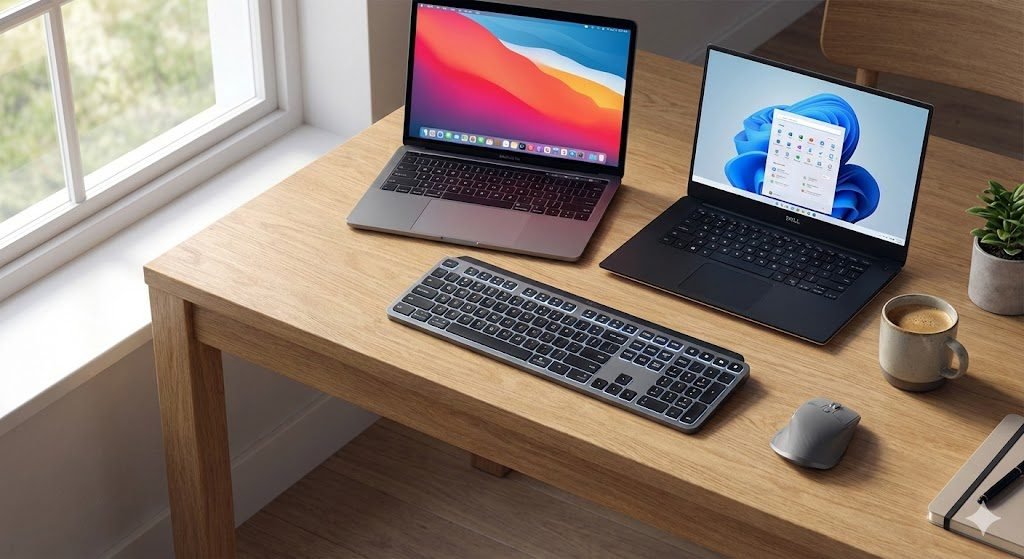
Wall-mounted Smart TVs and minimalist streaming sticks like the Chromecast with Google TV have created a new problem for living room setups: a severe lack of USB ports. If you are tired of juggling USB receivers, whether you are trying to type on a living room TV or setting up multi-device keyboards like the Satechi EX1 for your home office, mastering pure Bluetooth connections is essential.
If you want to use a wireless keyboard to search YouTube, browse the web, or navigate streaming apps, you can no longer rely on plugging in a clunky USB receiver. You must use a direct Bluetooth connection.
However, connecting a Logitech keyboard via pure Bluetooth without its proprietary Unifying or Logi Bolt receiver confuses thousands of users daily. The standard pairing process often results in the TV failing to discover the keyboard entirely. Here is the definitive, data-driven guide to putting your Logitech keyboard into pure Bluetooth mode and connecting it to any Samsung, LG, or Android Smart TV.
Does Your Keyboard Actually Have Bluetooth?
Before you dig into your TV settings, we must address the number one reason Logitech pairings fail: Not all wireless keyboards have Bluetooth. According to home theater troubleshooting forums, the most common mistake involves the highly popular Logitech K400 and K400 Plus (the keyboards with the built-in trackpad).
Crucial Fact: The Logitech K400 series operates exclusively via a 2.4GHz RF radio frequency. It does not have a Bluetooth chip inside it. If you have a K400, you must use the USB dongle. It is physically impossible to connect it via Bluetooth.
If you have a dual-connectivity model—such as the K380, K780, MX Keys, or Pebble Keys—you are in luck. These devices feature both a USB receiver and direct Bluetooth. Here is how to activate it.
Step 1: Force the Logitech “Easy-Switch” Bluetooth Mode
If you simply flip the power switch to “On,” the Logitech keyboard will spend 60 seconds searching for its missing USB dongle and then go to sleep. You must force it into Bluetooth pairing mode.
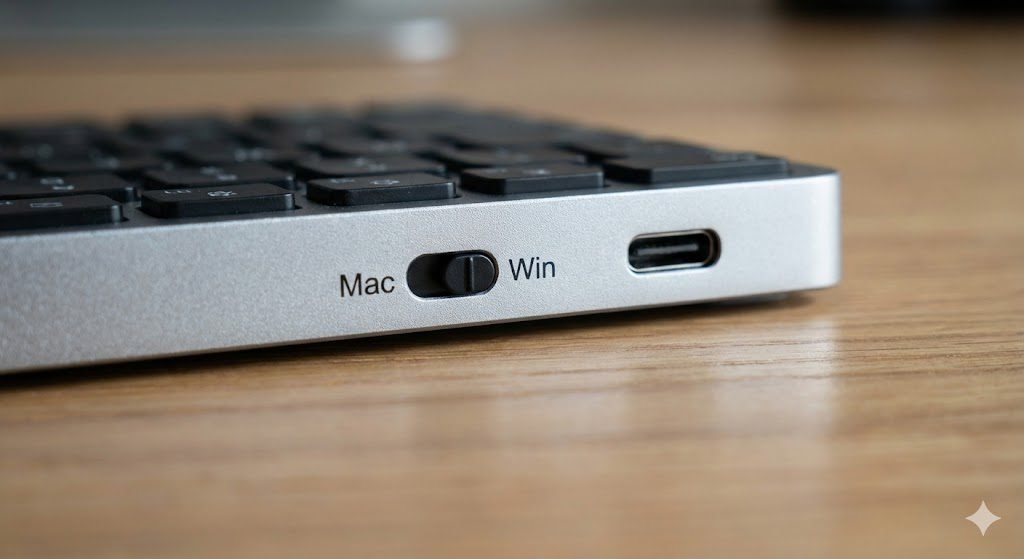
- Power On: Slide the switch on the side or top of the keyboard so the background color shows green.
- Locate the Easy-Switch Keys: Look at your top function row (F1, F2, F3). These keys usually feature small computer/phone icons.
- The 3-Second Hold: Press and hold one of the Easy-Switch keys (e.g., F1) for exactly 3 seconds.
- The Rapid Flash: The LED light above the key will transition from a slow pulse to a rapid, aggressive flash. Your keyboard is now broadcasting a pure Bluetooth signal and ignoring the missing USB receiver.
Step 2: Connect to Your Specific Smart TV
With your keyboard flashing rapidly, navigate your TV menus using your standard remote. Because TV operating systems vary wildly, follow the specific path for your brand.
📺 For Samsung Smart TVs (Tizen OS)
Samsung hides its Bluetooth peripheral menus deep within its device manager.
- Press the Home button and navigate left to the Settings gear icon.
- Go to General > External Device Manager.
- Select Input Device Manager > Bluetooth Device List.
- Your TV will scan the room. Select your Logitech keyboard (e.g., “Logi K380”) when it appears.
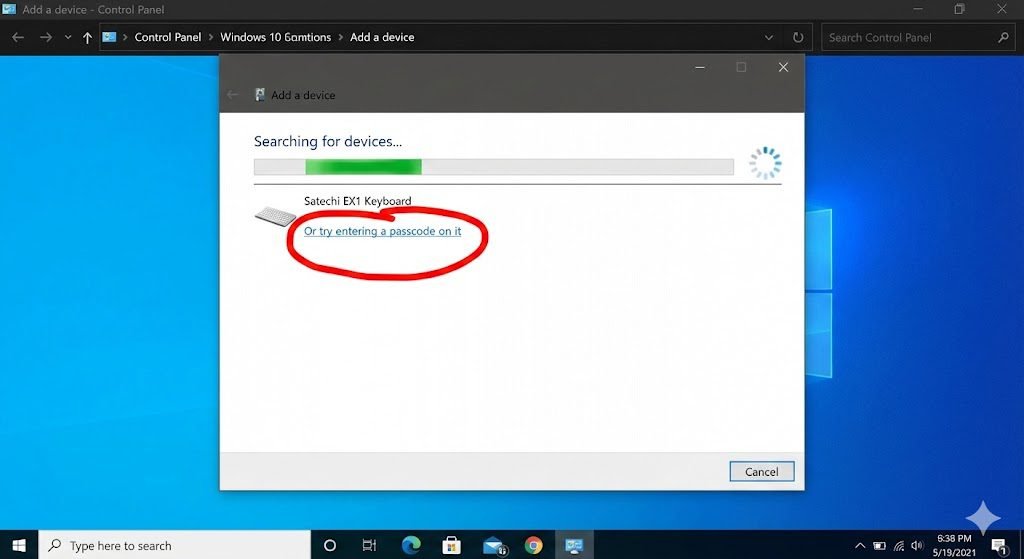
- The Security PIN: A 6-digit PIN code will appear on your TV screen. Type this exact code blindly onto your Logitech keyboard and press
Enter.
📺 For LG Smart TVs (WebOS)
LG has streamlined its peripheral connections in recent WebOS updates.
- Press the Settings (Gear icon) on your Magic Remote.
- Navigate to General > Devices.
- Select External Devices > Connect Bluetooth Controller.
- Select your Logitech keyboard from the “Available Devices” list and input the pairing PIN if prompted.
📺 For Android TV / Google TV (Sony, TCL, Chromecast)
Statistically, Android TV accounts for a massive share of the Western smart TV market. This process applies to Sony Bravia, TCL, Nvidia Shield, and Chromecast devices. Android TV offers a massive ecosystem of apps, but just like when you are trying to limit visual distractions on your Android devices, navigating that clutter requires the right tools and shortcuts.
- Go to the home screen and click the Settings gear in the top right corner.
- Scroll down to Remotes & Accessories.
- Click Pair accessory or Add Bluetooth device.
- The screen will begin searching. Select your Logitech device to complete the pairing.
Troubleshooting: Why Are Only the Numbers Working?
A frequent statistical anomaly reported on Reddit involves users successfully pairing their Logitech keyboard to a YouTube app on an LG or Samsung TV, only to find that the letter keys do not work, but the number keys do.
This is not a keyboard defect; it is a limitation of the TV’s app software. Many native Smart TV apps (particularly older versions of YouTube and Netflix) hardcode their on-screen keyboards to only accept directional arrow inputs from a standard remote.
- The Fix: If an app refuses to accept alphabetical typing, you must use your TV’s built-in web browser to access the site instead of the dedicated app, or utilize the directional arrows on your keyboard to navigate the on-screen letters.
Now that your minimalist TV setup is complete and free of clunky USB dongles, you might be looking to upgrade your home office security without monthly fees using the latest local-storage cameras.