The creator economy is booming, but if you run a faceless YouTube channel, you already know the most soul-crushing part of the job: hunting for B-roll.
Spending six hours scrubbing through expensive stock footage sites just to find a clip of a “stressed man looking at a laptop” is the fastest way to burn out. Worse, because every other faceless channel uses the exact same Envato or Storyblocks libraries, your videos end up looking like cheap clones.
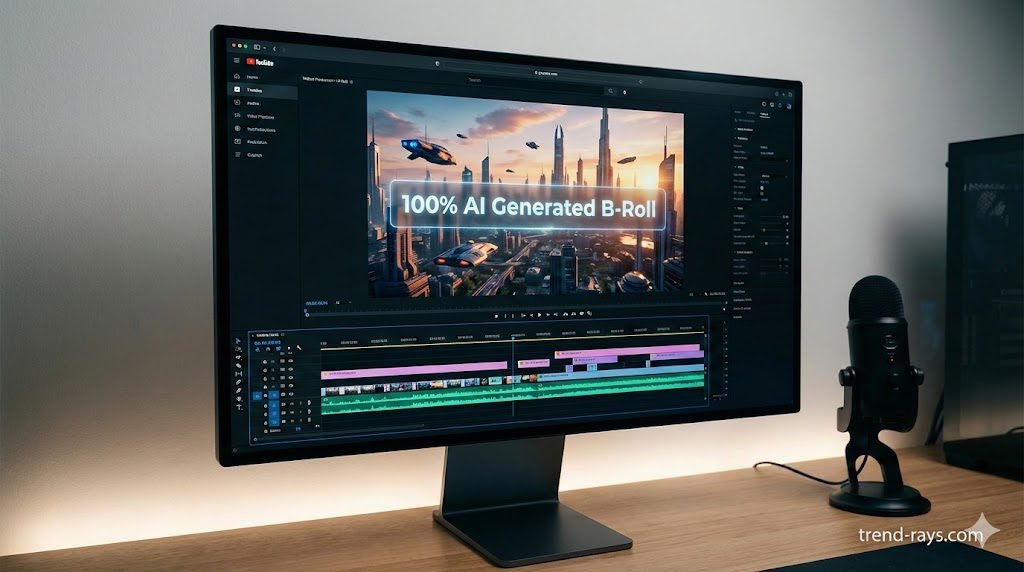
In 2026, the game has completely changed. You no longer have to search for B-roll; you can simply generate it.
By using free AI B-roll video generators, solo creators can instantly create custom, cinematic footage or automate the entire video creation process from a single text prompt. Here is the definitive guide to the best freemium AI video tools available for faceless YouTube channels in the US, UK, and Canada.
Finding high-quality B-roll is a crucial first step, but putting the final video together requires the right editing software. If you want to automate your scriptwriting, voiceovers, and visuals all at once, check out our guide to the 5 best AI video SaaS tools for faceless YouTube channels.
Why AI B-Roll is Killing Traditional Stock Footage
If you want your faceless channel to be monetized by the YouTube Partner Program, you have to be careful. YouTube’s algorithm actively demonetizes channels that post “reused content.” If you stitch together the exact same free Pexels clips as 10,000 other creators, YouTube will flag your channel as low-effort spam.
AI solves this instantly.
- 100% Unique: Every time you prompt an AI video generator, it creates a clip that has never existed before, completely bypassing YouTube’s reused content filters.
- Hyper-Specific: Instead of settling for a generic clip of a car, you can prompt the AI for “a cinematic drone shot of a red sports car driving through a neon-lit cyberpunk city in the rain.”
- Cost-Effective: Traditional stock footage subscriptions cost upwards of $30/month. The AI tools below offer generous free tiers that let you generate high-quality B-roll for zero upfront cost.
Top 4 Free AI B-Roll Generators for Faceless Channels
Note: While these tools offer “free forever” plans or generous free trials, their free tiers usually include a small watermark or limit the resolution to 720p/1080p. They are perfect for testing before upgrading to a paid tier.
1. InVideo AI: Best All-in-One Faceless Automator
InVideo AI is currently the undisputed king of the faceless YouTube space. It doesn’t just generate B-roll; it generates the entire video.
- How it Works: You type a prompt like, “Create a 3-minute YouTube video about the history of the Roman Empire. Make the tone dramatic.”
- The AI Advantage: The AI writes the script, generates a realistic human voiceover, and automatically pulls incredibly high-quality AI B-roll and premium stock footage to match the narration perfectly.
- The Free Plan: You get 10 minutes of AI generation per week. The catch is that free exports include an InVideo watermark.
Step-by-Step: Creating a Faceless Video with InVideo AI
To prove how fast this workflow is, here is exactly how a solo creator can generate a complete, B-roll-heavy video in under 5 minutes.
- Open the Prompt Box: Log into InVideo AI and select the “YouTube Video” workflow.
- Write a Detailed Prompt: Don’t be vague. Type: “Create a 2-minute video about the top 5 personal finance rules for 2026. Use a confident, male American voiceover. Make the B-roll visually engaging with cinematic shots of modern cities, graphs, and banking apps. Add soft, lo-fi background music.”
- Review the Magic: Click generate. The AI will spend about 2 minutes writing the script and pulling the exact B-roll needed to match the spoken words.
- Command the Editor: If you don’t like a specific B-roll clip, you don’t have to manually search for a new one. Simply type in the magic command box: “Change the B-roll in scene 3 to a hyper-realistic AI shot of a bear market graph.” The AI replaces it instantly.
2. Runway (Gen-3 Alpha): Best for Cinematic, Custom Clips
If you already have a script and voiceover, but just need a few mind-blowing, custom B-roll shots that no stock library possesses, Runway is the industry standard.
- How it Works: Runway is a pure text-to-video and image-to-video generator. It creates Hollywood-level cinematic motion from a single sentence.
- The AI Advantage: The realism and camera control are unmatched. You can tell the AI exactly how to move the virtual camera (e.g., “slow pan right,” “fast zoom in”) to match the pacing of your YouTube video.
- The Free Plan: Runway offers a set amount of free credits upon sign-up, allowing you to generate several 4-second to 10-second clips for free before needing a subscription.
Step-by-Step: Generating Custom Cinematic Shots with Runway (Gen-3 Alpha)
Runway is not an all-in-one video editor; it is a dedicated B-roll generation engine. You use this when you need a highly specific, 5-second cinematic shot that you cannot find anywhere else.
- Select the Gen-3 Alpha Model: Log into the Runway dashboard and select the “Text to Video” (Gen-3 Alpha) generator.
- Set Your Parameters: Before typing, ensure your aspect ratio is set to 16:9 (widescreen) for standard YouTube videos, rather than 9:16 for Shorts.
- Write a “Director” Prompt: Do not just type “a car.” Write like a Hollywood director. Type: “Wide establishing shot, low angle. A vintage Porsche driving down a rainy, neon-lit cyberpunk street at night. Cinematic lighting, slow pan to the right, hyper-realistic, 4k resolution.”
- Generate and Export: Click generate. The AI will take a minute or two to render a high-fidelity, 5-to-10-second MP4 clip. Download this file and drop it directly into your main video editing software (like Premiere Pro or CapCut) over your voiceover.
3. Pictory: Best for Repurposing Scripts and Blogs
If you are a fast writer and already have a massive backlog of blog posts or written scripts, Pictory is the fastest way to turn those words into B-roll heavy YouTube videos.
- How it Works: You paste your written script into the dashboard. Pictory’s AI scans your text for keywords and automatically stitches together a timeline of relevant B-roll clips.
- The AI Advantage: It automatically generates highly accurate, stylized on-screen captions (which are vital for viewer retention on YouTube Shorts and TikTok).
- The Free Plan: Pictory offers a free trial that lets you create your first 3 video projects (up to 10 minutes each) completely free.
Step-by-Step: Turning a Script into Video with Pictory
Pictory is designed for speed. It is best used when you have already written your script in a Word document and need the AI to instantly find the B-roll to match it.
- Choose “Script to Video”: On the Pictory dashboard, select the “Script to Video” workflow block.
- Paste and Format Your Text: Paste your entire written script into the text box. Break the text up into short sentences; every line break tells Pictory to switch to a new B-roll clip, keeping the visual pacing fast.
- Select Your Template: Choose a caption template (how you want the subtitles to look on screen) and select the 16:9 aspect ratio.
- Review the Storyboard: Pictory will automatically split your script into “Scenes” and assign a relevant AI or stock B-roll clip to each scene based on the keywords it detected. If it picked a clip of a dog when you wanted a wolf, simply click the “Visuals” tab, type “wolf,” and click to instantly swap the clip.
4. Fliki: Best for Fast Voiceovers and Syncing
Fliki bridges the gap between AI voice generation and video creation, making it a favorite for “Reddit Story” or “Scary Story” faceless channels.
- How it Works: It uses a unique, block-based editor. You paste your script line by line. For every line of text, you can select a different AI B-roll clip to play in the background.
- The AI Advantage: Fliki boasts some of the most realistic, emotion-driven AI voices on the market. It perfectly syncs the background B-roll to the exact pacing of the voiceover.
- The Free Plan: Generous free tier allowing 5 minutes of audio/video content per month (watermarked and limited to 720p).
Step-by-Step: Syncing Voice and B-Roll in Fliki
Fliki uses a unique “block-based” timeline, making it incredibly easy for beginners to perfectly sync their background footage to an AI voiceover without dealing with complex audio waveforms.
- Create a New File: Click “New File,” name your YouTube video, select “Video” format, and choose your target language and dialect (e.g., English – US).
- Choose Your AI Voice: Click on the voice name in the first block. Browse the library to select an ultra-realistic voice that fits your niche (e.g., a deep, serious voice for true crime, or an upbeat voice for tech reviews).
- Build Your Blocks: Paste your script line-by-line into the text blocks.
- Auto-Pick Media: To the right of each text block, click the image thumbnail. You can choose to use Fliki’s “Auto-pick video” feature, which uses AI to instantly select B-roll matching the text, or use their AI image generator to create a custom visual for that specific sentence. Export the final rendered video.
Frequently Asked Questions (FAQ)
1. Can I still monetize a faceless YouTube channel using AI in 2026?
Yes. Following YouTube’s major “Inauthentic Content” policy updates in late 2025/2026, you can absolutely monetize AI videos, provided they offer unique human value. YouTube demonetizes mass-produced, repetitive “slop” (like low-effort templates). If you use AI to generate custom B-roll to accompany an original, well-researched script that educates or entertains, you are fully eligible for the YouTube Partner Program (YPP).+1
2. Do I have to label my video as “AI-Generated” on YouTube?
It depends on the content. YouTube requires you to check the “Altered or Synthetic Content” disclosure box only if the AI generation is highly realistic and could be mistaken for a real person, place, or event (e.g., a deepfake or a realistic synthetic news broadcast). Animated B-roll or obviously stylized AI art does not usually require the label.+1
3. Are AI-generated B-roll clips copyright free?
Yes, but with a caveat. You have the commercial right to use the clips generated by platforms like Runway or InVideo in your monetized videos. However, under current US and UK law, purely AI-generated works cannot be copyrighted. This means you can use the footage, but you cannot legally stop someone else from downloading your video and reusing that specific AI clip.
4. Will YouTube penalize my channel for using AI voices?
No, YouTube does not ban AI voices. However, the algorithm penalizes low-effort content. If you use a robotic, unedited AI voice reading a generic Wikipedia summary over static images, it will likely be flagged as “repetitious content.” Using high-quality AI voices (like ElevenLabs or Fliki) combined with dynamic, changing AI B-roll keeps viewer retention high and satisfies monetization rules.
5. How do I remove the watermark from free AI video generators?
Almost all AI video generators (like InVideo and Pictory) apply a watermark to videos exported on their “Free Forever” tiers. To legally remove them, you must upgrade to their entry-level paid subscription. Pro-tip: If you are just starting out, leave the watermark! Most viewers do not care as long as the video’s story is highly engaging.
6. Which AI tool is best for YouTube Shorts and TikTok?
For vertical, short-form content, InVideo AI and Pictory are the strongest choices. They both feature 9:16 aspect ratio templates and automatically generate the fast-paced, bold on-screen captions that are essential for retaining viewers on Shorts and TikTok.